Technical Release Notes Version 25.04 SP1 January 15, 2026
Technical Release Notes Version 25.04
Technical Release Notes Version 25.03 SP1 October 9, 2025
Technical Release Notes Version 25.04 SP1 January 15, 2026
Overview
This release addresses several technical issues.
Build details
Build version: 25.04.106 Cumulative Service Release 1
Release date: January 15, 2026
What’s New
Adapter
Added new LinkLive Adapter data source.
What's Fixed
Report > Published schedule > Published event summary > Enterprise Model- Summary Service not removing shifts when moved to a different date.
Settings > People & agent templates > People > Current list > Personal profile - MT Bug in People alpha selector (letter picker) where letters that include associated names are grayed out.
Working accrual calendar: Not able to import accrued hours from Excel import; getting error "Object cannot be cast from DBNull to other types.”
Working schedule
When generating the schedule using “what if” scenario schedule templates, the Manage agent schedules report is not loading any information on the agent card.
When generating the schedule using “what if” scenario agent template, clicking on any generated schedule instance is not loading the report and is throwing an error.
Known / Deferred Issues
Adherence Summary Report: When filtering the Schedule Adherence Summary Report by Adherence Percentage, the month label in the table changes and the label is not correct.
Technical Release Notes Version 25.04
Build version: 25.04.76
Release date: December 18, 2025
What's Fixed
Working Schedule: Weekly schedules by Activity - returning 404 error and failing to load the agent names.
Enterprise Model: When creating child activities and adding the "Number of available seats" then click Save and add another, then return and edit the activity, the "Number of available seats" defaults to zero.
Published event summary report: When agents are in a different time zone and request partial day time off, hours of start and end time are not correct when viewing report in agent’s time zone.
Self-service (ASSK): Requests that include midnight extend the event into the next day.
Settings > Data sources: If Time zone selection is set to local time zone, the Device time zone is removed after saving Data source properties connection.
Schedule bids: Agent View | Schedule > Schedule bids. When you select list view, there is no button to go back to card view.
Schedule bids: Agent view | Show item details | Item Settings | Current rank slider is not showing.
Schedule bids: Bid Inventory | Import from working schedule. After selecting the agents, when you click on the agent’s name the page is broken.
Plan> Schedule transactions: When reviewing the description of a response transaction, the information for agent compatibility analysis and labels are missing.
Import people from Excel: Importing from an Excel spreadsheet that has been edited in Google Sheets causes duplicate agents to be imported.
Add new person: When adding a new person with the role of superuser, admin, scheduler, or supervisor without an email address then clicking Save and add another there is a system error.
ASAP: Delete events notifications not sending.
ASAP: Schedule > ASAP Calendar > Decrease Available Staff > Plan a Meeting. Generate candidate start times not being saved.
ASAP: OT/VTO spelling/grammar changes.
Special Calendar Events: When manually selecting the dates, the calendar defaults to 2022 not the current year.
Known / Deferred Issues
Schedule transactions: Agent view | Schedule page | The hyperlink text for the Schedule Transactions tile says `null`.
Import people from data source: Unable to import people from the data source if the name contains an apostrophe.
Reports: 5.1SP2 & 25.x | Report > Contact volume & a few Working Forecast Reports | Month labels for some months are missing, as well as year label.
Reports: Published schedule > Published event summary > Enterprise Model- Summary Service not removing shifts when moved to a different date.
ASAM: Automated Schedule Attendance Monitor not able to do soft check-ins even when Service is running. Restarting the services fixes the issue.
ASAP OT/VTO: Voluntary time off notification message incorrect when agent acceptance is required (states schedule has changed).
ASAP: Copy Plan Settings - When copying plan settings and you uncheck Include all eligible participants, the plan does not honor that selection and includes them all.
ASAP: Report is using GMT for time.
ASAP customization: Unable to customize for 1 hour of VTO.
ASAP customization: Display of min/max hours does not need to be in seconds (and a larger font size, please).
ASAP customization: Min/max hours only visible the first time you click Customize.
AI Anomaly detection: The anomaly detection hyperlink is missing the ending period (.)
Working Forecasts: The breadcrumbs | cookie trail links are missing on the forecast worksheet page.
As Designed
ASAP Overtime: Even though overtime limitations are set, an agent can opt to keep their preferences blank and accept the full allotted time, bypassing the time limitation.
ASAP VTO: The new partial acceptance feature is using the start & end times of the VTO to create its hour limitations drop down when it should only be using early departure behavior.
What's New in 25.04
Overview
CommunityWFM 25.04 includes:
AI Anomaly detection
When enabled, CommunityWFM will monitor incoming data hourly, daily, or weekly using data-driven statistical methodology to detect outlier contact volume, AHT, and calls abandoned. If detected, selected roles receive a notification.
Anomaly detection can help predict staffing needs, identify times of spikes or troughs in call volume (system failure; fraudulent activity), and analyze campaign performance.
New Service
There is a new tile for Anomaly Detection Service.
Settings > Application settings > Administrative settings > Services
If not enabled here, the anomaly detection service will not work.
ASAP Partial Acceptance
If designated in the ASAP setup, agents have the option to accept part of a VTO or overtime shift. You control whether to allow partial acceptance and can set minimum and/or maximum amounts of time to accept.
Agent view
OT and VTO ASAP
When configured to allow partial acceptance, agents will see a Customize button on the acceptance page.
After clicking (1) Customize, the minimum and/or maximum numbers appear along with the fields to select the number of hours they would like to accept (2), update the response to view the new shift start/end times in the table (3), then accept or decline the offer (4).
Appendix 1 AI Anomaly Detection
Enable the AI anomaly detection service
First, enable the service by navigating to Settings > Application settings > Administrative settings > Services and click Anomaly Detection Service.
Service enabled? Select Yes to enable AI anomaly detection to run in the background.
Impersonated user id: Select from the list of supervisor or higher people. There must be a designated user ID for the service to run.
Set up the AI Anomaly Detection
Navigate to AI > Anomaly detection.
Select the activity from the Enterprise Model. You will have the option to include the same settings for subordinate activities.
The alert banner at the top reports whether there are current anomalies detected and if detected, a list of the anomalies.
Follow the steps-to-success to set up anomaly detection.
Setup > Basic properties
- Select Yes to enable the anomaly detection.
- Select one or more frequencies: hourly (start of each hour), daily (start of corporate day), weekly (first day of week in Enterprise Model). This is how often this system will check for anomalies.
- Check the box to copy this setting to all subordinate activities. If selected, you will need to confirm the option as it will overwrite any previous settings for those activities.
Alert thresholds
Notification frequency: Default is Notify me any time there is an anomaly detected. Options include no notification or once per day.
Confidence: Refers to how sure the system is that an occurrence is unusual or abnormal. Select highest, high, medium, or low. Higher confidence may result in fewer reports.
PValue History Length: Refers to how much past data the detection system uses to decide whether a new incoming data point is anomalous. Select highest, high, medium, or low.
- A lower PValue History Length means the model "forgets" previous large spikes or patterns faster, making it more sensitive to recent changes. This can potentially lead to more detected anomalies (including more false positives) if the data has frequent, short-lived variations.
- A higher PValue History Length means the model considers a longer history, making it less sensitive to short-term fluctuations and more likely to alert on persistent changes, thus potentially leading to fewer anomalies detected overall but with higher confidence.
Notification configuration
First, configure Channels to notify on in Settings > Application settings > Administrative settings > Notifications.
Select what role should receive notifications and via which channel(s). Note: To receive notifications, the person must be in the reporting tree for the activity.
If detected, the AI anomaly page displays the results.
Appendix 2 ASAP Partial Acceptance
If designated in the setup, agents have the option to accept part of an offered VTO or overtime shift. You control whether to allow partial acceptance and can set minimum and/or maximum amounts of time to accept.
Agent acceptance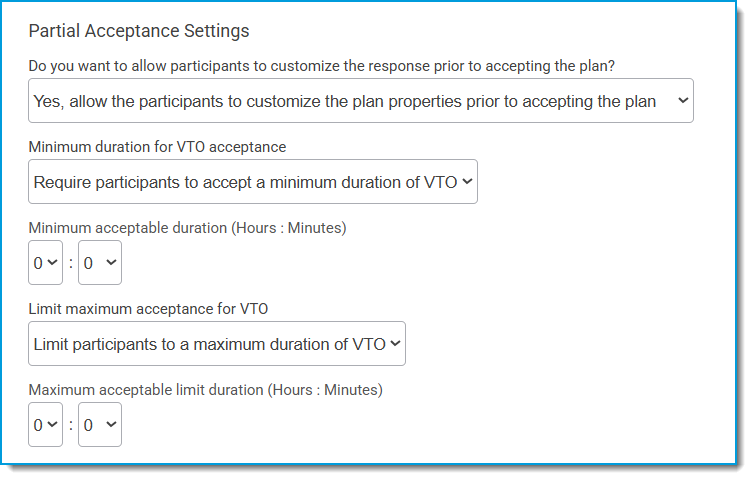
When accepting the offer, ASAPs with a partial acceptance option include a Schedule Adjustment Customization section.
The minimum / maximum allowed hours, and a drop-down menu appear after clicking Customize.
After selecting the total number of hours, clicking Update response updates the table with the new shift start/end times.
Technical Release Notes Version 25.03 SP1_20251009
Community Version 25.03 SP1
This service pack (SP1) addresses several technical issues that apply to Enterprise and Essentials editions.
Build details
Build version: 25.03.100 Cumulative Service Release 1
Release date: October 9, 2025
What’s Fixed
Reports
Report > Intraday analysis > Schedule analytics > This week | Getting error when you load the report.
Schedule Adherence Card Formatting is not showing in Agent Daily Adherence | Report > Schedule adherence > Daily Schedule Adherence > Enterprise model.
Schedule adherence > Schedule adherence history | Not seeing the export button.
Agent view | Schedule > published schedule and Report > Schedule adherence > Daily schedule adherence | Remove the Net line button from the report.
Settings
Settings > Application settings > Adherence thresholds: unable to Delete Adherence Threshold group from the list & unable to delete.
Settings > Application settings > People settings > Custom user groups | Error while trying to open security in User Groups.
Settings > People & agent templates > People > New person | When using the Save and add another one button, the Tiebreak value box does not auto-populate with the default tiebreak value.
ASAP
Schedule > ASAP Calendar > Delete Scheduled Events & Edit Scheduled Events | With 250 agents a popup saying the string or data would be truncated. The statement has been terminated.
Properties
iCal is importing the wrong time zone when compared to enterprise model and agent time zone.
Forecasts
Admin View | Forecast > Working forecasts: When we use excel contact volume/Shrinkage Percentage/Staffing requirements profiles to generate or import data we are getting error or page is breaking.
Plan
In list of calendar partitions, open and preview columns pulling today's date.
Plan > All things time off > Time off settings > PTO classifications | Getting error when you try to upload image in PTO classification.
Schedule transaction: "I want to trade schedules with another agent." it is trading the schedule by removing or adding the schedules for the next day for both the agents.
Typos
Spelling error in Agent Synch Wizard Step 1.
Spelling error in ASSK acknowledgement screen.
Known/Deferred Issues
Forecast
Web App - Unable to generate quick forecast when using virtual sites.
Working Forecasts | The breadcrumbs are missing on the forecast worksheet page.
Plan
Admin | Plan > All things time off > Time off reports | Enterprise model | Show event detail report | Created on is showing either UTC or GMT, it should be showing the current time zone.
Plan > All things time off > Time off settings > PTO policies | When you try to remove all agents in the policy, it is throwing a 500 error and stuck at loading.
Plan> All Things Time off > PTO calendars > published accrual calendar | PTO classification summary | Participant summary | Grid view | Remove the export button from the grid view because when you download it the file is empty.
Broken icons on Balance and transactional accruals.
Agent | Plan > Time off worksheet > Calendar Partition | Available Time Off calendar | When FTE hours is set to any fraction like 7.5 or 8.5 on global settings page, "Maximum available PTO hours" is rounding up to 7 or 8 on "Available PTO daily detail."
Not able to see the imported accrual hours on policy tile when you import the hours directly from published accrual calendar.
Published event summary report | when agents are in a different time zone and request the partial day time off, hours of start and end time are showing wrong when viewing report on agent’s time zone.
Special Calendar Event: when you are picking the dates manually the calendar defaults to 2022 not the current year.
Self-service request that includes midnight extending to next day.
Settings
Typo in Step 4: Company Information | Country: “M?xico”.
Adapters | The import log does not show imported collection points.
Essentials: wrong color used for Alice Blue.
Typo in Data retention policy details.
Typo in description of Agent Synchronization Monitor Service.
Enterprise Model: when creating child activities and add the "Number of available seats" and click save and add another the come back and edit the activity, the "Number of available seats" defaults to zero.
Import people from data source | Unable to import people from the data source if the name contains an apostrophe.
Adapters | If Time zone selection is set to local time zone, the Device time zone is removed after saving connection configs.
Typo in description of Remote Bridge Notification Service.
Schedule
New schedule availability request doesn't show that it saves.
ASAP - Generate candidate start times not being added | Schedule > ASAP Calendar > Decrease Available Staff > Plan a Meeting.
Plan a Meeting - ASAP Meeting people selection doesn't include all available if starting with date/time.
Agent View | Schedule > Schedule bids | Lost feature | When you click on list view, there is no button to go back to card view.
Schedule > Schedule bids | Bid Inventory | Import from working schedule | after selecting the agents, when you click on their name the page is broken.
Agent view: Schedule Bids | Show item details | current rank is not showing the slide anymore.
Notifications
New intraday event notification is not accurate (refers to ‘recurring’ for non-recurring event.
Reports
Agent view: Missing icons on Report page.
Report > Schedule adherence > Daily schedule adherence & Published schedule > Schedule details | Enterprise Model: Event preview timestamps not updating when extending the end of the event.
What's New in 25.03
Overview
CommunityWFM 25.03 includes:
- Change in URL to access CommunityWFM
- Note: You will need to re-disable any pop-up blockers for the new URL.
- Update to login requirements
- New AI Forecasting (See Appendix 1)
- Community Everywhere™ mobile app 5.0 released (See Appendix 2)
Feedback
Your feedback is a significant driver in our enhancements. Onboarding Consultants, the Support Team, and Product Management can share your comments with the Development team. Keep that feedback coming!
New Features
This section includes an overview of the new features. Find additional details and instructions in the appendices.
AI Forecasting
See Appendix 1 for more details.
Automated forecasting allows the option to use closed-environment, predictive intelligence to automate forecasting, building and managing automated forecasts to model your business activity. Automatically use your historical data to create forecasts and, if desired, generate/publish staffing requirements. The more data in your system, the more accurate the forecast, and as always, you can edit and revise the forecast as needed to meet the needs of your center.
Build Versions
Instead of cryptic numbering (e.g., Build version 5.1.972.706 Cumulative Service Release 2), the build identification is now the year and quarter of the release, e.g., 25.03 is the release in the 3rd quarter of 2025. Hot fixes will still receive a decimal.
Updates will occur on a regular cadence and will happen seamlessly in the background, without the need to schedule inconvenient install dates or wait to get the latest and greatest features and fixes.
Logging in
The landing page URL for CommunityWFM is https://my.communitywfm.com
Enter your email address to access the login page for your instance of CommunityWFM.
Accessing CommunityWFM is easier when using single sign-on (SSO). If using Okta/SAML/OAuth2 you will be able to bypass the login page (after confirming your credentials).
If you are using SSO and know the subdomain URL for your CommunityWFM, you can enter your email address and password and enter CommunityWFM. Then when you leave and return you will already be authenticated and not have to log in again.
Email requirement
Each user must have a unique email to access CommunityWFM. This email is only used for authentication purposes – we will not use this information to send emails or spam to a user of CommunityWFM.
You may notice that the email field is not required when creating a new user. This allows you to import people from external systems that may not include an email field, to create agents who are new and may not have an assigned email yet, and to create ‘dummy’ agents to use in What If scenarios. But for a user to sign in and use CommunityWFM – they must use a unique email address as an identifier along with a password (unless using SSO).
If not using SSO/OAuth2, the option to add a password in the User login credentials tab will not be available until after adding an email on the Basic properties tab.
User Interface changes
Improved performance
You may notice significant improvements that optimize performance with decreased execution time for many processes.
Updates
In Forecast defaults Step 4 (Settings > Enterprise model > Forecast defaults): Changed button from Delete to Reset to reflect function.
Global settings and preferences
Authentication
Settings > Application settings > Global settings and preferences
There is a new link to view the settings for OAuth2 authentication.
Under SAML authentication there is a link to run a report for all authentication logging (SAML and OAuth2).
Data retention policy
We removed the Run Now option from the policies in Settings > Application settings > Administrative settings > Data retention policy.
Data sources
The Connections page is simpler and now has two tabs: Historical Data Collection and Real-Time Data Collection.
The Transaction Collection Interval changed from an open field to 1, 2, or 3 minutes.
Notifications
Settings > Application settings > Administrative settings > Notifications
External email gateway
There is an option to add a UserID and Password and other parameters, making this a more useful tool. To receive emails via notifications, a user needs to have their email configured in the Devices page, not just in the profile properties.
5.x
25.03
Services
There is a new tile for Remote Bridge Notification Service.
This is the place to enable notification channels such as Teams and Slack. If not enabled here, the notification channel will not work.
The Database Maintenance Service tile has been removed, as it is no longer necessary for clients to manage their database backups.
Agent view
The agent’s experience is unchanged, with exception of no longer needing to scan a QR code to set up the mobile app. That QR code is no longer on the Devices page.
What’s next?
We hope you will take time to explore the new features in CommunityWFM and look forward to hearing your feedback.
Appendix 1 AI Forecasting
Enable the AI forecasting service
First, enable the service by navigating to Settings > Application settings > Administrative settings > Services and click Automated Forecast Service.
Service enabled? Select Yes to enable AI forecasting to run in the background.
Impersonated user id: Select from the list of supervisor or higher people. There must be a designated user ID for the service to run.
Start time: This time is in UTC (Universal Time Coordinated). Select a time that is usually slow for your center to run this background service. Each day the service will run at the selected time and check if there are any pending forecasts to be run that day. If there are pending forecasts, they will run at this time.
Set up the AI Forecast
Access the AI Forecasting feature through the new main menu option. Select the submenu link or Set up automated AI Forecasts.
Manage existing automated forecasts or create a new one.
Setup > Basic properties
Name: Give your forecast a name and optional description.
Selected activity: Select an activity. A higher level with many included activities will take longer to run.
Generate/publish staffing requirements? Select whether to generate staffing requirements, and whether to publish staffing requirements.
- Do not generate staffing requirements
- Generate staffing requirements but do not publish: This will create a working forecast with staffing requirements in Forecast > Working forecasts.
- Generate staffing requirements and publish: The staffing requirements is published and available to use in a working schedule.
When generated, the forecast description in the list of working forecasts will include the forecast name, date generated, and forecast dates.
For example
Each time the service runs, it will create a new revision of this working forecast.
Forecast recurrence
Parameters entered here determine how often and on what schedule the forecast will run, when the forecast starts after the release date, and how many days are included in the forecast.
Next forecast release date: The date the forecast data will be available. The forecast engine will use all historical data up to this date to create the forecast. This date must be in the future (tomorrow or later).
Recurrence pattern: options include daily, weekly, monthly by day of month (e.g., on the 1st of the month) or monthly by day & week (e.g., every second Friday). The next options will change based on the selected recurrence pattern.
Forecast recurrence interval: select a frequency.
Forecast offset (# of days after forecast date): number of days after the release date to start the forecast. Must be between 1 and 15 days and less than the forecast horizon. For example, you may release a forecast on Friday that forecasts for dates starting on Monday (3 day offset).
Forecast horizon (# of days after forecast date): number of days after the release date to end the forecast. Must be 35 days or fewer and greater than the forecast offset.
Preview Upcoming Dates: Click to preview the next five forecast dates based on the selections.
When the recurrence parameters are complete, the tiles will turn green.
Machine learning
Examine the forecast model data used to train this automated forecast.
- Verify historic dates (Earliest Event Time): With more historical events collected, better seasonality (yearly, monthly, weekly) trends can be predicted.
- Verify recent dates (Latest Event Time and Days Since Last Event): Stale data could affect the prediction accuracy with possible uncertainty similar to starting over with no data.
- Data completeness (Counts and Collections): Missing data not reported/collected will affect prediction accuracy.
Use the tiles at the top of the page to examine individual parts of the data in your model.
Verify Dates
This is Valid / green if there are 365 days of data AND new data within the last 7 days. If any activities do not meet this, the icon for Valid? will be yellow, but you can proceed.
Data Completeness
This is Valid / green if the Collection Percent is ≥ 90. If any activities do not meet this threshold, the icon for Valid? will be yellow, but you can proceed.
Data Consistency
This is Valid / green if the contact volume relative standard deviation is ≤ 30 AND AHT relative standard deviation is ≤ 30. If any activities do not meet this, the icon for Valid? will be yellow, but you can proceed.
Manage existing forecasts
View a list of existing automated forecasts including the name, activity, next release date, next forecast period, and the status (enabled or not). This is where you can enable or disable an automated forecast by clicking the toggle, or delete disabled forecasts (enabled forecasts cannot be deleted).
If the next forecast release date has Pending further work, dates have not been selected and the forecast cannot be enabled. Click the name of the forecast to go to the setup page and finish.
Overview of AI Forecasting Flow
Appendix 2 Mobile App 5.0 Updates
The latest version of the mobile app adds support for CommunityWFM version 25.03. This includes support for SSO.
Scanning the QR code or entering database information is no longer needed to set up the mobile app with version 25.03 and app version 5.0. Users simply log in with their CommunityWFM email and password. The scan QR code option remains available for centers using CommunityWFM version 5.x. When entering an existing username for 5.x, the configuration page will open.
SSO
If using SSO, after entering an email address, the SSO/SAML2 authentication screen launches. After entering the credentials to authenticate, the Community Everywhere™ app will open.
If not using SSO, enter the password and tap Sign in to open the app.
Dashboard
New: There is now a Sign Out option on the dashboard.
Menu options
The app will automatically display the correct options based on the user role: agent, supervisor, scheduler, or administrator.