Version 26.08.13 What's New & Technical Release Notes August 13, 2026
Overview
This release addresses several technical issues in CommunityWFM / AI WFM.
Build details
Build version: 26.08.13
Release date: August 13, 2026
What’s New
AI WFM: LinkLive Data collector - updated activity key to activityName in LinkLive API response.
Community Everywhere and RingCX AIWFM: Added ability for mobile app to connect and log in to tenants that are hosted in different regions and countries.
What’s Fixed
Minor bug fixes and improvements to platform stability.
Known/Deferred Issues
Report > Published Schedule > Published Event Summary > Enterprise Model | Missing Columns Based on Legend.
Admin view | Schedule Bid Calendar | Today Page | Pending requests: Getting an error when you approve or deny PTO requests submitted through the mobile app.
When a schedule is published from the schedule partition for the first time, it fails to appear on the Published Schedule Detail Report.
Bulk importing agents from Excel and from a datasource fails with error 'Object reference not set to an instance of an object'.
CAN & AUS -- Failing when you upload .png to PTO classification.
People | The Region dropdown contains invalid characters.
Version 26.02 What's New & Technical Release Notes June 16, 2026
Skip to Technical Release Notes
New features summary
Version 26.02 includes the following new features:
- RingCX users can now add AI WFM to their RingCentral app.
- RingCX user sync service can auto-sync agent data with AI WFM.
- Schedule partitions allow agents to select preferred shifts based on a block of schedules from a working schedule.
- RingCentral adapter allows setting AI WFM edition (ultimate or standard), and setting the webhook path for sending adherence data from RingCX. There are also changes to the adapter to support API 3 and 4 and to start using RingCentral RingEXUserId.
- Notification to a supervisor when a selfie uploaded by an agent requires approval.
WEM: AI WFM in RingCX
For details, visit the guide in our support portal.
After configuration by professional services, admins can enable agents to see a tab for AI WFM in their RingCX app. This page includes the basic AI WFM features and includes a link to launch the full AI WFM experience.
RingCentral User Sync Service
For details, visit the guide in our support portal.
The RingCentral User Sync Service automatically keeps your AI WFM roster in sync with your RingCentral (RingEX/RingCX) directory. Instead of manually adding, updating, or deactivating agents, this service monitors your RingCentral account daily and applies changes to AI WFM.
Note: If changes are made manually in AI WFM, they will be reverted back to the RingCX values upon the next synchronization, including deactivation of new AI WFM users not included in RingCX
How the Synchronization Works
The service runs on a scheduled interval (once a day typically during off-hours) and performs the following:
- Automatic Onboarding: New users created in RingCentral with "Access WEM" permissions are automatically created as Agents in AI WFM. All Administrators in RingCX will be created as Administrators in AI WFM, unless they are both an agent and administrator in RingCX, in which case they are created with the role defined in the configuration page.
- Profile Updates: Changes to an agent's First Name, Last Name, or Role in RingCentral will automatically update their profile in AI WFM.
- Automated Offboarding: If a user is removed from RingCentral or their WEM access is revoked, the system will automatically set their status to Inactive in AI WFM .
- Reactivation: If a previously inactive agent is found in a new RingCentral sync, their AI WFM profile will be reactivated automatically.
Schedule Partitions
For details, visit the guide in our support portal.
The schedule partitions feature allows you to offer agents designated shifts from a working schedule during a selection window, giving them the freedom to select their preferred work schedules.
After creating the shifts in a working schedule, import these shifts into the schedule partition. Select participants, dates for the schedules, and a selection window then after agents submit their choices, the system uses their ranking profile to assign the schedules. Finalizing the partition publishes the schedule.
RingCentral Adapter
Two buttons in the set up of the RingCentral Data source automate the process of setting the AI WFM edition (ultimate or standard), and setting the webhook path for sending adherence data from RingCX. There is also an option to collect data for Inbound/Outbound, or Inbound only.
Contact your support team if you have questions about using this option.
Technical Release Notes for Version 26.02
Overview
This release adds new functionality and addresses several technical issues.
Build details
Build version: 26.02.71
Release date: June 16, 2026
What’s New
RingCentral CX users can now sync AI WFM to their RingCentral app.
Schedule partitions allow agents to select preferred shifts based on a block of schedules from a working schedule.
RingCentral adapter allows setting AI WFM edition (ultimate or standard), and setting the webhook path for adherence data to be sent from RingCX.
RingCentral adapter needs to start using RingEX UserId rather than RingCX agentid for data collection.
There is a notification to a supervisor when a selfie uploaded by an agent requires approval.
What’s Fixed
RC Notification service enabled for existing customers in UI but not assigned in Orchestrator causing RC table to populate with notifications
Agent View | Pending & Upcoming requested time off | Waitlist: Waitlist status text not displayed and nothing happens after clicking Waitlist icon.
Agent View | Schedule Transaction When an agent submits a schedule trade, the labels are missing on the finish page.
Settings > People & agent templates > People > Current list > Personal profile | Basic Properties: errors are reported when trying to update an existing user email address or password.
Report > Schedule adherence > Enterprise Model | Latency Issues with drag ‘n drop events with NL enabled and fewer than 100 agents.
Working schedule ASAP -- All modify current schedule ASAPs > view current schedule report do not show scheduled events outside the ASAP range on the LATER part of the schedule.
Working Schedule ASAP -- Plans and manage agent schedule report in working schedule --- you should not be able to create ASAP's outside the working schedule boundary.
Schedule > ASAP Calendar > Decrease Available Staff > Create VTO Events | Breaks and lunches are staying on agent schedule after executing VTO.
Targeted Survey | When the survey is closed, the survey should be visible on the Today page but you should not be able to vote.
iFrame | Agent view | Pending and upcoming requested time off | Waitlist: Waitlist status text not displayed and nothing happens after clicking the waitlist icon. Error reported in web console.
Known/Deferred Issues
On the main login page, there is no ‘invalid credential’ message for an incorrect password.
RingCentral User Sync Service Config | 3 dropdowns fail to populate with default values.
Data Retention Service | The data retention service is ignoring the enabled flag.
Today's Hot News does not scroll across the entire span of the panel.
Schedule Templates | The breadcrumbs are missing when editing/managing a schedule template.
Agent Templates | Scheduling | The selected schedule template does not populate on page load/reload.
Selfie notification to supervisor not pulling token for agent name.
Bulk importing agents from Excel and from a datasource fails with error 'Object reference not set to an instance of an object'.
Schedule Partition Monitor Service | The service fails to begin doing work again when switching from running between specified times to running all the time.
Schedule Partition | Admin View | Selection review report is not filtering by the right start date.
Schedule Partition | Admin View | There are no existing options for adjusting the inventory preview.
Schedule Partition | Agent View | Select Shift | When in Preview, agents can see all shifts—even the ones they do not qualify for. Open selection filters the shift correctly.
Schedule Partition | Admin View | Do not open the workflow until agents are added and inventory imported.
Schedule Partition | Do not allow publishing the schedule partition until there is at least one submission.
Schedule Partition | Admin page needs to be localized / translated.
Agent exists in the Pacific time zone. Agent logs into their shift late, but Late Event is not applied. Login time may be past the midnight boundary UTC time, so it appears as if the Agent is checking in early for the next day’s shift.
Admin view | Plan > All things time off > Time off reports | When the agent is in a different time zone and submitting an all day request, the start and end date is showing wrong dates and total hours are showing in minus.
Published Schedule Report | The time conversion from IST to CDT is incorrect.
Working Schedule | Copying working schedules results in an error page.
Schedule ASAP Calendar | When an ASAP is executed and it has a large number of participants, the ASAP times out.
When you manually adjust the hours in the beginning of the calendar year it is not showing up on the agent classification tile.
Remove NL and PC buttons from agent view.
Help Videos | Forecasts & Schedules tile is cutoff - Copy.
Changes to an agent profile via synch wizard are not included in the audit log.
5.1 sp2 | Settings > Enterprise model | An activity's number of available seats is removed when associating activities to collection points.
Daily calendar view not populating with schedule.
Incorrect instruction on working forecast ASAP page.
Securities Add people not showing profile pictures or asset names.
Data Rights Bug removing optional personal information instantly is marked as complete even though Admin has 30 days to complete.
Mobile App 5.2 Technical Release Notes April 30, 2026
Overview
Community Everywhere™ version 5.2 includes performance optimization, enhancements, bug fixes, and a new app version branded for RingCentral customers.
We recommend downloading and installing the latest version of the mobile app (Community Everywhere™ or RingCX AI WFM) from the App Store or Google Play to ensure you have access to all the latest improvements and features.
| Community Everywhere™ | RingCX |
Build details
Build version: Community Everywhere™ 5.2 | RingCX AI WFM 26.02
Release date: April 30, 2026
What’s New
RingCX AI WFM is available now for RingCentral customers that have the license for the WFM mobile application.
Intraday Performance Monitor: There is now the ability to select an Activity level to run this report.
What’s Fixed
Hot News
Mislabeled drop-down menu - Custom User Group has label for Activity.
Hot News does not start at the first word and cycles/revolves on the top left side of the app.
Translations
Day and month names are not translating in schedule.
License page not translating Slack notification service.
Notifications
Message sent from the web UI renders apostrophe as gibberish.
Notification & Memo times are in UTC time and not based on Enterprise Model or Agent Time zones.
Notifications are on Yankee Time (7:00) format whereas memos are on Zulu time format (19:00)
Send A Message | Selection not selecting in Send a Message.
Agent View
Help | About page Login Time is in UTC.
Typo: Agent | Time Off Request List > Request Recurring Time Off Event - Recurrence is spelled wrong (“Recurrance” Pattern).
Reports
Adding Timeout Message For Intraday Page.
Admin/Superuser | Formatting of the Agent Attendance Report pop-up is off and the wording for the dates jumps to the next line.
Performance
Arrival/Attendance | API is slower to load than agent list.
Supervisor/Superuser | Dashboard Today's Schedule Lagging when swiping left to right.
As Designed
Date Picker not translating. This is a "system" level popup. If the device language is set to English (en-us) but the app is set to Spanish (es-mx) or other language, the popup will be in English. If the device is set to es-mx, then the popup shows in Spanish. This is how the plugin is designed to work.
Known/Deferred Issues
In Hot News, after adding an activity, if you try to remove the activity by tapping the X it doesn’t work the first time.
Send a message: The text describing the Community Everywhere ™ notification channel is cut off when viewing the app in a language other than English.
Version 26.01 What's New & Technical Release Notes March 26, 2026
Skip to Technical Release Notes
What's New
New features summary
Version 26.01 includes the following new features:
-
ASAP in working schedules
- Includes a limited number of ASAP options
-
Targeted surveys
- Create surveys visible only to selected activities, supervisor groups, or custom user groups.
- Have more than one survey available at a time
- Allows selecting multiple responses (i.e., check all that apply)
- Add a ‘close’ date
-
AI anomaly detection
- New anomaly detection hub
- New anomaly detection profiles
- Option to Run Now
- Anomaly detection available for attendance
-
RingCentral App (RingEX) as notification channel
- Enable notifications via RingCentral App
- Notifications for agent late/absent check-ins and selfie approval/denial
ASAP in working schedules (Enterprise/Ultimate edition)
The Automated Schedule Adjustment Plan (ASAP) feature automates a range of administrative tasks and is now available in a working schedule using selected plan types. Working schedule ASAPs include plans that do not require agent acceptance.
Note: ASAPs in a working schedule—
- are not included in the ASAP calendar,
- do not include participant acceptance or notifications, and
- do not include the option to copy the plan (even if copying the working schedule).
In a working schedule, select Manage agent schedules in the navigation pane then in the working schedule report, select from the familiar ASAP drop-down menus. Available options are applicable to the working schedule (i.e., don’t involve agent acceptance).
Or select the new ASAP Plans menu option in the steps to success.
Modify current schedules
Modify plans allow you to automate routine bulk scheduling tasks such as optimizing schedule, deleting events, or changing an event type or day.
Optimize off-phone events – have the system optimize breaks and lunches, meetings, and trainings based on your forecast.
Delete scheduled events – This plan allows you to select one or more events and a time range and it will mass delete qualifying events from the schedules of agents who you select. Coaching session canceled? No problem!
Edit scheduled events – This strategy allows you to edit date, time, and event codes, or any combination of the three. Need to move coaching to tomorrow at the same time? Just coded 50 trainings with coaching instead of supervisor review and need to change them? Edit scheduled events makes it easy.
Increase available staff
Instead of deleting an event, this ASAP allows changing an off-phone event with a Work event.
Recover off-phone events – Replace (or modify) events with contact work.
Decrease available staff
Plan a meeting – Use this plan to let the system find the most appropriate time to schedule a meeting, or to tell you which agents can attend a meeting at a specified time.
The steps are the same as ASAPs in a published schedule, just with a limited selection of plan types.
Targeted surveys (Enterprise/Ultimate edition)
Global surveys are still available, but now you can fine-tune your audience to a targeted group by activity, supervisor, or custom user group. Other new options with surveys include—
- Deploying more than one survey at a time (shows 5 most recent).
- Allowing multiple responses within a survey (select all that apply).
- Adding an end (close) date for the survey.
In the survey module of the home page, click the pencil icon to view existing surveys or create a new one.
Step 1: Basic properties
Type your survey question, then select the effective (start) date and close (end) date for this survey.
Allow multiple votes? May users reply more than once?
Allow multiple selections? May users select more than one response option (i.e., check all that apply)?
After completing your selections, click Next.
Step 2: Add responses for this survey.
Click Add a response to create the first response option. Repeat to add additional response options.
After adding all response options, click Next.
Step 3: Choose people to participate in this survey.
Default is everyone (global), or click the drop-down to select an Activity, Supervisor tree, or Custom user group. If not everyone, select the target group.
When finished, click Create survey. Your survey will be visible to the selected group for the specified dates.
To review survey responses, navigate to the list of surveys and click the name of the survey.
Reminders
- The five most recently created active surveys are visible on the Today page.
- Once closed or archived, the survey cannot be re-opened and no additional voting allowed.
- You cannot edit or copy an existing survey.
- Response totals are visible to all who can view the survey, but who responded is anonymous.
Attendance AI anomaly detection (Enterprise/Ultimate edition)
The automated schedule attendance monitor (ASAM) allows keeping track of who has checked in, who is late, and who is absent and all attendance activity combined. Adding AI anomaly detection will automate the identification of outliers, allowing you to monitor your call center for. absenteeism patterns and trends in employee absences.
The anomaly detection engine breaks down complex, noisy data into simple, interpretable parts: a long-term trend, repeating cycles (oscillations), and random noise. It works by transforming a time series into a matrix, decomposing it, grouping similar patterns, and rebuilding the clean data.
Anomaly detection for attendance is only available for daily or weekly intervals and not hourly, since attendance is typically a once per shift occurrence.
Step by step
First, create a profile by navigating to AI > Anomaly detection > Anomaly detection profiles and select Click here to create a new anomaly detection profile. The profile will include the frequency and notification parameters.
Profile name: Enter a descriptive name.
Profile type: Select Attendance. After saving the profile, you can’t change the profile type.
Set as default profile? You may have one default profile for each anomaly type.
Daily detection and Weekly detection: Enable one or both frequencies. Hourly detection is only available for contact volume profiles.
Hourly detection runs at the top of the hour; daily detection runs within one hour after after the last interval scheduled for that activity and day in the Enterprise Model Work Habits and Hours, and weekly detection runs after 23:00 (11:00 PM) UTC on the evening before the first day of schedule week (as determined by the First day of schedule week in the Enterprise Model settings (Settings > Enterprise model > Enterprise or Site properties). If the first day of the schedule work week is Monday in the Enterprise Model basic properties, it will run Sunday night.
Confidence: Refers to how sure the system is that an occurrence is unusual or abnormal. Select highest, high, medium, or low. Higher confidence may result in fewer reports and miss some anomalies. Lower confidence may return some false positives..
PValue History Length: Refers to how much past data the detection system uses to decide whether a new incoming data point is anomalous. Select highest, high, medium, or low.
- A lower PValue History Length means the model "forgets" previous large spikes or patterns faster, making it more sensitive to recent changes. This can potentially lead to more detected anomalies (including more false positives) if the data has frequent, short-lived variations.
- A higher PValue History Length means the model considers a longer history, making it less sensitive to short-term fluctuations and more likely to alert on persistent changes, thus potentially leading to fewer anomalies detected overall but with higher confidence.
Notification frequency: Select how often to receive notifications - never, any time there is a detected anomaly, or once per day.
Who should receive a notification when an anomaly is detected? What role should receive notifications and via which channel(s)? Select a role from the drop-down and click each notification channel to include. Note: To receive notifications, the person must be in the reporting tree for the activity, and notifications enabled for anomaly detection (Settings > Application settings > Administrative settings > Notifications > Anomaly Detection).
Return to the Activity Anomaly Detection hub and select an Activity.
The alert banner at the top reports whether there are current anomalies detected and if detected, a list of the anomalies.
Run Now
Use the Run Now function to assess anomalies at a leaf-node level of the Enterprise Model. To view anomalies at the folder or site level, set up an anomaly profile.
Access the Run Now option by navigating to AI > Anomaly detection > Anomaly detection run now, the Anomaly detection menu, or from the tile in the anomaly detection hub. This allows running the report on an ad hoc basis or viewing data from past dates.
Activity: Select the leaf-node activity. To view anomalies at the folder or site level, create an anomaly profile.
Through date: Select the end date of the report period. The start date will depend on the selected interval and will be visible in the report.
- Hourly: 14 days before the through date (not available for attendance).
- Daily: 90 days before the through date.
- Weekly: 104 weeks before the through date.
Make your selections for intervals, anomaly type, confidence, and PValue history length, then click Apply options.
If anomalies are detected, the report shows dates of detection and a value.
- For attendance — a count of the check-in type for the selected time period (day/week) - not the number of anomalies.
- For call volume — an average across the time selected values of the anomaly type collected every 15 minutes then averaged by hour/day/week).
The system displays rows exclusively for dates where anomalies have been found.
Attendance
Call volume
RingCentral app (RingEX) as a notification channel
RingCentral customers can now add RingEX as an option for notifications and messaging.
Contact your professional services group to configure the channel, then confirm that it is enabled in Settings > Application settings > Administrative settings > Services > Remote Bridge Notification Service.
Change RingCentral Bridge Enabled? to Yes.
Also, confirm that notifications are enabled for RingCentral in Settings > Application settings > Administrative settings > Notifications.
Additional updates
Notifications
Configure these notifications in Settings > Application settings > Administrative settings > Notifications | Configure notification channels | Agents.
Selfie notification
There is supervisor notification to an agent notification when an uploaded selfie is approved or denied (notification when an agent uploads a selfie added with 26.02).
Agent Check-in Status
There is supervisor notification when an agent checks in as late or absent (manually, via the app, or via the soft check-in monitor).
Technical Release Notes for 26.01
What’s Fixed
Enterprise Model: When creating/editing a site in the Enterprise Model with Australia as the country, it leads to a Community error due to the state still being an open field.
SSO Credentials Titling | Instead of "User credentials for Web Applications" it should say "User credentials for Web & Mobile application"
Missing notifications to supervisor tree when agent-submitted photo is approved/denied and agent check-in status changes to late or absent. Settings > Application settings > Administrative settings > Notifications.
Anomaly Detection | Notification Configuration | No notification channels/events are enabled by default.
AI | Anomaly Detection | Should only display recent anomalies.
AI | Automated Forecast | Data Integrity Report header not showing subactivity.
AI Forecasting | machine learning tile: verify dates column alignment is off.
Fixed Schedule: Schedule > Working schedules > Schedule worksheet - Working Schedule generation affected by Enterprise timezone.
Working Schedule > getting Community error when attempting to copy a schedule that contains only published child activities.
Outdated text in the Working Forecast > Generate clusters pop-up.
Calendar Partition: Error when copying PTO Calendar to different dates.
Known/Deferred Issues
ASAP: Working schedule ASAP — All modify current schedule ASAPs, view current schedule report does not show scheduled events outside the ASAP range on the LATER part of the schedule.
ASAP: ASAP Working Schedule | Recover Off-Phone Events still has agent acceptance options in the initial set up navigation pane.
ASAP: Working Schedule | ASAP Plans and Manage agent schedule report in working schedule — You should not be able to create ASAPs outside of the working schedule boundary.
ASAP: Working Schedule ASAP — All ASAPs — view results report, created time is showing on GMT or UTC.
ASAP: OT/VTO | voluntary time off message incorrect when agent acceptance required.
ASAP: Schedule | ASAP — Overtime ASAP— When you click the link to accept the hours, seeing the Community error instead of a notice that all slots taken.
ASAP: Copy Plan Settings - When copying plan settings and unchecking "Include all eligible participants," the plan does not honor that selection and includes them all.
Notifications | Within Memos, Community Everywhere Notification Channels are displaying in UTC Time.
Typo in Forecast > Working Forecasts (Shrinkage) and Staffing worksheet (scenarios) tiles.
Typo in description of Agent Synchronization Monitor Service (Identifieds).
Missing icons in tiles on Report page.
Character encoding issue: Adding New Agent and in Global l Setting Settings > People > People > New person | Region dropdown menu.
Survey not honoring order for response options.
Time zone: When you change the time zone in the Enterprise Model, site, or activity, the work habits & hours are changing too, and they should not.
Web App - Unable to generate quick forecast when using virtual sites.
Published service targets forecasts — Not seeing the data in the published service targets report
Working Schedule > Manage Agent Schedule > need to add day and date in the title on the Working schedule report to match the published schedule report.
PC button not working on Today page > Weekly Schedule report when converting work event to time off.
Importing from Excel — tiebreak column is not being recognized when you are importing people from Excel.
Import people from data source | Unable to import people from the data source if the name contains an apostrophe
PTO: bug not allowing for days to be approved together when "Yes, all dates in the range must be approved together" and the first selected date is one without a schedule.
Plan> All Things Time off > PTO calendars > published accrual calendar | PTO classification summary | Participant summary | Grid view | Export from the grid view returns an empty file.
Essentials | Plan > All things time off > Time off settings | Schedulers have the time off settings menu item but no child menu items.
Adherence Summary Report: Adherence Percentage Filter displays incorrect dates (cosmetic issue in graph. Table data is correct).
Data Subject Rights Notifications: Change default notification message to reflect correct recipient.
Working Forecasts: The breadcrumbs are missing on the forecast worksheet page.
As Designed
Notifications | Publishing a Working Schedule does not go to notifications (only to memos) because it is hard coded and cannot currently be enabled.
Version 25.04 What's New & Technical Release Notes December 18, 2025
Skip to Technical Release Notes 25.04 SP1 Release date January 15, 2026
Skip to Technical Release Notes 25.04
What's New Overview
CommunityWFM 25.04 includes:
AI Anomaly detection
When enabled, CommunityWFM will monitor incoming data hourly, daily, or weekly using data-driven statistical methodology to detect outlier contact volume, AHT, and calls abandoned. If detected, selected roles receive a notification.
Anomaly detection can help predict staffing needs, identify times of spikes or troughs in call volume (system failure; fraudulent activity), and analyze campaign performance.
New Service
There is a new tile for Anomaly Detection Service.
Settings > Application settings > Administrative settings > Services
If not enabled here, the anomaly detection service will not work.
ASAP Partial Acceptance
If designated in the ASAP setup, agents have the option to accept part of a VTO or overtime shift. You control whether to allow partial acceptance and can set minimum and/or maximum amounts of time to accept.
Agent view
OT and VTO ASAP
When configured to allow partial acceptance, agents will see a Customize button on the acceptance page.
After clicking (1) Customize, the minimum and/or maximum numbers appear along with the fields to select the number of hours they would like to accept (2), update the response to view the new shift start/end times in the table (3), then accept or decline the offer (4).
Appendix 1 AI Anomaly Detection
Enable the AI anomaly detection service
First, enable the service by navigating to Settings > Application settings > Administrative settings > Services and click Anomaly Detection Service.
Service enabled? Select Yes to enable AI anomaly detection to run in the background.
Impersonated user id: Select from the list of supervisor or higher people. There must be a designated user ID for the service to run.
Set up the AI Anomaly Detection
Navigate to AI > Anomaly detection.
Select the activity from the Enterprise Model. You will have the option to include the same settings for subordinate activities.
The alert banner at the top reports whether there are current anomalies detected and if detected, a list of the anomalies.
Follow the steps-to-success to set up anomaly detection.
Setup > Basic properties
- Select Yes to enable the anomaly detection.
- Select one or more frequencies: hourly (start of each hour), daily (start of corporate day), weekly (first day of week in Enterprise Model). This is how often this system will check for anomalies.
- Check the box to copy this setting to all subordinate activities. If selected, you will need to confirm the option as it will overwrite any previous settings for those activities.
Alert thresholds
Notification frequency: Default is Notify me any time there is an anomaly detected. Options include no notification or once per day.
Confidence: Refers to how sure the system is that an occurrence is unusual or abnormal. Select highest, high, medium, or low. Higher confidence may result in fewer reports.
PValue History Length: Refers to how much past data the detection system uses to decide whether a new incoming data point is anomalous. Select highest, high, medium, or low.
- A lower PValue History Length means the model "forgets" previous large spikes or patterns faster, making it more sensitive to recent changes. This can potentially lead to more detected anomalies (including more false positives) if the data has frequent, short-lived variations.
- A higher PValue History Length means the model considers a longer history, making it less sensitive to short-term fluctuations and more likely to alert on persistent changes, thus potentially leading to fewer anomalies detected overall but with higher confidence.
Notification configuration
First, configure Channels to notify on in Settings > Application settings > Administrative settings > Notifications.
Select what role should receive notifications and via which channel(s). Note: To receive notifications, the person must be in the reporting tree for the activity.
If detected, the AI anomaly page displays the results.
Technical Release Notes Version 25.04 SP1
Overview
This release addresses several technical issues.
Build details
Build version: 25.04.106 Cumulative Service Release 1
Release date: January 15, 2026
What’s New
Adapter
Added new LinkLive Adapter data source.
What's Fixed
Report > Published schedule > Published event summary > Enterprise Model- Summary Service not removing shifts when moved to a different date.
Settings > People & agent templates > People > Current list > Personal profile - MT Bug in People alpha selector (letter picker) where letters that include associated names are grayed out.
Working accrual calendar: Not able to import accrued hours from Excel import; getting error "Object cannot be cast from DBNull to other types.”
Working schedule
When generating the schedule using “what if” scenario schedule templates, the Manage agent schedules report is not loading any information on the agent card.
When generating the schedule using “what if” scenario agent template, clicking on any generated schedule instance is not loading the report and is throwing an error.
Known / Deferred Issues
Adherence Summary Report: When filtering the Schedule Adherence Summary Report by Adherence Percentage, the month label in the table changes and the label is not correct.
Appendix 2 ASAP Partial Acceptance
If designated in the setup, agents have the option to accept part of an offered VTO or overtime shift. You control whether to allow partial acceptance and can set minimum and/or maximum amounts of time to accept.
Agent acceptance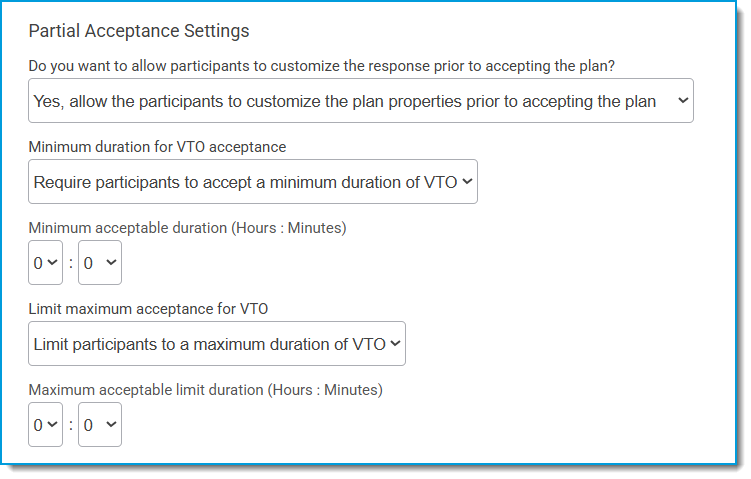
When accepting the offer, ASAPs with a partial acceptance option include a Schedule Adjustment Customization section.
The minimum / maximum allowed hours, and a drop-down menu appear after clicking Customize.
After selecting the total number of hours, clicking Update response updates the table with the new shift start/end times.
Technical Release Notes Version 25.04
Build version: 25.04.76
Release date: December 18, 2025
What's Fixed
Working Schedule: Weekly schedules by Activity - returning 404 error and failing to load the agent names.
Enterprise Model: When creating child activities and adding the "Number of available seats" then click Save and add another, then return and edit the activity, the "Number of available seats" defaults to zero.
Published event summary report: When agents are in a different time zone and request partial day time off, hours of start and end time are not correct when viewing report in agent’s time zone.
Self-service (ASSK): Requests that include midnight extend the event into the next day.
Settings > Data sources: If Time zone selection is set to local time zone, the Device time zone is removed after saving Data source properties connection.
Schedule bids: Agent View | Schedule > Schedule bids. When you select list view, there is no button to go back to card view.
Schedule bids: Agent view | Show item details | Item Settings | Current rank slider is not showing.
Schedule bids: Bid Inventory | Import from working schedule. After selecting the agents, when you click on the agent’s name the page is broken.
Plan> Schedule transactions: When reviewing the description of a response transaction, the information for agent compatibility analysis and labels are missing.
Import people from Excel: Importing from an Excel spreadsheet that has been edited in Google Sheets causes duplicate agents to be imported.
Add new person: When adding a new person with the role of superuser, admin, scheduler, or supervisor without an email address then clicking Save and add another there is a system error.
ASAP: Delete events notifications not sending.
ASAP: Schedule > ASAP Calendar > Decrease Available Staff > Plan a Meeting. Generate candidate start times not being saved.
ASAP: OT/VTO spelling/grammar changes.
Special Calendar Events: When manually selecting the dates, the calendar defaults to 2022 not the current year.
Known / Deferred Issues
Schedule transactions: Agent view | Schedule page | The hyperlink text for the Schedule Transactions tile says `null`.
Import people from data source: Unable to import people from the data source if the name contains an apostrophe.
Reports: 5.1SP2 & 25.x | Report > Contact volume & a few Working Forecast Reports | Month labels for some months are missing, as well as year label.
Reports: Published schedule > Published event summary > Enterprise Model- Summary Service not removing shifts when moved to a different date.
ASAM: Automated Schedule Attendance Monitor not able to do soft check-ins even when Service is running. Restarting the services fixes the issue.
ASAP OT/VTO: Voluntary time off notification message incorrect when agent acceptance is required (states schedule has changed).
ASAP: Copy Plan Settings - When copying plan settings and you uncheck Include all eligible participants, the plan does not honor that selection and includes them all.
ASAP: Report is using GMT for time.
ASAP customization: Unable to customize for 1 hour of VTO.
ASAP customization: Display of min/max hours does not need to be in seconds (and a larger font size, please).
ASAP customization: Min/max hours only visible the first time you click Customize.
AI Anomaly detection: The anomaly detection hyperlink is missing the ending period (.)
Working Forecasts: The breadcrumbs | cookie trail links are missing on the forecast worksheet page.
As Designed
ASAP Overtime: Even though overtime limitations are set, an agent can opt to keep their preferences blank and accept the full allotted time, bypassing the time limitation.
ASAP VTO: The new partial acceptance feature is using the start & end times of the VTO to create its hour limitations drop down when it should only be using early departure behavior.
Version 25.03 What's New & Technical Release Notes October 9, 2025
Skip to Technical Release Notes Version 25.03
What's New Overview
CommunityWFM 25.03 includes:
- Change in URL to access CommunityWFM
- Note: You will need to re-disable any pop-up blockers for the new URL.
- Update to login requirements
- New AI Forecasting (See Appendix 1)
- Community Everywhere™ mobile app 5.0 released (See Appendix 2)
Feedback
Your feedback is a significant driver in our enhancements. Onboarding Consultants, the Support Team, and Product Management can share your comments with the Development team. Keep that feedback coming!
New Features
This section includes an overview of the new features. Find additional details and instructions in the appendices.
AI Forecasting
See Appendix 1 for more details.
Automated forecasting allows the option to use closed-environment, predictive intelligence to automate forecasting, building and managing automated forecasts to model your business activity. Automatically use your historical data to create forecasts and, if desired, generate/publish staffing requirements. The more data in your system, the more accurate the forecast, and as always, you can edit and revise the forecast as needed to meet the needs of your center.
Build Versions
Instead of cryptic numbering (e.g., Build version 5.1.972.706 Cumulative Service Release 2), the build identification is now the year and quarter of the release, e.g., 25.03 is the release in the 3rd quarter of 2025. Hot fixes will still receive a decimal.
Updates will occur on a regular cadence and will happen seamlessly in the background, without the need to schedule inconvenient install dates or wait to get the latest and greatest features and fixes.
Logging in
The landing page URL for CommunityWFM is https://my.communitywfm.com
Enter your email address to access the login page for your instance of CommunityWFM.
Accessing CommunityWFM is easier when using single sign-on (SSO). If using Okta/SAML/OAuth2 you will be able to bypass the login page (after confirming your credentials).
If you are using SSO and know the subdomain URL for your CommunityWFM, you can enter your email address and password and enter CommunityWFM. Then when you leave and return you will already be authenticated and not have to log in again.
Email requirement
Each user must have a unique email to access CommunityWFM. This email is only used for authentication purposes – we will not use this information to send emails or spam to a user of CommunityWFM.
You may notice that the email field is not required when creating a new user. This allows you to import people from external systems that may not include an email field, to create agents who are new and may not have an assigned email yet, and to create ‘dummy’ agents to use in What If scenarios. But for a user to sign in and use CommunityWFM – they must use a unique email address as an identifier along with a password (unless using SSO).
If not using SSO/OAuth2, the option to add a password in the User login credentials tab will not be available until after adding an email on the Basic properties tab.
User Interface changes
Improved performance
You may notice significant improvements that optimize performance with decreased execution time for many processes.
Updates
In Forecast defaults Step 4 (Settings > Enterprise model > Forecast defaults): Changed button from Delete to Reset to reflect function.
Global settings and preferences
Authentication
Settings > Application settings > Global settings and preferences
There is a new link to view the settings for OAuth2 authentication.
Under SAML authentication there is a link to run a report for all authentication logging (SAML and OAuth2).
Data retention policy
We removed the Run Now option from the policies in Settings > Application settings > Administrative settings > Data retention policy.
Data sources
The Connections page is simpler and now has two tabs: Historical Data Collection and Real-Time Data Collection.
The Transaction Collection Interval changed from an open field to 1, 2, or 3 minutes.
Notifications
Settings > Application settings > Administrative settings > Notifications
External email gateway
There is an option to add a UserID and Password and other parameters, making this a more useful tool. To receive emails via notifications, a user needs to have their email configured in the Devices page, not just in the profile properties.
5.x
25.03
Services
There is a new tile for Remote Bridge Notification Service.
This is the place to enable notification channels such as Teams and Slack. If not enabled here, the notification channel will not work.
The Database Maintenance Service tile has been removed, as it is no longer necessary for clients to manage their database backups.
Agent view
The agent’s experience is unchanged, with exception of no longer needing to scan a QR code to set up the mobile app. That QR code is no longer on the Devices page.
What’s next?
We hope you will take time to explore the new features in CommunityWFM and look forward to hearing your feedback.
Appendix 1 AI Forecasting
Enable the AI forecasting service
First, enable the service by navigating to Settings > Application settings > Administrative settings > Services and click Automated Forecast Service.
Service enabled? Select Yes to enable AI forecasting to run in the background.
Impersonated user id: Select from the list of supervisor or higher people. There must be a designated user ID for the service to run.
Start time: This time is in UTC (Universal Time Coordinated). Select a time that is usually slow for your center to run this background service. Each day the service will run at the selected time and check if there are any pending forecasts to be run that day. If there are pending forecasts, they will run at this time.
Set up the AI Forecast
Access the AI Forecasting feature through the new main menu option. Select the submenu link or Set up automated AI Forecasts.
Manage existing automated forecasts or create a new one.
Setup > Basic properties
Name: Give your forecast a name and optional description.
Selected activity: Select an activity. A higher level with many included activities will take longer to run.
Generate/publish staffing requirements? Select whether to generate staffing requirements, and whether to publish staffing requirements.
- Do not generate staffing requirements
- Generate staffing requirements but do not publish: This will create a working forecast with staffing requirements in Forecast > Working forecasts.
- Generate staffing requirements and publish: The staffing requirements is published and available to use in a working schedule.
When generated, the forecast description in the list of working forecasts will include the forecast name, date generated, and forecast dates.
For example
Each time the service runs, it will create a new revision of this working forecast.
Forecast recurrence
Parameters entered here determine how often and on what schedule the forecast will run, when the forecast starts after the release date, and how many days are included in the forecast.
Next forecast release date: The date the forecast data will be available. The forecast engine will use all historical data up to this date to create the forecast. This date must be in the future (tomorrow or later).
Recurrence pattern: options include daily, weekly, monthly by day of month (e.g., on the 1st of the month) or monthly by day & week (e.g., every second Friday). The next options will change based on the selected recurrence pattern.
Forecast recurrence interval: select a frequency.
Forecast offset (# of days after forecast date): number of days after the release date to start the forecast. Must be between 1 and 15 days and less than the forecast horizon. For example, you may release a forecast on Friday that forecasts for dates starting on Monday (3 day offset).
Forecast horizon (# of days after forecast date): number of days after the release date to end the forecast. Must be 35 days or fewer and greater than the forecast offset.
Preview Upcoming Dates: Click to preview the next five forecast dates based on the selections.
When the recurrence parameters are complete, the tiles will turn green.
Machine learning
Examine the forecast model data used to train this automated forecast.
- Verify historic dates (Earliest Event Time): With more historical events collected, better seasonality (yearly, monthly, weekly) trends can be predicted.
- Verify recent dates (Latest Event Time and Days Since Last Event): Stale data could affect the prediction accuracy with possible uncertainty similar to starting over with no data.
- Data completeness (Counts and Collections): Missing data not reported/collected will affect prediction accuracy.
Use the tiles at the top of the page to examine individual parts of the data in your model.
Verify Dates
This is Valid / green if there are 365 days of data AND new data within the last 7 days. If any activities do not meet this, the icon for Valid? will be yellow, but you can proceed.
Data Completeness
This is Valid / green if the Collection Percent is ≥ 90. If any activities do not meet this threshold, the icon for Valid? will be yellow, but you can proceed.
Data Consistency
This is Valid / green if the contact volume relative standard deviation is ≤ 30 AND AHT relative standard deviation is ≤ 30. If any activities do not meet this, the icon for Valid? will be yellow, but you can proceed.
Manage existing forecasts
View a list of existing automated forecasts including the name, activity, next release date, next forecast period, and the status (enabled or not). This is where you can enable or disable an automated forecast by clicking the toggle, or delete disabled forecasts (enabled forecasts cannot be deleted).
If the next forecast release date has Pending further work, dates have not been selected and the forecast cannot be enabled. Click the name of the forecast to go to the setup page and finish.
Overview of AI Forecasting Flow
Appendix 2 Mobile App 5.0 Updates
The latest version of the mobile app adds support for CommunityWFM version 25.03. This includes support for SSO.
Scanning the QR code or entering database information is no longer needed to set up the mobile app with version 25.03 and app version 5.0. Users simply log in with their CommunityWFM email and password. The scan QR code option remains available for centers using CommunityWFM version 5.x. When entering an existing username for 5.x, the configuration page will open.
SSO
If using SSO, after entering an email address, the SSO/SAML2 authentication screen launches. After entering the credentials to authenticate, the Community Everywhere™ app will open.
If not using SSO, enter the password and tap Sign in to open the app.
Dashboard
New: There is now a Sign Out option on the dashboard.
Menu options
The app will automatically display the correct options based on the user role: agent, supervisor, scheduler, or administrator.
Technical Release Notes Version 25.03SP1
This service pack (SP1) addresses several technical issues that apply to Enterprise and Essentials editions.
Build details
Build version: 25.03.100 Cumulative Service Release 1
Release date: October 9, 2025
What’s Fixed
Reports
Report > Intraday analysis > Schedule analytics > This week | Getting error when you load the report.
Schedule Adherence Card Formatting is not showing in Agent Daily Adherence | Report > Schedule adherence > Daily Schedule Adherence > Enterprise model.
Schedule adherence > Schedule adherence history | Not seeing the export button.
Agent view | Schedule > published schedule and Report > Schedule adherence > Daily schedule adherence | Remove the Net line button from the report.
Settings
Settings > Application settings > Adherence thresholds: unable to Delete Adherence Threshold group from the list & unable to delete.
Settings > Application settings > People settings > Custom user groups | Error while trying to open security in User Groups.
Settings > People & agent templates > People > New person | When using the Save and add another one button, the Tiebreak value box does not auto-populate with the default tiebreak value.
ASAP
Schedule > ASAP Calendar > Delete Scheduled Events & Edit Scheduled Events | With 250 agents a popup saying the string or data would be truncated. The statement has been terminated.
Properties
iCal is importing the wrong time zone when compared to enterprise model and agent time zone.
Forecasts
Admin View | Forecast > Working forecasts: When we use excel contact volume/Shrinkage Percentage/Staffing requirements profiles to generate or import data we are getting error or page is breaking.
Plan
In list of calendar partitions, open and preview columns pulling today's date.
Plan > All things time off > Time off settings > PTO classifications | Getting error when you try to upload image in PTO classification.
Schedule transaction: "I want to trade schedules with another agent." it is trading the schedule by removing or adding the schedules for the next day for both the agents.
Typos
Spelling error in Agent Synch Wizard Step 1.
Spelling error in ASSK acknowledgement screen.
Known/Deferred Issues
Forecast
Web App - Unable to generate quick forecast when using virtual sites.
Working Forecasts | The breadcrumbs are missing on the forecast worksheet page.
Plan
Admin | Plan > All things time off > Time off reports | Enterprise model | Show event detail report | Created on is showing either UTC or GMT, it should be showing the current time zone.
Plan > All things time off > Time off settings > PTO policies | When you try to remove all agents in the policy, it is throwing a 500 error and stuck at loading.
Plan> All Things Time off > PTO calendars > published accrual calendar | PTO classification summary | Participant summary | Grid view | Remove the export button from the grid view because when you download it the file is empty.
Broken icons on Balance and transactional accruals.
Agent | Plan > Time off worksheet > Calendar Partition | Available Time Off calendar | When FTE hours is set to any fraction like 7.5 or 8.5 on global settings page, "Maximum available PTO hours" is rounding up to 7 or 8 on "Available PTO daily detail."
Not able to see the imported accrual hours on policy tile when you import the hours directly from published accrual calendar.
Published event summary report | when agents are in a different time zone and request the partial day time off, hours of start and end time are showing wrong when viewing report on agent’s time zone.
Special Calendar Event: when you are picking the dates manually the calendar defaults to 2022 not the current year.
Self-service request that includes midnight extending to next day.
Settings
Typo in Step 4: Company Information | Country: “M?xico”.
Adapters | The import log does not show imported collection points.
Essentials: wrong color used for Alice Blue.
Typo in Data retention policy details.
Typo in description of Agent Synchronization Monitor Service.
Enterprise Model: when creating child activities and add the "Number of available seats" and click save and add another the come back and edit the activity, the "Number of available seats" defaults to zero.
Import people from data source | Unable to import people from the data source if the name contains an apostrophe.
Adapters | If Time zone selection is set to local time zone, the Device time zone is removed after saving connection configs.
Typo in description of Remote Bridge Notification Service.
Schedule
New schedule availability request doesn't show that it saves.
ASAP - Generate candidate start times not being added | Schedule > ASAP Calendar > Decrease Available Staff > Plan a Meeting.
Plan a Meeting - ASAP Meeting people selection doesn't include all available if starting with date/time.
Agent View | Schedule > Schedule bids | Lost feature | When you click on list view, there is no button to go back to card view.
Schedule > Schedule bids | Bid Inventory | Import from working schedule | after selecting the agents, when you click on their name the page is broken.
Agent view: Schedule Bids | Show item details | current rank is not showing the slide anymore.
Notifications
New intraday event notification is not accurate (refers to ‘recurring’ for non-recurring event.
Reports
Agent view: Missing icons on Report page.
Report > Schedule adherence > Daily schedule adherence & Published schedule > Schedule details | Enterprise Model: Event preview timestamps not updating when extending the end of the event.
Version 5.1 What's New & Technical Release Notes (complete)
Skip to Technical Release Notes (complete)
What's New in 5.1
Introduction to the new features and fixes in CommunityWFM version 5.1.
Appendices in the PDF and links to articles include step-by-step instructions for the new features.
Overview
CommunityWFM Enterprise 5.1 represents a significant release for CommunityWFM and includes adding support for multiple languages (Spanish for Mexico, Canadian French, and Portuguese for Brazil); additions to aid in compliance with General Data Protection Regulations (GDPR); an Agent Self-Service Kiosk (ASSK); enhanced audit trail reporting; a new adherence comparison report; plus the usual assortment of bug fixes and UI enhancements. This release includes hotfix1 and hotfix2 for 5.0SP3.
New Features
Visit linked articles to view details and step-by-step instructions for the new features.
Multi-language support
With 5.1 there is an option for multi-language support, which allows viewing the screens in CommunityWFM in French Canadian, Portuguese, or Mexican Spanish. Change the region / language to see reports, pop-up instructions, buttons, and menu items in the preferred language in the web version and the mobile app.
Agent Self-Service Kiosk (ASSK)
With Community’s new ASSK feature, agents can request specifically configured out of queue events and have the event automatically approved and placed on their schedule if it passes the validation rules such as adequate staffing levels. No need for an administrator to approve the request!
Have a mandatory online training module that agents can complete when they’re ready? But only if there’s enough staff? ASSK is the answer.
Depending on the event configuration, agents may request the designated ASSK event and add it to their schedule in real time, or the configuration can require that the event pass business rules before approval.
For administrators
For agents
Adherence Comparison Report
Using the summary adherence data, the comparison report allows selecting up to five people or groups (“scopes”) to compare schedule adherence for an unlimited date range. From an executive summary to details, see the top and low performers for each group, total adherence hours and percentages, trends, and the performance of individual agents. As with most reports, this one includes the ability to export the data for further review.
GDPR & DSAR
General Data Protection Regulations (GDPR) are statutes governing the use and distribution of personal data for users of a website or application. Data Subject Access Requests (DSARs) are requests to exercise these rights. CommunityWFM 5.1 includes a data subject rights policy page with links to allow viewing collected personally identifiable information (PII) and requesting removal, restriction, or correction of PII. Agents may also view a list of their previous data subject rights requests.
Contact centers will need to designate an administrator in the Global settings & preferences as a data privacy advocate who can fulfill the data subject access/use requests.
Note: if you elect to mask a user’s data, the masking is not reversible or recoverable and with full anonymization the user profile is locked. Once masked, no one, not even the support desk, can retrieve the PII data.
For administrators
For agents
User interface enhancements
Improved performance
You may notice significant improvements that optimize performance with decreased execution time when generating staffing requirement forecasts, especially for larger centers.
Text styling
There is bolder, cleaner text for easier reading.
Date format
The date format throughout the application is now dd/mon/yyyy (01 Jan 2024) to avoid the possibility of confusion when using numbers for both day and month.
Event type name
Schedules now include labels describing the event type. No need to search the Event type legend drop-down menu to find out what event is represented by the color.
You can turn off this feature for a single report in the report options panel.
Or turn it off for all reports in the Global settings & preferences – Schedule and Event Editing section.
Spotlight view
Use a filter to highlight one or more event types on a published schedule. From the Event type legend drop-down menu, click an event name to highlight that event. Click another name to add it to the highlighted events. Click again to deselect the event.
You can still manage the non-highlighted items on the schedule as before (click and drag, right-click edit, etc.).
Event behavior validation
There is a new Clear selections button at the bottom of the Event Type Behaviors - Predefined event type classifications, and the Custom behavior settings page. This button will clear all selections and allow selecting your own parameters.
There is a new category for the Agent Self-Service Kiosk, and two new questions validate ASSK events.
Suppress net-line statistics
In reports that include net-line statistics, there is now an option to temporarily disable real-time net-line statistics updates. Find this option in a drop-down menu in the options panel. This will allow making multiple changes without having to wait for the inline statistics to update between edits. The PC button will indicate the number of edits, and refreshing the page or clicking the PC button will update the net-line statistics.
Schedule adherence monitor
In the Schedule Adherence Monitor when viewing the data as a list, there are links where you can not only send a message, but now you can view the agent’s profile or check-in status, or quickly launch the agent’s Schedule Adherence Summary Report.
Services
Settings > Application settings > Administrative settings > Services | Auto-Approve Service | Advance options: Removed corporate and UTC options from the dropdown What time zone option should Auto-Approve use? All time off requests will use the agent’s time zone for auto-approval.
Notifications
There is an option to add Webex as a notification channel (Settings > Application settings > Administrative settings > Notifications.).
Late check-in or absent
Notification memos are sent to the supervisor tree when agents submit a late check-in or absentee check-in using the Community Everywhere Mobile App.
Deleted PTO request
When an agent deletes a denied, pending, or approved time off request, there is a notification to the supervisor tree.
Tools for Supervisors
Mobile app
Supervisors have their own view to monitor team adherence, view and manage attendance, and manage the photo queue, all from the mobile app.
To set up the app with a QR code, supervisors now have access to a Devices page in their menu structure (Properties > Devices). If not visible, check the Applications menu settings. Scan the code from within the mobile app, enter your password, and you’re all set!
Other mobile app additions
- Language preference transfers from the web application.
- On the Team Adherence page clicking the attendance and adherence buttons replicates the web experience.
- Hot News and Send a message include the option for selecting the source (Enterprise model, supervisor tree, custom user group).
- When making a time off request, agents can select whether to approve all days together or approve some/deny some.
- Added the ability for agents to delete time off requests from their list.
ASAM
Supervisors can now edit and customize their individual preferences for their view of the Automated Schedule Attendance Monitor in the web version. This setting will transfer to the mobile app.
Other Security
Agent ID and password
All users must have a unique User ID to log in. You will not be able to add a new User ID that duplicates an existing User ID. If you currently have duplicate User IDs, they will continue to work until it’s time to update the password, then there will be a message to update the User ID.
With mobile app and SSO
There are smart labels on the User login credentials page: If using the mobile application and SSO/3rd party authentication, there will be fields for two User IDs—web and mobile. With version 5.1 SP2, the User ID can be the same. If your center does not have a license for the mobile app, there will only be a field for a web application User ID.
Reports
In several reports, there are visual indicators > for links to display more information.
- From the Published schedule report, the link will open the agent card (see below). This link was there before, but not visible.
- In the Published event summary report, the link will take you to the Published Schedule Report – no need to go back to the main page (see next page).
- When an agent runs their Daily schedule adherence report view, the link will display their state transactions report.
Basically, if you see a > symbol, click on it. Something good will happen!
Published Event Summary Report
View detail report
You can now navigate from the Published event summary report to the Published schedule detail report for a selected day using the summary report’s time frame. The Published schedule report will open in a new window and the date drop-down will include all the days from the summary report.
Enhanced audit trail reporting
Report > Administrative & Utility > Change audit log now includes reports for changes to
- An agent’s profile (including activity assignments),
- The Enterprise Model,
- The auto-approve rules and settings, and
- The new Self-service Validation Plan.
The Change audit log also has a new tile for Auto Approve rules, which apply to legacy vacation.
Shrinkage Summary
We’ve optimized performance and execution speed/time of the Shrinkage summary report to address CPU load and timeout issues.
Data Source
The Agent Data Source Login Report (Settings > People & agent templates > Data source logins) now includes an export option and a new column with supervisor name.
Scheduled events report
There is a new option in Global settings & preferences to set the maximum number of days for detailed schedule events reports. The default value is 90; maximum is 365.
Note: increasing to more than 90 days may slow performance.
Schedule > Working schedules > Schedule worksheet > Review events & exceptions | Reinstated Include events from the Published schedule as a default selected option.
People list
The people list has new columns for user role, email address, login ID, active/inactive status, and supervisor name. There is also a new export option.
Additional report enhancements
Reports > Published Schedule > Published Event Summary | Date picker: added the ability to select a single day.
Forecasts > Working forecasts: Added an export option for the Agent / Activity cross-training and cluster reports.
Forecast > Published forecast > Show revision history now shows list with last or latest updated at the top.
Report > Schedule adherence > Device state detail report: added export report option.
Schedule > Published schedule | Utility Schedule Reports | Published schedule audit report: added unpublished schedule comment and activities affected.
Excel import
When importing contact volume using Excel, Community will now detect duplicate intervals during validation.
PTO Enhancements
Sync PTO Rules Source
There is an option to sync the PTO Rules Source (PTO Calendar Partition Rules or Legacy AutoApprove Rules) using the Agent Synchronization Wizard. Go to Settings > People & agent templates > Synchronize people > Synchronization people now. In step 3, select the PTO Rules Source.
Request Planned Time Off
The default response for Should all dates in the date range be approved together? is now No, some of the dates be approved and some denied. This will prevent inadvertently leaving the response as Yes for single day requests or when it is not required that all days be approved, and will allow editing the event on the published schedule.
Note: If using the waiting list in a calendar partition, this option must be set to Yes.
Maximum accrued hours
Plan > All things time off > Time off settings > Accrual schedules | Total annual accrual (in hours): In the Global settings & preferences you can customize the maximum number of accrued hours used in PTO policy configuration Default is 400; maximum is 1000.
Bid round override validation
Administrators may override an agent’s bid round.
- If the bid round is not yet committed, then the bid administrator can override the round validation status.
- If the bid round is invalid, pending validation, or valid, then the bid administrator can override the validation status.
- If the bid round is already committed, then the bid administrator cannot override the validation status.
Working accrual calendar – Excel import
Plan > All things time off > PTO Calendars > Working accrual calendars > Accrual tables > Generate, import, or enter accrual transactions > File Import - Excel: Changed validation of transaction dates that are outside PTO policy boundaries to Error instead of Warning.
Intraday events for multiple people
Plan > All things time off > Time off events > Create intraday events: When creating an intraday event for multiple people there is now an option to select all people in the list (All Pending | All Approved | All Denied).
Publishing a working accrual calendar
After publishing a working accrual calendar, instead of a warning the on-screen message displays “Success!”
Data sources
There are new adapters for Zoom, Thrio, and Talkdesk.
Agent view
When agents are allowed to view the published schedules for their supervisor group, there is now an options panel to select a date range to view future weeks. This is handy when planning vacations or schedule swaps.
The Spotlight view feature and visible event name applies to an agent’s Published Schedule Report.
Time off Worksheet
In the Upcoming time off module, if a request is on the waitlist, the label now has Waitlisted instead of Not eligible.
The PTO Classification Summary has YTD accrued hours.
Calendar partitions
PTO calendar overview options > Available time off: Turned off the icons on the time off calendar for requests that are in a pending state or denied.
Other Fixes and Enhancements
In an ASAP ‘View results’ report, there is now an export option.
Technical Release Notes for 5.1
Technical Release Notes Version 5.1SP3_20251106
Community Everywhere™ Technical Release Notes_20250903
Readme Notes for 5.1SP2 HF5_20250903
Readme Notes for 5.1SP2 HF4_20250630
Readme Notes for 5.1SP2 HF3_20250520
Technical Release Notes 5.1SP2_20240709
Technical Release Notes 5.1SP1.1_20240226
Technical Release Notes 5.1SP1_20240119
Technical Release Notes 5.1GA_20230920
Technical Release Notes Version 5.1SP3_20251106
Overview
CommunityWFM version 5.1 SP3
This service pack (SP3) adds new functionality and addresses several technical issues that apply to Enterprise and Essentials editions.
Community Version 5.1 SP3 is a full install that supports installing new clients as well as upgrading directly from Community versions 5.x.
This release includes all previous hot fixes and patches.
Build details
Build version: 5.1.1453.868 Cumulative Service Release 3
Build date: November 1, 2025
Release date: November 7, 2025
Included hotfixes
Included with this release all previously released 5.1SP2 hotfixes:
| 5.1 SP2 Hotfix1 | Report > ASAP Calendar & Schedules: Accepted VTO Events not posting to Agent Published Schedule when VTO plan is configured with the option “Yes, execute the plan when participants accept it." when subsequent VTO events are created prior to agents accepting the VTO. |
| 5.1 SP2 Hotfix2 | Plan > All things time off > Time off settings > PTO policies | Accrual Settings: If the PTO Policy used to generate the working accrual calendar is configured using the option Yes, Delay accrual hours for new employees, then the transaction date for each agent in the policy will be the hire date of the agent ( plus number of days delayed) instead of the first day of the year, month or week based on the configuration set for rates hours accrue. This issue was introduced in release 5.0. |
| 5.1 SP2 Hotfix3 |
Published Schedule Details & Daily Schedule Adherence | Enterprise Model/Agent Schedules by Activity | Real time net line statistics enabled by default in the published schedule report results in latency issues when changing schedules using drag and drop depending on the frequency and/or number of agents listed. Published Schedule Details & Daily Schedule Adherence | Enterprise Model/Agent Schedules by Activity | Context Menu (Agent Name). Opening up the Context Menu results in UI slowdowns and unresponsive browser page. * Multiple Community database performance optimizations, including reducing deadlocks and improving overall performance. |
| 5.1 SP2 Hotfix4 | Working Schedule | Drag & Drop Latency Issues in Working Schedule | Real time net line statistics enabled by default in the published schedule report results in latency issues when changing schedules using drag and drop depending on the frequency and/or number of agents listed. Report > Schedule adherence > Daily schedule adherence & Published schedule > Schedule details | Enterprise Model: Event preview timestamps not updating when extending the end of the event. |
| 5.1 SP2 Hotfix5 |
Schedule > Working schedules > Netlines are not updating based on the filtering of activity level, they show data for all on the highest level. Schedule > Working Schedule | Printer-friendly Schedule Reports | Schedule summary report | Generating report is not filtering by activities. |
What’s New
New Mobile Push Bridge Notification service to support Android and Apple push notifications.
What’s Fixed
5.0 & 5.1 | Admin View | Forecast > Working forecasts : When using Excel contact volume/Shrinkage Percentage/Staffing requirements profiles to generate or import data there is an error or page is breaking.
iCal is importing the wrong time zone when compared to Enterprise Model and agent time zone.
Android push messages not being received.
Plan a Meeting - ASAP Meeting people selection doesn't include all available if starting with date/time option.
Known/Deferred Issues
Not able to load the "Full Service Metric Summary " report in a working schedule; getting error on the console.
Schedule > ASAP Calendar > Decrease Available Staff > Create VTO Events | Alpha testing - Breaks and Lunches are staying on Schedule after executing VTO.
Regionalization | There is an invalid region in the Agent Region dropdown.
When an ASAP is executed and has a large number of participants, the ASAP times out | Schedule ASAP Calendar.
Data Rights bug removing optional personal information instantly is marked as complete even though Admin has 30 days to complete.
Update Copyright date on footer.
Help Videos | Forecasts & Schedules tile is cutoff.
Mobile App 5.0 Updates
Community Everywhere Technical Release Notes 2025-09-03
The latest version of the mobile app (5.0) adds support for CommunityWFM version 25.03. This includes SAML/OAath2 support.
Scanning the QR code or entering database information is no longer needed to set up the mobile app with version 25.03 and app version 5.0. Users simply log in with their CommunityWFM email and password. The scan QR code option remains available for centers using CommunityWFM version 5.x. When entering an existing username for 5.x, the configuration page will open.
SSO
If using SSO, after entering an email address, the SSO/SAML2 authentication screen launches. After entering the credentials to authenticate, the Community Everywhere™ app will open.
If not using SSO, enter the password and click Sign in to open the app.
Dashboard
New: There is now a Sign Out option on the dashboard.
Menu options
The app will automatically display the correct options based on the user role: agent, supervisor, scheduler, or administrator.
Hotfix5 for 5.1 SP2 GA (Build 5.1.972)
5.1 SP2 Hotfix5 addresses the following issues with Community version 5.1 GA SP2 Hotfix 4 release:
- Schedule > Working schedules > Netlines are not updating based on the filtering of activity level. Netlines show data for all on the highest level.
- Schedule > Working Schedule | Printer-friendly Schedule Reports | Schedule summary report | Generating report is not filtering by activity.
Hotfix 1–4
5.1 SP2 Hotfix5 release includes a performance, database update, and optimization script released with 5.1 SP2 Hotfix1, Hotfix2, Hotfix3, Hotfix4, & Pre-Hotfix5 that addressed the following issues:
- Performance improvements for the Community application to address slowdowns. These include login, homepage, schedule adherence, intraday, ASAP selecting Activity, and navigating the application.
- Working Schedule | drag & drop latency issues in working schedule | Real time net line statistics enabled by default in the published schedule report results in latency issues when changing schedules using drag and drop, depending on the frequency and/or number of agents listed.
- Published Schedule Details & Daily Schedule Adherence | Enterprise Model/Agent Schedules by Activity | Real time netline statistics enabled by default in the published schedule report results in latency issues when changing schedules using drag and drop depending on the frequency and/or number of agents listed.
Note: Load issues when moving the entire work schedule versus specific events/breaks or lunches.
Note: Net-line hover over detailed activity report is temporarily unavailable with this update.
- Schedule > Published schedule > Agent Schedules by Activity | Context Menu (Agent Name) Issues causing slowdowns, resulting in page unresponsive popup.
- Report > Schedule adherence > Daily schedule adherence & Published schedule > Schedule details | Enterprise Model: Event preview timestamps not updating when extending the end of the event.
- Report > ASAP Calendar & Schedules: Accepted VTO events not posting to agent published schedule when VTO plan is configured with the option “Yes, execute the plan when participants accept it" when subsequent VTO events are created prior to agents accepting the VTO.
Note: Other effected ASAP plans include Delete Events, Extend Shifts, Meeting Planner, Modify Events, Extend Shifts, Recover off-phone periods, and Shrink Shifts.
- Plan > All things time off > Time off settings > PTO policies | Accrual Settings: If the PTO Policy used to generate the working accrual calendar is configured using the option Yes, delay accrual hours for new employees, then the transaction date for each agent in the policy will be the hire date of the agent (plus number of days delayed) instead of the first day of the year, month, or week based on the configuration set for rates hours accrue. This issue was introduced in release 5.0.
Supported Community Versions
Release 5.1 SP2 GA (Build 5.1.972).
5.1 SP2 Hotfix5 is a post-install manual/scripted update to the Community database and some Community system files (dll, css, & js) that is recommended for all new and upgraded clients using Community release 5.1 SP2 GA (Build 5.1.972).
5.1 SP2 Hotfix5 Client Web Browser Instructions
Clear browser cache using Ctrl F5 on CommunityWFM within the browser for each report.
- Log in to the CommunityWFM application and navigate to the Published Schedule Details (Report > Published Schedule > Schedule Details > Enterprise Model).
- Click Apply options to view schedules.
- Then clear the browser cache using Ctrl F5.
- Repeat for Daily Schedule Adherence (Report > Schedule adherence > Daily schedule adherence > Enterprise model).
Note: You may have to clear browser cache multiple times.
How do I know if I have this update?
Navigate to your profile name and select Application info from the drop-down menu.
This Hotfix Version is named: 5.1SP2 HF5 DLL and JS files.
Readme Notes for 5.1SP2 HF4_20250630
5.1 SP2 Hotfix4 is a performance, database update, and optimization script that addresses the following issues with Community version 5.1 GA SP2 release:
- Working Schedule | Drag & Drop Latency Issues in Working Schedule | Real time net line statistics enabled by default in the published schedule report results in latency issues when changing schedules using drag and drop depending on the frequency and/or number of agents listed.
- Report > Schedule adherence > Daily schedule adherence & Published schedule > Schedule details | Enterprise Model: Event preview timestamps not updating when extending the end of the event.
Note: Net-line hover over detailed activity report is temporarily unavailable with this update.
5.1 SP2 Hotfix4 release includes scripts released with 5.1 SP2 Hotfix1, Hotfix2, & Hotfix3 that addressed the following issues:
- Performance improvements for the Community Application to address slowdowns. These include login, homepage, Schedule Adherence, Intraday, ASAP selecting Activity, and navigating the application.
- Report > ASAP Calendar & Schedules: Accepted VTO Events not posting to Agent Published Schedule when VTO plan is configured with the option “Yes, execute the plan when participants accept it." when subsequent VTO events are created prior to agents accepting the VTO.
Note: Other impacted ASAP plans include Delete Events, Extend Shifts, Meeting Planner, Modify Events, Extend Shifts, Recover off-phone periods, and Shrink Shifts.
- Plan > All things time off > Time off settings > PTO policies | Accrual Settings: If the PTO Policy used to generate the working accrual calendar is configured using the option Yes, Delay accrual hours for new employees, then the transaction date for each agent in the policy will be the hire date of the agent (plus number of days delayed) instead of the first day of the year, month or week based on the configuration set for rates hours accrue. This issue was introduced in release 5.0.
- Published Schedule Details & Daily Schedule Adherence | Enterprise Model/Agent Schedules by Activity | Real time net line statistics enabled by default in the published schedule report results in latency issues when changing schedules using drag and drop depending on the frequency and/or number of agents listed.
Note: Load issues when moving the entire work schedule versus specific events/breaks or lunches.
Note: Net-line hover over detailed activity report is temporarily unavailable with this update.
- Schedule > Published schedule > Agent Schedules by Activity | Context Menu (Agent Name) Issues causing slowdowns, resulting in page unresponsive popup.
Supported Community Versions
Release 5.1 SP2 GA (Build 5.1.972).
5.1 SP2 Hotfix4 is a post-install manual update to the Community database and some Community system files (dll, css, & js) that is recommended for all new and upgraded clients using Community release 5.1 SP2 GA (Build 5.1.972).
5.1 SP2 Hotfix4 Client Web Browser Instructions
- Clear browser cache using Ctrl F5 on Community within the browser.
- Log in to the Community application and navigate to the Published Schedule Details & Daily Schedule Adherence.
- Apply options to view schedules.
- Then clear the browser cache using Ctrl F5 on the Working Schedule Report, Published Schedule Report page, and the Daily Schedule Adherence page.
Note: You may have to clear browser cache multiple times.
How do I know if I have this update?
Navigate to your profile name and select Application info from the drop-down menu.
This Hotfix Version is named: 5.1SP2 HF4 DLL and JS files.
Readme Notes for 5.1SP2 HF3_20250520
5.1 SP2 Hotfix3 is a performance, database update, and optimization script that addresses the following issues with Community version 5.1 GA SP2 release:
- Published Schedule Details & Daily Schedule Adherence | Enterprise Model/Agent Schedules by Activity | Real time net line statistics enabled by default in the published schedule report results in latency issues when changing schedules using drag and drop depending on the frequency and/or number of agents listed.
Note: When moving the entire work schedule there is a lag in the adjustment of breaks/lunch resulting in performance issues depending on the frequency of drag and drops.
Note: Net line hover-over detailed activity report is unavailable with this update.
- Published Schedule Details & Daily Schedule Adherence | Enterprise Model/Agent Schedules by Activity | Context Menu (Agent Name). Opening up the Context Menu results in UI slowdowns and unresponsive browser page.
- Multiple Community database performance optimizations, including reducing deadlocks and improving overall performance.
5.1 SP2 Hotfix3 release includes scripts released with 5.1 SP2 Hotfix1 & Hotfix2 that addressed the following issues:
- Report > ASAP Calendar & Schedules: Accepted VTO events not posting to the agent’s published schedule when the VTO plan is configured with the option Yes, execute the plan when participants accept it and subsequent VTO events are created prior to agents accepting the VTO.
Note: Other affected ASAP plans include Delete Events, Extend Shifts, Meeting Planner, Modify Events, Extend Shifts, Recover off-phone periods, and Shrink Shifts.
- Plan > All things time off > Time off settings > PTO policies | Accrual Settings: If the configuration of the PTO policy used to generate the working accrual calendar has the option Yes, delay accrual hours for new employees and total accrued hours is unchanged, then the transaction date for each agent in the policy will be the hire date plus the number of days delayed, then round up to the next month, week, or year to match the policy as selected in the accrual settings for At what rate do the hours accrue? This issue was introduced in release 5.0.
Supported Community Versions
Release 5.1 SP2 GA (Build 5.1.972).
5.1 SP2 Hotfix3 is a post-install manual update to the Community database and some Community system files (dll, css, & js) that is recommended for all new and upgraded clients using Community release 5.1 SP2 GA (Build 5.1.972).
How do I know if I have this update?
Navigate to your profile name and select Application info from the drop-down menu.
This Hotfix Version is named: 5.1SP2 HF3 DLL and JS files.
Why did we need this update?
There have been reports of latency issues with the published schedule report and adherence reports where updates, especially when making lots of edits with drag and drop, have been taking a very long time or the system timing out. Affected reports include published reports with net line statistics at the top of the page.
This Hotfix will improve performance and resolve the latency issues.
What should I do after receiving the update?
Update the web browser in the Published Schedule Details and Daily Schedule Adherence.
- Log in to the Community application and navigate to the Published Schedule Details (Report > Published schedule > Schedule details > Enterprise model).
- Click Apply options to view schedules.
- With the report open, clear the browser cache using Ctrl + F5. Press Ctrl + F5 again.
- Repeat this process for the Daily Schedule Adherence (Report > Schedule adherence > Daily schedule adherence > Enterprise model).
Note: You may have to clear browser cache multiple times.
Changes to the Published Schedule Report and Schedule Adherence Report
Report > Published schedule > Schedule details
Report > Schedule adherence > Daily Schedule Adherence
A new way to update net line statistics
There is a new net line (NL) icon next to the pending changes (PC) icon. This allows greater control of when to complete the updates to the schedule.
If real time net line statistics updates are disabled in the report options, this NL icon becomes active and allows updating all completed changes when you’re ready.
If the report includes greater than 100 agents, the net line statistics update option is automatically disabled in the report options.
When you make a schedule edit, the icons turn orange, and the PC button will show the number of pending changes. Click NL to update only the net line statistics. Click PC to update the entire schedule, including schedule edits not made in real time by drag and drop (such as right click > edit). This will take longer.
If fewer than 100 agents and updates are enabled, the NL button remains grey even when there are pending schedule edits since updates to the net line statistics occur in real time.
Where is my pop-up with activities?
To conserve resources, the system no longer spends valuable energy creating a pop-up for each interval when you hover with your mouse.
Highlights of 5.1SP2
Published accrual calendar
Accrual balance import
In the published accrual calendar, there is now an option to import accrual balances or add additional accrual transactions from an Excel spreadsheet.
When importing an accrual balance, the system will automatically calculate the delta (the difference) between existing accrual balances and the values from the spreadsheet. After import, the system will update the agent’s accrual with the newly imported balance.
To import balances for a group of agents: Go to Plan > All things time off > PTO Calendars > Published accrual calendar.
Select the classification.
Click Show options.
In the options window:
1. Select a classification,
2. select Import accruals,
3. click Select for File Import - Excel.
[To import balances for a single agent, navigate to the agent profile >Time off settings > select the PTO classification. Click Show options. Click Generate accrual transactions then click Select next to File Import – Excel.]
In the options window select Import in the Accrual Balances tile then follow the steps in the Wizard.
Published accrual period report
Plan > All things time off > PTO Calendars > Published accrual calendar > select a classification. The participant summary tab of this report now includes a column for the Employee ID and the option to export the data. To export, select the grid view (◎) then click the ≡.
Database maintenance
Settings > Application settings > Administrative settings > Services.
There is now an option to separate the back-up utility in the application service, creating the ability run the database health utility without creating a back-up. Set Backup enabled? to No then Save.
Schedule adherence summary service
Settings > Application settings > Administrative settings > Services > Schedule Adherence Summary Service. There is a new option to select Number of agents to process at a time. This new feature improves the speed, reliability, and scalability of the summary service by controlling the CPU resources. Default is 10.
If the service fails, instead of IT having to restart the Windows service an administrator can Save the service here and it will restart.
There is also a change in the options for Process delay), increasing the minimum time to 15 minutes and adding an option for 2 hours.
Time off worksheet
The classification tiles show both the Total accrued/scheduled hours and year to date (YTD) accrued/scheduled hours instead of just the total accrued/scheduled hours. This will help agents understand their current accrual balance.
License overage report
Settings > Enterprise model shows a summary of People & Licenses.
The new Active People Report shows all agents contributing to the license count, with those exceeding the license count in red. This report includes the options to Deactivate or Delete agents.
This report is also accessible on the Licensing & activation page > People tab.
Technical Release Notes 5.1SP2_20240709
Overview
Community Version 5.1 SP2
This service pack (SP2) adds new functionality and addresses several technical issues that apply to Enterprise and Essentials editions.
Community Version 5.1 SP2 is a full install that supports installing new clients as well as upgrading directly from Community versions 5.x.
Any clients still using 4.x versions will need to upgrade to 5.0 prior to upgrading to 5.1 SP2.
This release includes all previous hot fixes and patches.
Build details
Build version: 5.1.972.706 Cumulative Service Release 2
Build date: July 8, 2024
Release date: July 9, 2024
What’s New
Today page (Essentials)
Added Agent Adherence Summary to Today page for all roles above agent.
Planned time off (PTO)
Added ability to import accrual balances within a published accrual calendar.
Plan > All things time off > PTO Calendars > Published accrual calendar | PTO Classification Summary | Participant summary | List/grid view: Added missing ability to export the list of agents and Employee ID column.
Plan > All things time off > PTO Calendars > Calendar partitions | Bid round properties | Minimum & Maximum block size in hours: Increased the default value for these 2 fields to 120 hours.
Plan > All things time off > PTO Calendars > Working accrual calendars | Accrual tables | Generate, import. | File Import - Excel: disable Next button until user selects one of the import buttons.
Agent View | Plan > Time off worksheet | Added YTD accrued hours to the PTO Classification Summary.
Services
Settings > Application settings > Administrative settings > Services: Rearchitect the adherence and published schedule summary sync services to achieve better scalability and reliability. Also, added "Number of Agents to process at a time" option.
Database Health and Backup Utility: Separated tasks for optimizing database and backup tasks.
Settings > Application settings > Administrative settings > Services | Schedule Adherence Summary Service | Process delay: Changed the process delay options to 15 min, 30 min, 1 hour or 2 hours (previously 1–10 minutes, 15 or 30 minutes, or 1 hour).
Licensing
Licensing Overage Report: added the ability for administrators to see a list of agents who are active (Active People Report). This report can filter to show people added since exceeding the allowed number of licenses. Added the ability to deactivate or delete the agent(s) within the report.
License reconciliation specifications or Licensing process specifications: Added a report/table on the client database that lists active agents daily and keeps a history (other new report is only a snapshot of the usage). When some themes are used, the license information that shows license usage and overage is not displayed in Enterprise Model and License Activation pages.
What’s Fixed
Planned time off
Calendar Partition: Agents requesting time off within the calendar dates getting the error "You cannot request time off outside the bounds of a defined Calendar Partition."
Plan > All things time off > Time off reports: When agents are in different time zones and submit planned time off with the dropdown option "Yes all the dates in the range must be approved together" and when you view requests on the Time off report with agent's time zone the date is off by one day.
Legacy PTO & Calendar Partition | PTO requests are getting approved by Auto Approve service although the policy is set to not allow negative balances and the agent making the PTO request has not accrued hours and there is no published accrual.
Schedule Bids
Schedule > Schedule bids | Assign Schedule templates: After clicking the preview button, getting the error "Maximum request length exceeded."
Login
Some users are unable to login using SSO. SAML error for various users.
Enterprise Model
Settings > Enterprise model > Activity hub | Today's contact volume & handle time: In the Enterprise Model if you have an activity that is part of a folder structure that includes a subfolder, running the contact volume report at the top-level folder shows % of total calls for the activities incorrectly.
Settings > Enterprise model > Child activities | Physical Site | First day of schedule week | Default: Unable to save the basic properties after selecting default although the field is set to default when the site is added by first setup page.
Reports
Report > Schedule adherence | Schedule adherence comparison: Getting 400 error when clicking view full scope summary.
Report > Published schedule > Schedule analysis | Schedule analysis details: The report start and end date labels are not displayed on the report.
Report > Administrative & utility > Change audit log: Moved the reports for Data Subject Rights and Data Subject Rights Response to Application tile instead of Security (Security is not available in Essentials).
Schedule Adherence Summary Report: Data is getting summarized for today although it should not.
Essentials | Report > Administrative & utility > Change audit log | Application: remove Self Service Validation Plan since that's not available in Essentials.
Schedules
Schedule > Working schedules > Schedule worksheet | Working Schedule Shrinkage Report: If first day of week is Saturday, system fails to run working schedule shrinkage reports for newly created working schedules.
Agent View - Today | Weekly Schedule | Show Options | Show this report in full-screen view: ">" should not be visible since agent does not have access to agent card.
Schedule > Working schedules > Schedule worksheet | Weekly days off report: When agents who have shifts starting at 5am or earlier and are off on Sunday, "X" is not showing on Sunday on weekly days off report.
Notifications
Settings > Application settings > Administrative settings > Notifications: Added memo for 'Time off request updated.'
Intraday Notification | Memo Text: denied intraday event added by admin sends notification that the request was approved and that it was recurring.
People
Settings > People & agent templates > People > Current list > Personal profile > Basic properties > User login credentials: Benign error displays when changing the user ID or mobile application username.
Password policy: Admin View | Settings > People & agent templates > People > Personal profile > Basic properties for Agent | User Login Credentials: When the password policy is set to strong, the password validation displays an incomplete message with special characters.
Services
Settings > Application settings > Administrative settings > Services | Label Change: The Process delay drop down says "(in seconds)" but the only options are minutes. Applies to Auto-approve service, Automated Schedule Attendance Monitor, PTO Calendar Partition Monitor Service.
Settings > Application settings > Administrative settings > Services | Schedule Adherence Summary Service | Process delay (in seconds): remove the label (seconds).
Global settings & preferences
Essentials | Role permissions: Removed "minimum role authorized to approve agent uploaded photos" because agents can't upload profile pictures in Essentials.
Translations
French: Admin/Superuser View | Plan > All things time off > PTO Calendars > Calendar partitions | Edit| Rules | Workflow Navigation: Basic setup tooltip not translated.
Translations | Licensing Overage Report: report headers and some labels not translated.
Copywrite
Copyright Year: Updated year to 2024.
Known/Deferred Issues
All things time off
Admin view | Plan > All things time off > Time off reports: When the agent is in different time zone and submitting an all-day request, start and end date is showing wrong dates and total hours are showing in minus.
Plan > All things time off > Time Off reports: when the agent is in (GMT-05:00) Eastern Time (US & Canada) time zone and requesting time off, when you click on agent's name it is showing wrong start & end time.
Admin View: Open selection | brownout rule with 1 for number of approved requests | when you click on the validation on admin side on the published event summary report, validation is failing for the 1st request where it should pass (works fine on agent side).
Published event summary report | when you request the partial vacation hours of start and end time are showing wrong time.
When an agent in a time zone different from the Enterprise Model makes a time off request in open selection, the brownout rule is not working as expected.
Data source
Admin/Superadmin View | Cisco Express Adapter > Setup options > Collection Points > [...] > Edit custom query | Unable to edit the custom query for an individual collection point prior to saving, and saving without editing the query fails.
Admin/Superadmin View | Cisco IPCC Enterprise 8 Adapter > Setup options > Connections | When configured to use integrated NT Auth, the real-time UN and PW input boxes are not disabled.
Adapters | Revise > Bulk import values | When bulk importing contact volume data, the import includes updates for only time intervals that are factors of the interval for historical collection.
Data subject rights
Application Info > Data Subject Rights Policy | Grammar errors.
Agent view: When an agent requests to mask all PII now, it should not be marked as complete. The data privacy advocate needs to perform the masking, then mark the request as complete.
Application info > Data Subject Rights Requests | Typo in the page description.
Help
Admin/Superadmin View | Help Videos > Forecasts & Schedules | The description on tiles is cut off at the last line.
Today
Admin view | Today > Surveys | Create a new survey, Step 2 | When adding responses to a survey question, there is no option to finish adding responses.
Today's Links | Agents have the ability to create links under Today's Links that apply to all users.
Agent view | Today > Schedule Transactions > New Schedule Transactions | For all 3 transaction types, the Not Important star is below the radio button. The stars for the other rating levels are to the right of the radio button.
Licensing
Licensing & Activation page | The Import an activation code tile's title is missing the word `I.`
Memos
When replying to a memo, the html tags are inserted directly into the message instead of being interpreted.
When creating a new subfolder, the parent folder's delete button is not disabled until after you click off and then back on to the parent folder.
Mobile application
Third Party Authentication | Admin/Superuser View | Settings > People & agent templates > People > Current list > Personal profile > Basic properties for <AgentName> | Mobile settings do not appear to be used for third party authentication method.
Mobile (Android) | Google Firebase is deprecating FCM and moving to FMC V1, causing mobile push notifications to not be sent to Android mobile devices.
Reports
Staffing Required/Agents required value discrepancies between Published Schedule detail and Published Schedule Analysis Detail Report, when reports are filtered by site level.
Reports | Chart exports are intermittently failing & the report page redirects to export.highcharts.com with no indication why the export failed or why the redirect occurred.
Report > Published Forecast > Contact volume & handle time | Firefox only | The export button (3 pancakes) for the table view is partially covered by the scroll bar, making the export button hard to click.
Report > Published forecast > Shrinkage Percentages | Chart > Download XLS | When opening the XLS file, error `The file format and extension of chart.xls don't match` is displayed.
Reports | Published forecast > Shrinkage percentages | The report's chart has table export options in addition to the standard chart export options.
Report > Published Schedule > Schedule Details > Enterprise Report | Selecting an ASAP category from the `Choose an ASAP category` dropdown causes the `Choose an ASAP plan type` dropdown to become misaligned.
Report > Published schedule > Shrinkage report | The Executive Summary option has sub-options Shrinkage % and Shrinkage Hours. Those options appear tied to whichever main option was chosen before Executive Summary.
Report > Schedule adherence > Daily schedule adherence | The tiles for the 3 types of reports (Enterprise model, Supervisor tree, Custom user group) are in a different order than every other report.
Licensing Overage Report: the exported report in excel or csv does not show any indication or color code of the agents that went over. Consider adding a new column to show agents that went over or show in red.
Services
Settings > Application settings > Administrative settings > Services > Database Maintenance | Backup location is required when backups are enabled, but users are allowed to save with the box empty.
Settings > Application settings > Administrative settings > Services > Database Maintenance | Backup specific configs should be disabled if Backup enabled is set to No.
Settings > Application settings > Administrative settings > Services | Database Maintenance description has an unnecessary word.
Community System Monitor Service | Application event logging for the Database Maintenance Service does not include the Backup enabled value.
Community System Monitor Service | Application event logging for the Database Maintenance Service erroneously logs that a full backup is being done even when Backup enabled is set to No.
Passwords
Admin View | Settings> People & agent templates> People> Personal profile> Basic properties for Agent | User Login Credentials | When the password is set to strong & password is generated using the Generate password function, the validation displays an incomplete message with special characters.
Technical Release Notes 5.1SP1.1_20240226
Overview
Community Version 5.1 SP1.1
This service pack (SP1.1) addresses several technical issues that apply to Enterprise and Essentials editions.
Community Version 5.1 SP1.1 is a full install that supports installing new clients as well as upgrading directly from Community versions 5.0 (Build 5.0.337), 5.0 (build 5.0.378), 5.0 SP1 (build 5.0.398), 5.0 SP2 (build 5.0.546), 5.0 SP2.1 (build 5.0.561), 5.0SP3 (build 5.0.696), and 5.1 (build 5.1.671) and 5.1SP1 (build 5.1.801.540).
Any clients still using 4.x versions will need to upgrade to 5.0 prior to upgrading to 5.1 SP1.1.
This release includes all previous hot fixes and patches released for version 5.0 GA (build 5.0.337), 5.0 (build 5.0.378),5.0 SP1 (build 5.0.398), 5.0 SP2 (build 5.0.546), 5.0 SP2.1 (build 5.0.561), 5.0SP3 (build 5.0.696), 5.1 (build 5.1.671), and 5.1SP1 (build 5.1.801.540).
Build details
Build version: 5.1.836.1041 Cumulative Service Release 1.1
Build date: SP1.1 February 26, 2024
Release date: SP1.1 February 26, 2024
Activation and Licensing Requirements
| Install Path | Requirements | License Type |
| Installing the application for a new client | Requires generating a new license code and activation key (using appropriate customer ID and email addresses) and activate the software. | New license |
| Upgrading from version 4.4 (4.4.825) | Requires upgrading to version 5.0 prior to upgrading to 5.1 SP1. Requires generating a new license code and activation key (using appropriate customer ID and email addresses) and activate the software. |
New license |
| Upgrading from version 5.0 (5.0.337), 5.0 (5.0.378), 5.0 SP1 (5.0.398), 5.0 SP2 (5.0.546), 5.0 SP2.1 (5.0.561), 5.0SP3 (build 5.0.696), 5.1 (5.1.671), & 5.1SP1 (build 5.1.801.540). |
Requires generating a new license code and activation key (using appropriate customer ID and email addresses) and activate the software. Webex channel: A new license is required if the client is upgrading from version 5.1 (build 5.1.671) and has purchased the Webex notification channel (5.1 SP1 license required). |
New license |
Note: License key for Enterprise product edition has three options: 5.0, 5.1, 5.1 SP1.
What’s New
iFrame
Created single Community iFrame page for presentation integration with key CCaaS partners consolidating key components of Community Agent user experience into one iFrame page.
What’s Fixed
Grammar corrections and typo fixes.
Data sources
Adapter: Talkdesk: Historical lookback change the time to be at an interval.
Admin/Superadmin view | Settings > Data sources > <adapter> > Setup options > Device states | The UI limits device states and state descriptions to 50 characters.
Settings
People
Settings > People & agent templates > Synchronize people > Synchronization templates | Agent synch template allows for an agent to be their own supervisor, creating a circular reference can causing significant performance issues on the serve.
Admin/Superuser View | Settings > People & agent templates > People > Current list > Personal profile | Profile photos | Remove current image: Attempting to "Remove current image" when user has no image results in error.
Admin/Superuser View | Settings > People & agent templates > People > Current list > Personal profile | Profile photos | Choose File: File type is unspecified and unrestricted. If the file type is not GIF, JPG, PNG or BMP, user will get error.
Settings > People & agent templates > Synchronize people > Synchronization templates | when you select activities as the synch properties, it is synching the property to everyone instead of just synch targets.
Services
Automated schedule attendance monitor (ASAM)
Today page | ASAM -- When the refresh interval setting is set to no automatic refresh, it is still refreshing based on default value (every 30 seconds).
Today page | ASAM | Modify the default refresh interval to 300 seconds.
Today's page | ASAM | Change the auto refresh options in the UI to 5, 10, and 15 minutes.
Forecasts
Forecast > Working Forecasts > Customize forecast cluster information > Review the agent cross-training matrix | Inactive agents are included in the cross-training matrix report.
Schedules
Settings > Schedule templates > Schedule templates > Composite schedule members: error report "Input string was not in a correct format" after clicking Refresh.
Schedule > Working schedules > Schedule worksheet | Interactive Schedule Reports | Unassigned participant report: showing empty boxes instead of agent photo, name, etc. on the bottom of the report.
ASAP
Schedule > ASAP Calendar |Modify Current Schedules |Optimize Off-Phone Events/ Edit Scheduled Events | Customize notifications | edit message on the any channels | Supported Replacement Tokens section is showing empty.
Schedule > ASAP Calendar |Modify Current Schedules |Optimize Off-Phone Events and Increase Available Staff | Recover Off-Phone Events | Customize notifications | edit message on the any channels | text is cut off make it fit to the screen.
Reports
Report > Schedule adherence > Device state detail report | Enterprise Model: Enterprise Model report no longer loads. Supervisor and Custom User Group reports load correctly.
Report > Schedule adherence > Adherence alerts: agent image and links (Show today's adherence transactions, Send a message, etc.) are missing.
Report > Intraday analysis > Schedule analytics > This week | Getting error when the report is loaded.
Report > Schedule adherence | Schedule adherence comparison | Getting 400 error when you click on view full scope summary.
Known/Deferred Issues
Deferred
Talkdesk | full CommunityWFM Experience | Plan > Time off worksheet | Agents are unable to delete upcoming PTO via the full CommunityWFM site link.
Report > Published schedule > Schedule analysis | Schedule analysis details | the report start and end date labels are not displayed on the end report.
Technical Release Notes 5.1SP1_20240119
Overview
Community Version 5.1 Cumulative Service Release 1 is the first service pack release for Community version 5.1. This service pack release adds new functionality and addresses several technical issues that apply to Enterprise and Essentials editions.
Community Version 5.1 SP1 is a full install that supports installing new clients as well as upgrading directly from Community versions 5.0 (Build 5.0.337), 5.0 (build 5.0.378), 5.0 SP1 (build 5.0.398), 5.0 SP2 (build 5.0.546), 5.0 SP2.1 (build 5.0.561), 5.0SP3 (build 5.0.696), and 5.1 (build 5.1.671).
Any clients still using 4.x versions will need to upgrade to 5.0 prior to upgrading to 5.1 SP1.
This release includes all previous hot fixes and patches released for version 5.0 GA (build 5.0.337), 5.0 (build 5.0.378),5.0 SP1 (build 5.0.398), 5.0 SP2 (build 5.0.546), 5.0 SP2.1 (build 5.0.561), 5.0SP3 (build 5.0.696), and 5.1 (build 5.1.671).
Build details
Build version: 5.1.801.540 General Availability
Build date: January 19, 2024
Release date: January 19, 2024
Activation and Licensing Requirements
| Install Path | Requirements | License Type |
| Installing the application for a new client | Requires generating a new license code and activation key (using appropriate customer ID and email addresses) and activate the software. | New license |
| Upgrading from version 4.4 (4.4.825) | Requires upgrading to version 5.0 prior to upgrading to 5.1 SP1. Requires generating a new license code and activation key (using appropriate customer ID and email addresses) and activate the software. |
New license |
| Upgrading from version 5.0 (5.0.337), 5.0 (5.0.378), 5.0 SP1 (5.0.398), 5.0 SP2 (5.0.546), 5.0 SP2.1 (5.0.561), 5.0SP3 (build 5.0.696), & 5.1 (5.1.671) |
Requires generating a new license code and activation key (using appropriate customer ID and email addresses) and activate the software. Webex channel: A new license is required if the client is upgrading from version 5.1 (build 5.1.671) and has purchased the Webex notification channel (5.1 SP1 license required). |
New license |
Note: License key for Enterprise product edition has three options: 5.0, 5.1, 5.1 SP1.
5.1 SP1 includes the option to enable Webex notification channel, otherwise is identical to 5.1.
What’s New
Data sources
There is a new adapter for Talkdesk.
Added support for Special Unicode Characters. Settings > Data sources | Setup options | Collection Points: the following text with the dash Unicode "Escalation – 039" will be saved in the UI as "Escalation %u2013 039."
Staging DB - increased the scale of the ReasonCode column in the staging database table AgentActivity to 50 characters.
8x8 adapter: Added Reason Code to Agent Status.
LiveVox Adapter: Added Support for version 19.
Services
Settings > Application settings > Administrative settings > Services | Auto-Approve Service | Advance options: Removed corporate and UTC options from the dropdown What time zone option should Auto-Approve use?
Translations
Enhanced localization support and optimized translations for menu items for all supported regions.
Help
Includes new help videos for ASSK, GDPR, translations, and adherence comparison report.
Notification channels
Added Webex notification channel to Settings > Application settings > Administrative settings > Notifications.
Forecasts
Forecast > Published forecast | Show revision history | shows list with last or latest updated at the top.
Schedules
Admin / Super admin View | Schedule > Working schedules > Schedule worksheet > Review events & exceptions | Reinstated Include events from the Published schedule as a default selected option.
Admin View | Schedule > Published schedule | Utility Schedule Reports | Published schedule audit report: added unpublished schedule comment and activities affected.
Reports
Report > Schedule adherence > Device state detail report: added Export report option.
Advanced PTO
Plan > All things time off > PTO Calendars > Working accrual calendars | Accrual tables | Generate, import, or enter accrual transactions | File Import - Excel: Changed validation of transaction dates that are outside PTO policy boundaries to Error instead of Warning.
Agent View | Plan > Time off worksheet | Upcoming time off module| Waitlist: Changed the label Not eligible to Waitlisted in the Upcoming time off module for requests added to the waitlist.
Agent View | Plan > Time off worksheet | Calendar partitions | PTO Calendar overview options | Available time off: Turned off the icons on the time off calendar for requests that are in a pending state or denied.
Agent View | Plan > Time off worksheet: Added YTD accrued hours to the PTO Classification Summary.
What’s Fixed
Grammar corrections and typo fixes.
Data retention
Data Retention | Agent Schedule Transaction Detail Retention Policy | sproc is failing to remove records.
Data Retention | Agent Schedule Transaction Detail Retention Policy | Success entry is being logged in t_data_manager_audit even though sproc is failing.
Data Retention | Edit | 6 Data Retention Policies are not displaying the `Run Now Set Flag Succeeded` when clicking Run Now.
Data sources
8x8 Adapter: Data not returned in UTC
8X8: Import Historical for a single queue is not working in the 8X8 adapter.
8x8 Historical adapter: Error retrieving historical data for a length of time.
LiveVox adapter - add agentSkillId varchar(255) and interactionType varchar(255) to the LiveVox temp call table t_adapter_call_event_data.
Settings > Data sources | Setup options | Device States | State Mapping | State type & Adherence reports: Adherence report does not honor "Ignore," "Invalid," or "Unknown" state types within the adherence report.
Data targets
Report > Administrative & utility > Data targets: Ampersands in data target SFTP passwords cause part of the password to be cut off when connecting to SFTP sites, as well as getting cut off in the UI when saving a new data target's basic properties.
Admin/Super Admin | Report > Administrative & utility > Data targets: When creating a new data target, Output Option is a required field, however, if the option is left empty no message is displayed & the data target will not save.
Settings
Scheduler View | Global settings & preferences > Minimum role authorized to modify a user's login credentials is set to admin or higher and scheduler should not be able to see admins credential section.
Global settings & preferences > Minimum role authorized to modify a user's login credentials is set to admin or scheduler and when the same level role is trying to update username or credential it is giving "Unauthorized operation attempted " error.
Admin / Super admin view | Settings > Application settings > Global settings & preferences | Options Default Chart Color Palette and Use embossed border and backgrounds on charts do not appear to do anything.
Enterprise Model
Settings > Enterprise Model: UI allows dragging and dropping a parent rollup activity into a child rollup activity, causing a circular reference in t_activity.
Services
Adherence summary
Community System Monitor Service | Schedule Adherence Summary Service: On the published event summary, pending hours are not displayed in the summary by date, week, and year sections.
Community System Monitor Service | Schedule Adherence Summary Service | Data Summary Utility: summarization process stops and error reported after triggering summarization using Data Summary Utility when events are crossing midnight after deleting, adding then editing an event that crosses midnight.
Translations
Numerous corrections to translated text in all languages in menus, reports, and pages.
Settings > Application settings > People settings > Agent RAP reason codes: The items of the list of reasons codes are doubled when viewed in another language & adding new codes are not displaying the correct entered value in non-English.
Notifications
Teams Notification Channel | Schedule | Time Zone: Agent schedule returned on Teams side does not honor agent time zone setting.
Enterprise Edition | Settings > Application settings > Administrative settings > Notifications | Configure event details by channel: "Agent ad hoc messaging" event starting in 5.1 are missing Internal Memos and SMS/Text Messaging although they are enabled.
Passwords and login
Agent view | Properties | Agent Login Properties | Login Id & Admin view | People > Current list > Personal profile > Basic properties | User ID: The labels are not consistent in the admin and agent sides "Login ID" and "User ID."
Forecasts
Forecast > Published forecast: When you adjust the value in revise weekly and monthly total to more than 5-digit value, it is defaulting to 9999 no matter what five or more digit values you enter.
Forecast > Published forecast | Quick forecast: There is no validation between from and through date before clicking the generate button on quick forecast.
Schedules
Schedule > Working schedules | Create new working schedule AND Copy existing working schedule: After creating/copying a working schedule redirecting to the schedule worksheet, the displayed schedule end date is wrong.
Schedule > Working schedules & Schedule templates > Composite schedule: Error reported when attempting to Generate Optimized Schedule and Select Schedule Participant because an agent has circular ref in schedule template.
Admin view | Report > Schedule adherence > Adherence alerts | Custom user groups: After you click the regenerate report button, page is broken.
Admin/Super admin View | Report > Schedule adherence > Daily schedule adherence > Enterprise Model > Agent Details | Adapter states over 50 chars in length cause the Agent Details view to fail to load with error `String or binary data would be truncated`.
ASAP
Admin view / Agent View | Published schedule report | Accepted VTO is not showing on agent's schedule or when you execute the VTO, it is not doing anything when ASAP is created with Yes, execute the plan when participant accepts...
Agent view: ASAP | Increase Available Staff | Extend Scheduled Shifts: When ASAP is open for feedback and after the plan execution, agents are getting same memo multiple times.
Schedule bidding
Admin Views - Schedule Bids | Bid Item Inventory | Import from a Working Schedule | Step 2: Review and Import: Finish button reports an uncaught exception when clicked and seems like it is not doing anything in version 4.4, 5.0 and 5.1 although it does import successfully.
Agent & Admin Views - Schedule Bids | Show Item Details | Item Settings | Current Rank: Option is missing in 5.1 (available in 4.4 and 5.0).
Agent & Admin Views - Schedule Bids | Show Item Details | Item Options | Move Up & Move Down: Options are missing in 5.1 (available in 4.4 and 5.0).
Agent View – Schedule Bid | Preview -Today | Click here to view inventory | Utilities | Remove Likes & Bookmarks: options are missing in 5.1 (available in 5.0).
Admin Views - Schedule Bids | Bid item inventory | Create them by hand | Step 3: Define off-phone periods: Save icon is grayed out although it is active and works (issue in 5.0 & 5.1).
Self-service request
Agent View | Schedule > Self-Service request: Getting "Unable to evaluate" error while validating the schedule performance and event duration rule.
Plan > Self-service validation plans | Member event types | Configure | Schedule Performance Rule | Forecast algorithm selection: Always saved as Skill-Based Forecasting Method no matter what selection the user made.
Agent View | Schedule > Self-Service Request: an agent is able to submit ASSK request for past dates.
Schedule attendance monitor
Admin/Superuser View | Today | Automated Schedule Attendance Monitor | Interval people zoom | Mark people late: The short description field is not validated, and admins are able to put agents in late without putting in a description.
Reports
Admin / Super admin view | Report > Schedule adherence > Schedule adherence history AND Report > Schedule adherence > Daily paid time: A string comparison is used to compare the To and From dates, causing unexpected behavior when validating dates.
Report > Schedule adherence > Schedule adherence history | Supervisor level: Executive Summary exported file has no data.
Report > Published schedule > Published event summary | Summary by date & Summarized by month/year/DOW: 'Percent of total hours' column was miscalculated and over 100% in some cases.
Report > Published Forecast > Staffing Requirements | Forecasted AHT vs Actual AHT: The values are swapped on the chart and the tooltips/legend.
Report > Schedule adherence > Daily schedule adherence | Show options | Through date | Validation: User are unable to select through dates that are 3 days after the start date.
Report > Schedule adherence > Schedule adherence comparison | Print table contents: The headers are missing.
Admin/Super admin | Report > Schedule adherence > Schedule adherence comparison: When exporting the adherence comparison report to csv, the headers for the last two columns are merged (with a ").
PTO
Agent/ Admin View | When an agent or admin is requesting a single day request with "Yes, all the dates in the range must be approved together" it is considering the next day while validating and on the report showing 16 hours.
Plan > All things time off > Time off reports | When you submit an all-day request with "Yes all the dates in the range must be approved together," or partial day off (PTO/VTO) with agent with different time zone, it is showing the wrong date and start and end time.
When the agent requests all-day time off and it is denied by supervisor from the summary report or on the pending request report, it wipes out the agent's schedule.
Time Off Requests | Comments & Report > Published schedule > Published event summary: Error reported when attempting to view pending time off requests because Comments field is very long (1206 characters w/ spaces).
Admin/Super admin View | Plan > All things time off > Time off events > Create recurring time off events > Step 3: Choose participants | The All Approved button toggles individual agent's Approved button status instead of setting all to Approved.
Advanced PTO
No validation for the wrong calendar year or transaction date on the working accrual calendar when the PTO policy is created with the basic settings "Do not accrue hours - accrual transactions originate from an external application."
Admin View: Plan > All things time off > PTO Calendars > Working accrual calendars: After an Excel upload when you choose the template, getting error of "Object reference not set to an instance of an object."
Agent view: Calendar Partition/Legacy | Plan > Time off worksheet| request planned partial time off: When requesting overnight time off with the brownout rule, validation is not working. It says everything is passed but request gets denied.
Agent view: Calendar Partition | Plan >Time off worksheet | request planned time off: When requesting time off with the brownout rule, validation is not working. It says everything is passed but request gets denied.
Agent view: Calendar Partition/Legacy | request planned time off: When requesting all-day with "Yes, all the dates in the range must be approved together” with the brownout rule, auto approve service approving more than one request.
Legacy requests should be independent of Calendar partition | Brownout rules. Legacy and calendar partition should be separate. Agents in legacy mode are having requests denied if agents in a calendar partition have already requested the time.
Plan > All things time off > PTO Calendars > Working accrual calendars | Loss of feature or 5.0 functionality: When using Excel import on a working accrual calendar, most of the headers are not mapped like it used to be in 5.0.
Known/Deferred Issues
Known
Agent View | Properties > Devices | The iCal integration URL no longer works in Outlook or Google calendar for OnPrem customer due to Office 365 changes.
Agent and Admin View: Settings > People & agent templates > People > Personal profile > PTO settings for agent, where an accrual added to the very last day of an accrual calendar is not showing up in the classification tile.
Forecast > Published forecast | when you adjust value in revise the daily total, it’s adjusting to the exact numbers we've updated. Note: In a published forecast when you revise the contact volume count it should give exactly what you entered, whereas in the working forecasts when you revise the contact volume count it should not give you the exact count; it spreads volume across the intervals and could round up or round down.
Admin/Super admin View | Report > Schedule adherence > Schedule adherence history | The error Through date must be greater than from date displays regardless of whether the through date is greater than the from date. This does not interfere with running the report.
Deferred
Data sources
Admin/Super admin view | Settings > Data sources > <adapter> > Setup options > Device states: The UI limits device states and state descriptions to 50 chars.
Admin/Super admin View | Altigen Adapter > Connections | Custom query is not editable.
Admin/Super admin View | Asternic adapter > Connections | The first-time connection details are saved, the user-input Transaction Collection Interval, value is ignored and 5 is saved.
ShoreTel & ShoreTel Event Feed Adapters | Switching the data collection queries from custom queries to the default queries causes the custom queries to be removed and the adapter will not save the Use default queries setting.
Settings
Settings > Enterprise Model > Activity hub | Today's contact volume & handle time: In the Enterprise Model if you have an activity that is part of a folder structure that also includes a subfolder, run the contact volume report at the top-level folder showing % of total calls for the activities incorrectly.
Settings > Enterprise Model > Child activities | Physical Site | First day of schedule week | Default: Unable to save the Basic properties after selecting Default although the field is set to Default when the site is added by first setup page.
Settings > Schedule templates > Schedule templates > Composite schedule members: Error report "Input string was not in a correct format" after clicking Refresh.
Forecast
Forecast: Admin View | Forecast > Working forecasts: When we use Excel contact volume/shrinkage percentage/staffing requirements profiles to generate or import data we are getting error or page is breaking.
Schedules
Schedule > Working schedules > Schedule worksheet | Weekly days off report: When agents who have shifts starting at 5am or earlier and they are off on Sunday, "X" is not showing on Sunday on weekly days off report.
PTO
Plan > All things time off > Time off reports | Enterprise Model: When the agent is in (GMT-05:00) Eastern Time (US & Canada) time zone and requesting the time off, when you click on agent's name to edit the time off it is showing the wrong date.
When an agent requests all-day PTO with the selection "No, some of the dates can be approved and some denied" and supervisor approves on published schedule event summary report, it is not removing the underlying schedule.
Plan > All things time off > Time off reports | when agents are in different time zones and submit the planned time off with the dropdown option "Yes all the dates in the range must be approved together" and when you view requests on the Time off report with agent's time zone date is off by one day.
Agent view/admin view | When the admin is making a manual adjustment to the event (e.g., PTO/sick), the hours are not showing up on the YTD tile.
Translations
Translations - Settings > Application settings > People settings > Agent RAP reason codes: Editing existing codes are not displaying the correct text value for non-English users/regions.
Translation | All Regions - Today page | Personalize | Automated Schedule Attendance Monitor & Pending Request Worksheet: Refresh button not translated.
ASAPs
Schedule > ASAP Calendar | Modify Current Schedules | Optimize Off-Phone Events / Edit Scheduled Events | Customize notifications | edit message on any channel | Supported Replacement Tokens section is showing empty.
Schedule > ASAP Calendar | Modify Current Schedules | Optimize Off-Phone Events and Increase Available Staff | Recover Off-Phone Events | Customize notifications | edit message on any channel | text is cut off make it fit to the screen.
Schedule > ASAP Calendar | All ASAPs: preview message is not available for SMS / text messaging.
Technical Release Notes 5.1GA_20230920
Overview
Community Version 5.1
This release adds new functionality and addresses several technical issues that apply to Enterprise and Essentials editions.
Community Version 5.1 is a full install that supports installing new clients as well as upgrading directly from Community versions 5.0 (Build 5.0.337), 5.0 (build 5.0.378), 5.0 SP1 (build 5.0.398), 5.0 SP2 (build 5.0.546), 5.0 SP2.1 (build 5.0.561) and 5.0SP3 (build 5.0.696).
Any clients still using 4.x versions will need to upgrade to 5.0 prior to upgrading to 5.1.
This release includes all previous hot fixes and patches released for version 5.0 GA (build 5.0.337), 5.0 (build 5.0.378),5.0 SP1 (build 5.0.398), 5.0 SP2 (build 5.0.546), 5.0 SP2.1 (build 5.0.561) and 5.0SP3 (build 5.0.696).
Installation Files
Included installation packages
Community server installation packages:
• WFMSG.Community.Database.5.1.671.596.Full
• WFMSG.Community.Database.5.1.671.596.3.6.Patch
• WFMSG.Community.5.1.671.596.Full
• WFMSG.CommunityWebApi.5.1.671.596
Build details
Build version: 5.1.671.596 General Availability
Build date: September 11, 2023
Release date: September 12, 2023
Activation and Licensing Requirements
| Install Path | Requirements | License Type |
| Installing the application for a new client | Requires generating a new license code and activation key (using appropriate customer ID and email addresses) and activate the software. | New license |
| Upgrading from version 4.4 (4.4.825) | Requires upgrading to version 5.0 prior to upgrading to 5.1. Requires generating a new license code and activation key (using appropriate customer ID and email addresses) and activate the software. |
New license |
| Upgrading from version 5.0 (5.0.337), 5.0 (5.0.378), 5.0 SP1 (5.0.398), 5.0 SP2 (5.0.546), 5.0 SP2.1 (5.0.561) & 5.0SP3 (build 5.0.696) | Requires generating a new license code and activation key (using appropriate customer ID and email addresses) and activate the software. | New license |
What’s New
Region / Language
With 5.1 there is an option to view CommunityWFM in Spanish for Mexico, Canadian French, and Portuguese for Brazil. An administrator may change the region / language for everyone in the global settings and preferences or at the agent level to see reports, pop-up instructions, buttons, and menu items in the preferred language in the web version and the mobile app.
In places where there is client-entered text, it will not be translated (e.g., Hot News, Survey & Results, etc.).
There is a sync option if changing language setting for multiple agents, and users must log out / log back in to see the new language.
Agent Self-Service Kiosk (ASSK)
The ASSK allows configuring a non-work event so an agent can ASSK to add it to their schedule without intervention from an administrator.
Administrators determine the eligibility of events and configure any applicable business rules, including a Schedule Performance Rule (allowable staffing variance), which run when the agent makes the request. If there are no rules applied, the event is automatically added to the schedule.
Upon request approval, a memo is sent to the supervisor tree.
Adherence comparison report
Using the summary adherence data, the comparison report allows selecting up to five people or groups (“scopes”) to compare schedule adherence for an unlimited date range. From an executive summary to details, see the top and low performers for each group, total adherence hours and percentages, trends, and the performance of individual agents. As with most reports, this one includes the ability to export the data for further review.
Data Subject Rights and GDPR
General Data Protection Regulations (GDPR) are statutes governing the use and distribution of personal data for users of a website or application. CommunityWFM 5.1 allows viewing the collected personally identifiable information (PII) and requesting removal, restriction, or correction of PII. There is also an option for agents to view a list of their previous data subject rights requests.
Contact centers will need to designate an administrator in the Global settings & preferences as a data privacy advocate who can fulfill the data subject access/use requests. There is also an option to select the default data identity masking algorithm:
Note: if electing to mask a user’s data, this is not reversible or recoverable. Once masked, no one, not even the support desk, can retrieve the PII data.
UI
Spelling corrections throughout the application.
Date format for reports and pages is consistent using global date format dd/mon/yyyy (01 Dec 2023).
Licensing and Login
Mobile App ID Char length is same as application user id in both the admin view and agent view – 50 characters.
Agent View | Login | Enhanced the `Restricted login` message for Agents on a RAP that restricts logins.
Supervisor View | Devices | server side: added Devices page to the supervisor view on the web app that includes QR code for mobile app setup.
Services
Forecast: Redesigned the staffing forecast engine to address performance issues generating staffing requirements forecast.
Enable Private Key authentication for SFTP in Data Targets.
Data Sources
New adaptor for Thrio.
New adaptor for Zoom.
Settings > Data sources | Import | Import contact volume from Excel: detects duplicate intervals during validation and check for milliseconds.
Settings > People & agent templates > Data source logins | Export: when you download the csv or xlsx report, modify the name of the report instead of data export and include modified name inside the report header.
Settings > Data sources | Create new | Data source name: Clear the default text once the user starts typing a new name.
Notifications
When an agent deletes a denied, pending, or approved time off request, there is a notification to the supervisor tree.
Today | Memos | Create New Folder / Rename Folder: added Cancel button.
Today > Send a message: changed the character limit for text sent from 'Today > Send a message' to the same limit as text sent from client profile or published scheduled links.
Settings
Breakset Properties set up: In Off-phone interval properties, add “hours” to the early start/late start field (had no indication if it should be in minutes or hours).
Event type settings > Reminders: First field – Reminder length –added that it’s measured in minutes.
Forecast
Forecast > Forecast profiles | Contact Volume | Excel forecast profile data | Step 1: Upload the Excel spreadsheet file: Updated Excel data import example template to have actual values/formats.
Schedules
Support Event Type Names in schedule view intervals.
Support the ability to navigate from published schedule event summary to the published schedule event details reports.
Report > Published schedule > Published event summary: allow the user to jump from the summary report to the actual published schedule detail (sausage screen) for a selected agent and use the summary report’s time range.
Published Schedules, Weekly Schedules, Adherence Schedules, etc.: allow users to filter and focus the schedules on the events type(s) selected within "Event type legend” [Spotlight View].
Agent View | Schedule > Schedules for your supervisor group: Added 'Show options' control to allow users to pick a date range.
Allow users to temporarily disable net-line stats on activity-based schedule and adherence views.
ASAP | Verify and execute the plan | View results: Added 'Export' options for 'View results' report.
Schedules > Working Schedules > Click Any Working Schedule > Select Forecast Data > Click the Forecast name: Report is missing the last day/date specified in the date range.
All Things Time Off
On the request time off form: changed the default selection for "Should all dates in the date range be approved together?" to No, some of the dates can be approved and some denied.
Plan > All things time off > Time off settings > Accrual schedules | Total annual accrual (in hours): Added ability to customize the maximum number of accrued hours used in PTO policy configuration.
Plan > All things time off > Time off events > Create intraday events: When creating an intraday event for multiple people at Step 3 - select people, added a Select All button.
Settings > People & agent templates > Synchronize people: Added agent time off rules source setting to agent sync.
Settings > People & agent templates > Synchronize people| Synchronization templates: added time off rules assignment to sync template.
Agent View | Time off worksheet | request planned time off | Waitlist option is not (and shouldn’t be) available for partial day time off requests.
Plan > All things time off > PTO Calendars > Working accrual calendars: Added “success” message when publishing a working accrual calendar.
Agent view | Plan > Time off Requests > Request planned time off | Agents are misinterpreting the green checkmark as confirmation that the PTO request has been submitted. Added note under green checkmark “Click the Save Request/Finish button to complete your time off request.”
Agent View | Partial day request submission: When the event has the default start and end time with 7.5, and when agent tries to submit the partial day with default hours on the validation screen, it is rounding up to 8 hours.
Reports
Reports > Published Schedule > Published Event Summary |Date picker: added the ability to select a single day.
Administrative & utility > Change audit log | Application: Created an Audit Log regarding changes to AutoApprove Rules and Settings.
Today | Schedule Adherence Monitor | Display data as list: Added a button on the launch section to take user to that specific agent's Adherence Summary report.
Report > Administrative & utility > Change audit log: added audit report that logs agent's activity assignments.
Agent Login | Report > Schedule adherence | Agent: added date validation.
Report > Administrative & utility > Data source logins: added supervisor column.
Enhanced audit trail reporting for changes to Agent Profiles: Report > Administrative & utility > Change audit log: Added audit logs for agent profiles.
Enhanced audit trail reporting for changes to the Enterprise Model.
Settings > People & agent templates > People > Current list: added the ability to export people. And added columns for Login ID, Email, Status, and Supervisor.
Settings > People & agent templates > Data source logins | Export: added the ability to export the reports.
Forecast > Working forecasts| Agent/Activity Cross-training cluster report: added an export feature for this report.
Report > Published schedule | Shrinkage Report: Do not round up the values Discretionary, Non-Discretionary and Total Shrinkage % on the report.
What’s Fixed
UI
Admin/Superuser View | Today > Hot News | Edit | Supervisor tree: the super admin cannot see the list of supervisors and only sees themselves.
Today > Send a message | Support for French Accent/Special Unicode Characters: user is able to type the messages correctly but preview and playback is displayed incorrectly.
When the Password Requirement is set to require strong password, the Generate password button in the agent's profile does not use the strong password criteria when generating the password (neither the criteria nor character minimum).
Forecast
Forecast > Working forecasts > Forecast worksheet | Staffing Requirements | Generate Clusters | Forecast participant list: Generating staffing requirements with forecast participant list gives you very low staffing requirements when using agent activity.
Forecast > working Forecast | open existing one | working forecast SERVICE TARGET REPORT and Working Forecast Shrinkage Percentages: when viewing forecast report with corporate time zone getting a 400 bad request error.
Forecast > published Forecast | SERVICE TARGET REPORT and Shrinkage Percentages | when viewing forecast report with corporate time Zone getting a 400 bad request error.
Forecasts > Working forecasts | when you have the working forecasts staffing requirements filtered by the interval charts only, it is not showing the interval time on the report. Instead, it is showing ~intervalDetailDisplay~
Forecast > Forecast profiles | Set up a new one | The title and description for Static Profile from Special Days is incorrect.
Forecast > Forecast profiles | Create new | on the Step 3 of the Shrinkage Forecast Profile (manual entry method) displays “Forecasted Contacts” and “Average Handle Time” on the legend instead of “Discretionary” (blue) and “Non-Discretionary” (black).
Agent View
Schedule > Schedule transactions | Agent Schedule Transaction Worksheet | Post a Response: error is reported after attempting to post a response using the defaults and without checking "I volunteer..." box.
Memos | Notifications | Published Schedule Change Notification | Recurring Time Off: approved/denied time off request notifications are pointing to old URL for published schedule.
Services
Settings > Application settings > Administrative settings > Services | Auto approve services | When you update the default approval text on basic options and save it, then reopen the auto-approve services basic options, the updated message is not saving.
Data Sources
Settings > Data sources| Import Contact volume from Excel | Review the import log | Contact volume data collection log: call volume data imported from xlsx not logged in the import log.
Schedule Adherence Monitor
Today | Schedule Adherence Monitor | Edit | Participant list type: warning is presented after changing 'Participant list type' when another component is referencing it. User is allowed to save and lots of buttons in home page become unresponsive.
Automated Schedule Attendance Monitor
When you are viewing today's summary and click on pm data and go back on viewing am data, it is showing different date (not today's date).
Today page | ASAM | auto-refresh on ASAM not working or not refreshing.
Settings
Settings > People & agent templates > People > Current list > Personal profile | Profile photos: users are allowed to click 'Upload' without selecting a photo that causes an error: Parameter is not valid.
Settings > People & agent templates > People | Click here to show advanced sort and filter options | Filter by agent name: the filter only works when using lower case agent names.
Settings > People & agent templates > People > Current list > Personal profile > Adherence setup: admins should not be able to edit and save an empty/null for LoginID/DeviceID (required field) for assigned data sources.
People | Login: Community should not allow saving the same User Login ID to multiple agents. Last user saved is only one allowed to login. If the last user inactive, login will fail for it and all the agents with duplicate ID.
Settings > Application settings > People settings > Custom user groups (CUG): members of CUG do not get listed when adding any event if members were not assigned directly to the CUG.
Settings > Application settings > People settings > Ranking profiles > New ranking profile: no validation check and SQL error message is displayed after saving the form without adding a name.
Settings > People & agent templates > People > Personal profile: When creating a new schedule template assignment for an agent, the window remains open after you click Save, and the same template will assign to the agent as many times as you click Save.
Schedules
Schedule > Working schedules > Schedule worksheet | Schedule detail by Date | Export: both xlsx and csv are generated but only has headers and no values.
Plan > Special calendar events | Delete: a second popup message with a number is displayed after the user clicks OK to delete special event.
Plan> Special calendar events: creating working schedule using special event forecast is not working as expected. When the office is closed on special event on working schedule it should show warning message of conflict.
Schedule > Working schedules > Schedule worksheet | Review events & exceptions: when refreshing the report by clicking PC, keep the report on the day you are working.
Schedule > Working schedules > Schedule worksheet | net staffing hours, daily paid time, weekly days off reports under schedule analysis and summary reports: The display is wrong when you generate the report using different time zones. The hours and days are off.
Schedule > Working schedules > Schedule worksheet | Use Agent templates | Manage agent schedules | Create a new intraday event: invalid sa_agent_id error reported after attempting to add an intraday event on agent template schedule.
Schedule > Working schedules > Schedule worksheet: first schedule bar (working schedule) is off by 1 hour, but the second bar (published schedule) is correct.
Schedule > Working schedules > Schedule worksheet | Printer-friendly Schedule Reports: Schedule detail by participant— when you download the report by xlsx or CSV, in the report it is not showing the agent name.
Settings > Schedule templates > Schedule templates: you should not be able to add inactive agents to schedule template assignment.
Schedule> Working Schedule| Review events and exceptions report: If enterprise model first day of the schedule week starts on Sunday and a new working schedule is created & PTO requested on the last day of the working schedule, request is not showing on the report.
Schedule Bids
Schedule > Schedule bids | Bid item inventory: When creating by hand and clicking on the finish button, the page is breaking.
When you assign the schedule bid, there is no close button or finish. It is very easy to click it again (because nothing happened) and end up assigning the same schedule twice to the same agent.
ASAP
Schedule > ASAP Calendar | Increase Available Staff | Extend Scheduled Shifts | When you create ASAP with "Specify a fixed early arrival time." and when you copy the ASAP to another day and view the pop-up message, eligible hours are multiplied.
All things time off
Plan > All things time off > Time off reports | Enterprise Model and Plan > Auto-approve service > Rules > Enterprise model: when an agent requests a partial day off after 6pm, on the event summary report the start and end date was showing previous day date.
Plan > All things time off > Time off settings > PTO policies | Creating new | PTO classification | Configure | Basic settings | when you create a new policy and use the option "Enter a specific number of PTO hours for each participant," the option for generating hours with Community in the working accrual calendar is not available.
Plan > Auto-approve service > Rules > Enterprise model/Supervisor Tree | Brownout Rule/ Minimum Request Interval | Add date validation when you are creating rule.
Agent View | Plan > Time off worksheet | Calendar Partition | Available calendar view: Calendar view of available hours was presenting differently to different agents in the same calendar partition.
Agent view | Plan > Time off worksheet | Calendar Partition | Available time off calendar | Showing the Red color when there are no rules in place.
Agent View | Plan>Time off worksheet | Calendar Partition | Available time off calendar: When viewing available PTO calendar in a calendar partition, if there are no rules in place the Available PTO daily detail now shows maximum available PTO hours based on FTEs.
Supervisor / Admin view: Plan > All things time off > PTO Calendars > Calendar partitions | Bid | Supervisor/admin is not able to override the bid/block validation when agent has committed the hours.
Plan > All things time off > PTO Calendars | Published accrual calendar: When agent requested the time off on the end of the calendar day and used all of their hours, still they are getting rollover accrued hours.
Plan > All things time off > Time off settings > PTO policies | PTO Classifications | Configure | Rollover settings: Need to add validation and not allow users to put null values for 'Hours of PTO eligible for rollover'.
Plan > Time off worksheet | Time off overview | When the agent is in (GMT+12:00) Fiji, Kamchatka, Marshall Islands. and the agent submitting an all day or partial day request, the start and end date is showing wrong dates.
Plan > Auto-approve service > Rules & Plan > All things time off > PTO Calendars > Calendar partitions: "Import from rules applied using legacy Auto-Approve" failing because users are allowed to put in decimal values for brownout rules.
Plan > All things time off > PTO Calendars > Calendar partitions | New PTO Calendar Basic Properties | The `Include accrual transactions` option is limited to 31 days, which prevents including PTO accruals > 31 days old.
Plan > Time off worksheet | Calendar Partition | Bid | create new or importing brownout rule: brownout rule failing to validate when we have number of approved request or by percentage.
Plan > All things time off > PTO Calendars > Calendar partitions > Bid Rounds | when you have a brownout rule with only "1" number of approved requests per day, rules are not validating as expected.
Plan > Time off worksheet | Calendar Partition | Available time off calendar: displaying the wrong colors for available PTO (displayed in red) and unavailable PTO (displayed in green).
Plan > All things time off > PTO Calendars > Published accrual calendar | After publishing the working accrual calendar and when you open published accrual calendar not showing hours or it is showing as zero hours.
Plan > Time off worksheet | Calendar partitions: time off: the calendar eventually times out due to using brownout rules for 249 participants and the full year.
Plan > All things time off > Time off events > Create Intraday Events | Step 3: Choose participants: When creating an Intraday event & choosing participants either from the supervisor tree or manually from the list of people in the organization, the list of agents is not in alphabetical order. The list of agents is in alphabetical order when using any of the other `How do you want to choose your participants?` selections.
Plan > All things time off > Time off settings > PTO policies | create new or open existing one: when you include all people from the enterprise model, the participant pie chart is showing only 99%, looks like it is considering inactive agents as well.
Plan > All things time off > PTO Calendars > Calendar partitions | Add | Rounds | Add New Bid Round | Bid round properties | Date and time to open the bid round: add validation for date fields. User gets 400 error when field is left blank.
Plan > All things time off > PTO Calendars | Working accrual calendars | when you have generated accrual hours using "Community Native Accrual Provider" and if you import the hours from Excel, instead of removing the existing hours and adding the new hours like it says in the warning message, it keeps adding up the hours.
Having issues with the Forfeiting hours for rollover policy. It is forfeiting more hours than the hours specified in the rollover policy.
Plan > All things time off > PTO Calendars > Calendar partitions: It's failing to validate Brownout Rule when the request is configuring to a partial day request.
PTO Event Notifications | Memos | PTO Event Created by Admin: the duration of the PTO event is 00:00 in the memo text body for planned time off requested/created by the admin.
When Agent requests planned all day PTO/LOA, and it approves from the today's page pending request or from All things Time Off report the schedules are not removed from the agent’s schedule plate.
Plan > All things time off > Time off reports | Enterprise Model | Show Event Details: Incomplete error message when you try to delete the events.
Reports
Report > Schedule adherence > Schedule adherence summary | Report run time: 'Report run time ' does not get updated after updating/Applying changes to the 'Show Options' form.
Report > Published schedule > Schedule details | Select a report date: 'Select a report date' does not show the first day that was listed under options. The report shows the schedules for the agents for the first date selected in 'From date'.
Report > Contact volume > Data source | Show options: report gets stuck loading if user clicks on 'Apply options' without selecting a data source.
Report > Published Schedule > Shrinkage Report: The grouped information table is ignoring the Enterprise's configured First day of schedule week when grouping by week.
Plan > All things time off > Time off reports | Enterprise Model: When an agent is approved for an overnight PTO request, the Time off report summary by date is only reporting on the hours prior to midnight.
Report > Schedule adherence > Daily schedule adherence | Agent with no adherence Device ID and No Default Source checked: error 404 reported when going to agent card.
Report > Contact volume > Enterprise model & Settings > Enterprise model > Activity hub Today's contact volume & handle time: Interval Charts are using wrong time zone when using the report option ' Use Corporate time zone'.
Report > Published schedule > Schedule details | After Mar 12, 2023, DST change, the Published schedule displays the start time one hour later although it is displayed correctly in the Schedule Adherence report.
Report > Schedule adherence | Schedule adherence history and Schedule adherence summary: Comparing the historical adherence report with the schedule adherence summary report and some agents are reporting different Total Adherence numbers.
Report > Published schedule | Shrinkage Report: Do not round up the values Discretionary, Non-Discretionary and Total Shrinkage % on the report.
Report > Published schedule > Schedule details (printer): After Mar 12, 2023 DST change, the report displays the start time one hour later.
Report > Published schedule > Published event summary & First day of schedule week: 'Summary by event type' and 'Summarize by DOW' is summarizing data for a day earlier when first day of week is set to Sunday.
Report > Schedule adherence > Daily schedule adherence: error is reported when loading the adherence report because one of the agents has a very long user id.
Report > Published schedule | Shrinkage Report | Denied and Pending PTO Requests are being included in the Shrinkage Report, in the percentages/hours (Non-Discretionary Shrinkage Hours) of shrinkage for the day.
Known/Deferred Issues
Translations
Some areas of the application do not yet have translations for all languages, including some date pickers, adapter/data source connections, pop-ups, and tool tips.
Forecasts
Admin View | Forecast > Working forecasts: When we use Excel contact volume/Shrinkage Percentage/Staffing requirements profiles to generate or import data, we are getting error or page is breaking.
Forecast > Published forecast | Quick forecast | there is no validation between from and through date before clicking on generate button on quick forecast.
Agent view
Agent View | Properties | Agent Login Properties | Mobile application username: users are able to login to the Community web app using the mobile username in the admin-login.aspx page.
Agent View - Today | Weekly Schedule | Show Options | Show this report in full-screen view: ">" should not be visible since agent does not have access to agent card.
Login
Community Everywhere | Agents are able to log on to the mobile app using either the Web login ID or the Mobile login ID.
Agent View | Properties | Agent Login Properties | Login Id & Admin view | People > Current list > Personal profile > Basic properties | User ID: the labels are not consistent in the admin and agent sides "Login Id" and "User ID".
Settings
Settings > People & agent templates > People | Import from Excel | Duplicate mobile login ID: import validation is not checking for duplicate mobile ID when used as web login ID and allows user to import.
Settings > Application settings > Administrative settings > Notifications | SMS / Text Messaging | MessageMedia: MessageMedia not sending SMS messages to the end user and errors reported on the server application log.
Settings > People & agent templates > Agent templates | Copy this agent template: the copied agent template does not copy the original 'Schedule template', It just defaults to the subfolder.
Admin/Superuser View | Settings > People & agent templates > People > Current list > Personal profile > User Login Credentials | Unable to change an agent's Login ID without also setting/resetting/changing the user's password.
Admin/Superuser View | Settings > Enterprise model > Activity calendar | Special calendar events are not displaying on an activity's calendar.
Admin/Superuser View | Settings > Enterprise model > Enterprise properties | Community Enterprise Model | Forecast defaults | The "Please fill out this field" tool tip does not display until the "Service metric type" dropdown selection is changed.
Settings > Application settings > Administrative settings > Notifications: there is no memo settings for ' Time off request updated'.
Notifications
Intraday Notification | Memo Text: denied intraday event added by admin fires notification text that states the request was approved and that it was recurring although it is intraday.
Plan > All things time off > Time off reports | enterprise Model | when the agent is in (GMT-05:00) Eastern Time (US & Canada) time zone and requested the time off, when you click on agent's name to edit the time off the date is showing wrong.
Auto approve
Auto approve rules | When we have the brownout rule with 1 for number of approved requests and the auto approve services setting is set to UTC, multiple requests are approving on the same day.
Auto Approve Service | Changes to the Auto Approve Service in the CommunityWeb UI do not take effect until the Windows service is restarted.
Schedules, ASAPs, ASAM, and schedule adherence
Schedule adherence > Daily schedule adherence: Schedule start time is off when selecting time zone that does not honor DST.
Schedule > ASAP Calendar | Modify Current Schedule | Optimize Off-phone Events: page times out after 5 minutes after executing the plan but it finishes in the background.
Schedules | Event type legend | Filter/focus: when the user updates the schedule by either changing the report options or clicking on PC, the event selections are maintained, but no focus until a change is made to the legend.
Schedule > Working Schedule | Create New | When you generate optimized schedule with enterprise model and sites have different time zone other than central, scheduled hours are way less and it is way off from the working habit hours.
Admin/Superadmin View | Schedule > ASAP Calendar | Create a Plan a Meeting ASAP | There is a missing space in the text when choosing meeting participants.
Admin/Superuser View | Today |Automated Schedule Attendance Monitor | Interval people zoom | Mark people late: the short description field is not validated and admins are able to put agents in late without putting description.
All Things Time Off
When an agent requests all day PTO time off with the selection "No, some of the dates can be approved and some denied" and supervisor approves on published schedule event summary report, it is not removing the underlying schedule.
Agent View: Plan > Time Off Requests: when we are entering the details and click on tab, it is not highlighting the fields.
Plan > Self-service validation plans | create new or open existing one | when you open basic properties the date icon is not aligned.
Admin/Super Admin View | Plan > All things time off > Time off events > Create Intraday Events | Step 3: Choose participants | Sort order is confusing when creating an Intraday event & manually choosing participants.
Plan > All things time off > PTO Calendars > Working accrual calendars | Loss of feature or 5.0 functionality | When using Excel import on working calendar, most of the headers are not mapped like it used to on 5.0.
Admin/Superadmin View | Plan > All things time off > Time off events > Create recurring time off events > Step 3: Choose participants | The `All Approved` button toggles individual agent's Approved button status instead of setting all to Approved.
Reports
Report > Schedule adherence > Schedule adherence history | Supervisor level: Executive Summary exported file has no data.
Report > Schedule adherence > Schedule Adherence Summary, Schedule Adherence History and Daily Schedule Adherence/agent card: Total adherence percentage variance discrepancy between summary report and historical report/agent card when agent work extra time outside their schedule.
Cross-training and Cluster Report - Activity Assignments - People Photos: the image displayed in the tiles are not maintaining aspect ratio.
Report > Intraday analysis | Large Tiles | Intraday performance monitor | Description: styling issue with descriptions.
Report > Schedule adherence > Device state detail report | Agent State Transaction Report |DST: report is adjusting start and end times when the DST is changed in db (UTC) rather than user time zone.
Report > Schedule adherence > Daily schedule adherence | Show options | Through date | Validation: users are unable to select Through dates that are 3 days after the start date.
Admin/Superadmin View | Report > Schedule adherence > Schedule adherence history: The error `Through date must be greater than from date` displays regardless of whether the through date is > the from date.
Report > Schedule adherence > Schedule adherence comparison | Print table contents: the headers are missing.
Report > Schedule adherence > Schedule adherence comparison | Chart: should remove the chart if the user clicks on the chart a second time.
Admin/Superadmin | Report > Schedule adherence > Schedule adherence comparison | When exporting the adherence comparison report to csv, the headers for the last two columns are merged (with a ").
Version 5.0 What's New & Technical Release Notes (complete)
Skip to Technical Release Notes
What's New in 5.0 Overview
Review of the new features and functionalities in software version 5.0.
Overview
CommunityWFM Enterprise 5.0 represents a major milestone release for CommunityWFM.
While we always try to blend a mix of new features with ongoing enhancements to existing features, we have also made significant advancements to Community’s core architecture.
CommunityWFM maintains on ongoing commitment to ensuring that our solutions use the most modern technology. We believe this translates to a better user experience and a more reliable Community ecosystem.
User Interface Enhancements
CommunityWFM has always made a distinctive first impression. CommunityWFM 5.0 has a system-wide overhaul of the user interface (UI). In this document, we will focus on new functionality, but users will find that even the administrative settings pages have been updated to reflect new interface design and capabilities.
Responsive UI
A responsive UI sounds like a good idea, but it’s more than just a snappy feeling interface. CommunityWFM’s new responsive UI means that pages will automatically adapt to a wide range of screen resolutions and devices. Menus and hubs like the People hub and Working Schedules are all included. New tiles support collapsible content to further streamline the UI on small screens.
Multi-threaded API
We have enhanced the Community Web API that lives at the heart of Community to support multi-threading. In the real world, this means that CommunityWFM can load every element of a page simultaneously rather than serially, substantially improving performance in large scale environments. Users should immediately notice the difference.
Additionally, we have enhanced the API with a variety of useful new commands for Time-off HR integration, simple addition of schedule events, and reporting data.
Microsoft Teams Notification Channel
Community now supports Microsoft Teams as a notification channel. Teams will be treated as a first-class channel supporting bi-directional communications. Agents can receive and respond to offers without opening their CommunityWFM agent portal. Some local configuration will be required to enable the Teams channel in your organization’s domain.
Slack communications
Do you use Slack for team collaboration? Customize your workspace to include the CommunityWFM app. As with Teams, Slack will be treated as a first-class channel supporting bi-directional communications. Agents can receive and respond to offers without opening their CommunityWFM agent portal. Some local configuration will be required to enable the Teams channel in your organization’s domain.
Calendar Integration
Using Outlook or Google calendars? Export the iCal link to your personal calendar from CommunityWFM to see your schedule and events.
Basic Setup Enhancements
Tightly integrated new features mean that new functionality won’t feel bolted on, rather you will see it throughout the application where appropriate. This will be consistent across multiple new features and subsystems.
For example: Shrinkage classification for forecasting and reporting purposes is now classified by Event type. When configuring an Event, you can choose how you want it to be forecasted and reported as shrink.
We’ll talk more about shrinkage in the forecasting section of this document.
The new Enterprise Model shows an added setting for the Planned Time
Off (PTO) calendar.
In both screenshots you can see the new vertically oriented navigation steps on the left.
Additionally, we heard you and have added icons back to the Enterprise Model Tree so it’s easier to see your current activity level in the dropdown selection controls.
User Profile Enhancements
Among the most recognizable aspects of CommunityWFM is the People hub. We have added both UI enhancements and new feature functionality.
People Hub Restyling
A fresh look and added feature functionality are part of the 5.0 People experience. CommunityWFM 5.0 retains its signature Steps to Success simplicity, while adding rich new capabilities.
Time off Settings
Time off settings is an important new component of the user profile. New settings specific to Time off may be configured, and the display includes current Time off balances.
Additionally, you can quickly determine here if an agent is on a Restricted Activity Plan.
Restricted Activity Plans
Restricted Activity Plans (RAPs) are an entirely new concept for CommunityWFM 5.0. A restriction allows you to place functional limits on certain agent activities for a specified date range.
For example: We don’t want new agents to use the Community Everywhere Mobile application to notify that they are sick until they have completed their probationary period.
An RAP allows users to set the restriction as a date range that will automatically expire at the end of the agent’s probationary period. Until the restriction expires, Agents will not see the “report sick” button on the mobile app.
Basic access, mobile features, time-off requests, trades, and ASAP offers are all eligible for restrictions. Users are able to create custom reason codes to suit their needs.
Mobile Photo Queue
People love agent photos in CommunityWFM, but they don’t always have a library of photos available for upload. To help simplify the process, CommunityWFM 5.0 allows agents to take a selfie through the Community Everywhere Mobile application and upload it to a supervisor approval queue for use in CommunityWFM.
Forecasting Enhancements
CommunityWFM has always committed to proper shrinkage management, and with 5.0 we are doubling down on those efforts to make proper shrinkage management easier than ever. New functionality allows for history-based shrinkage forecasting, and new reports enable detailed analysis of data sets that you configure.
Event level shrinkage classification
CommunityWFM 5.0 will allow users to designate shrinkage classification for individual activities. For example: a sick day is non-discretionary shrinkage, a vacation day is discretionary shrinkage, and overtime is not shrinkage. The classifications may be used by new shrinkage reports as well as history-based shrinkage forecasting.
History based shrinkage forecasting
CommunityWFM 5.0 upgrades its industry leading shrinkage modeling by allowing users to forecast historical shrinkage in much the same way that you forecast contact volume. Users may configure any of the available Forecast Profile Types, such as Dynamic or Date Range, and CommunityWFM 5.0 will analyze schedule data from that period to build an Activity oriented, interval-based daily shrinkage forecast.
Generation, revisions, and reporting all work consistently with forecasting contact volume, so you already know how it works: setup your categories and your profiles and you are ready to go!
New shrinkage reports
Maybe you don’t want to use shrinkage forecasting—maybe you want to build your own models. CommunityWFM 5.0 will make that easier, too. Working and published schedules include new shrinkage reports based on the shrinkage classifications defined in your Event Types. Users now have total control over their shrinkage reporting. Detailed shrinkage analysis allows users to precisely identify how shrinkage is being used. Copy and paste interval data right into shrinkage profiles for use in forecasting.
Adherence Enhancements
Who is excited about adherence? We are!
Adherence received a range of updates including new summary data compilations, new reporting based upon those data sets, new home page components for agents, and updates to the Schedule Adherence Monitor.
You might think the adjacent report is a new version of Adherence Alerts, but it’s actually a summary view of adherence data that can be run for months at a time to see overall agent adherence performance.
It looks like I need to take a closer look at 3 of my agents!
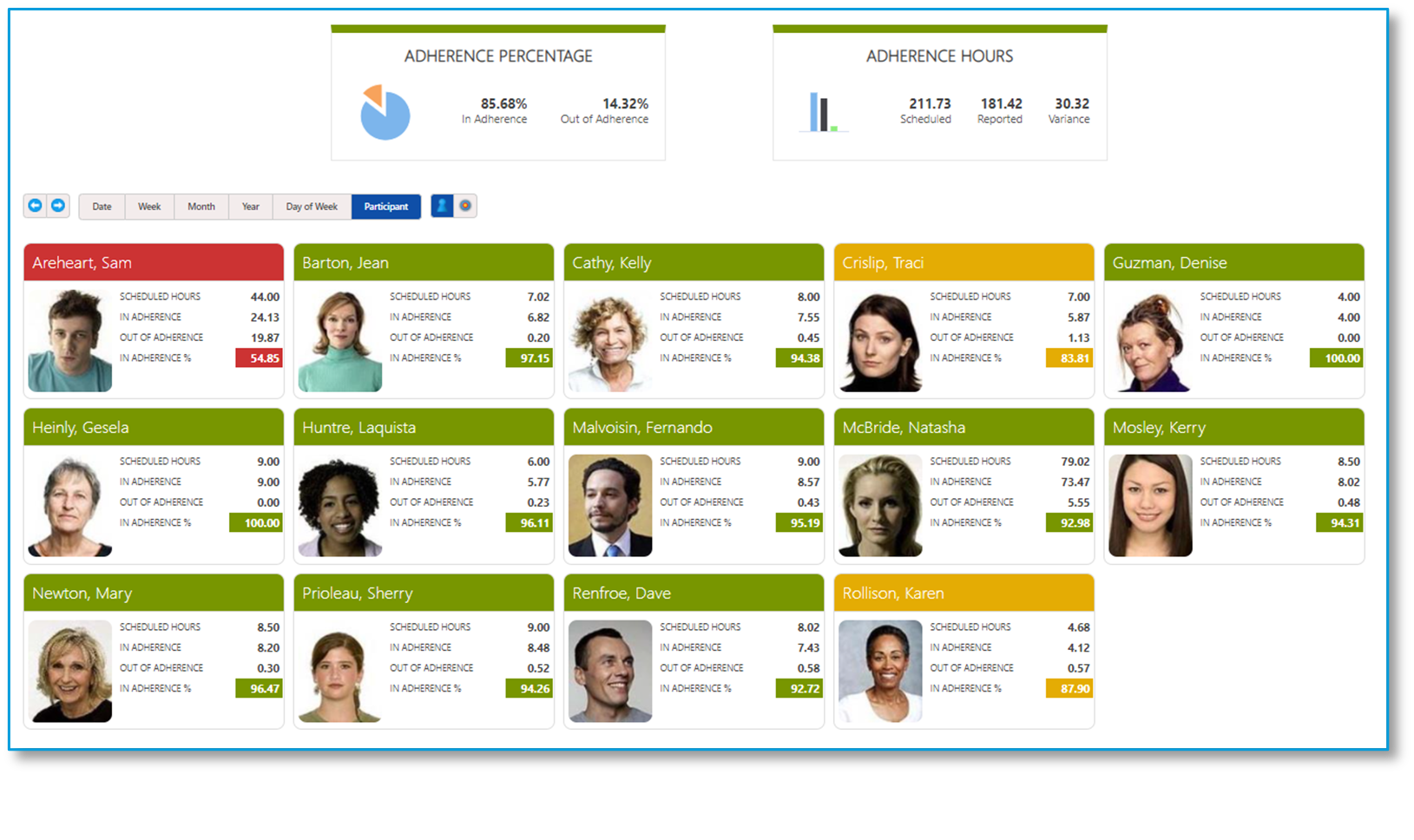
Schedule Adherence Monitor
The Schedule Adherence Monitor received a useful new addition. In addition to its familiar adherence status rings, Schedule Events and Device States now have their own charts with the same 1-click drill-down reporting. Toggle between views or arrange them across the component as seen below. Seeing everyone currently in a “meeting” or “unknown” phone state couldn’t be easier.
Summary adherence data
Adherence received a significant update enabling an entirely new summary class of data for Enterprise 5.0. Summary processing of schedule and adherence data is now conducted at regular intervals resulting in new summarized data sets. New reports based on the summary data allows enterprise-wide reporting of a year’s worth of data in seconds. Agent State Transactional detail will continue to roll off the system based on existing data policy parameters, but new summarized data can be maintained for years.
Summary reporting
Of course, with a whole new class of data available we didn’t just add a simple historical report, but added many useful, zoomable, drill-down enabled views of data that span the Enterprise Model, Organizational, or Custom Groups reporting classes. There are dozens of new reports.
Agent adherence dashboard
CommunityWFM 5.0 adds a new component to the agent desktop portal. Agents now have their own adherence dashboard to see summary data for daily, weekly, and monthly adherence scores.
Reporting Enhancements
Reporting has received usability and graphical enhancements. Reports now use a pop-out report options section within the report. No more orphan options pages! Additionally, new charting tools enable users to hide or highlight selected data sets in the legend.
Summary schedule reporting
In addition to the summary data enhancements for adherence, we have added the same functionality to all agent time reporting. Enterprise customers can now report on very large data sets quickly and easily. We have added dozens of new report combinations to enable you to get just the data you are looking for.
Data Collection Enhancements
CommunityWFM 5.0 is committed to connecting to the most popular communications platforms. In addition to a host of new data collection adapters, we have two new ways to work with historical data in CommunityWFM.
Community Cloud Connect
Community Cloud Connect is a restful service-based API allowing users to incorporate WFM data from any system. A restful API allows uploading both historical and real-time contact volume and agent state data to a cloud-based repository or your on-premises system.
Community Cloud Connect can work alongside standard collectors and can be used for less traditional WFM data sources such as internal back office or external partners who wish to share data feeds. Community Cloud Connect will be treated as an add-on and is priced consistently with other data collection interfaces.
Excel based import of historical data
Users now have the option to import historical data directly to CommunityWFM history using a wizard-based Excel import. Excel profiles have been a fast and easy way to use external data in forecasting, and we have now taken the same approach to uploading that data into Community’s historical contact volume repository.
Simply drop your spreadsheet in the file window, map your worksheet and columns, and import history into live queues or as standalone data that can be mapped to any of your activities.
Time-off Enhancements
The centerpiece of the CommunityWFM 5.0 release is the entirely redesigned time-off management capabilities.
-
Set up accrual schedules or upload from an external source to allot hours to agents.
- Track time off accruals (hours) within CommunityWFM – with automatic tracking and deductions of time off hours.
- Auto-approve or deny based on accrual balances.
- Time off slots calculated in hours rather than days.
- Ability to identify discrete agent groups for calculation against designated slots.
- Multi-round calendar bidding: Establish calendar partitions with time off rules where agents may bid for blocks of time.
- Calendar partitions with open selection (request time off without bidding).
Color-coded vacation calendars. - Track, reconcile, and report time off utilization.
Legacy mode
Upon upgrading from an earlier version of CommunityWFM, agents will be in a legacy mode. Legacy mode is designed to work consistently with current Community releases though agents will have access to more information. While the current process of requesting time off will be an option in 5.0, legacy requests will have some new features in CommunityWFM 5.0, starting with the agent’s new Time off overview. Accrual balances, scheduled time off, whether they are subject to a restricted activity plan, all in one place. A convenient menu on the left allows quick access to other options such as making a time off request and reviewing upcoming scheduled time off.
Viewable time off rules
Another feature in 5.0 includes the agent’s ability to view time off rules that govern their requests. Is that Monday a black-out day? How many agents are allowed to be off on Wednesday? Knowing the rules will help agent’s make decisions regarding their time off requests. Instant validation will inform not just whether the request may be approved or denied, but if denied – why. Agent’s may choose to go back and make changes to the request prior to submitting it.
Multi-day requests
There is now support for multi-day schedule events. This means that when an agent requests a multi-day time off event, it can be evaluated as a single request if desired, with all or nothing approval. The pending request worksheet also supports multi-day events.
Advanced vacation
When ready, you have the option to migrate some or all of your agents to the advanced vacation / calendar partition mode.
Time-off accrual policies
Time-off accrual policies allow users to earn or import accrued time such as vacation and sick time. CommunityWFM 5.0 uses those totals to compare requested time-off to earned allotments. These balances are widely available through a number of reports accessible to all roles, but most notably in the agent’s Time off overview.
Earned time can be calculated directly in CommunityWFM 5.0 using a range of business rules for differing employment types. Alternatively, values may be obtained through HR integration to the Community API or imported through a simple Excel wizard. Different departments can use differing approaches if that best suits the business needs.
Vacation bidding
Multi-round, vacation bidding is robustly supported. Calendar rules determine allowable block sizes, the number of agents who may bid at the same time, how many rounds of bidding, how much accrued time must be used in each round, along with a range of other options. Bid rounds are typically for a set period of time, after which the bids are approved or denied. After the bidding (or even instead of bidding), agents may access an open selection calendar with the same rules. Auto-approve or deny removes the manual process of handling vacation requests.
When participating in a partition, a calendar view will show the likelihood of whether an agent’s request will be approved. If participating in a bid round, agent’s will be able to view their rank in line and the time off requests of other agents who are higher in ranking order.
Bid rounds are typically for a set period of time, after which the bids are approved or denied. After the bidding (or even instead of bidding), agents may access an open selection calendar with the same rules.
After the bidding process is complete, CommunityWFM applies the time off to the agent’s schedules, seamlessly completing the process and streamlining the workflow.
There’s so much more
There’s so much more to see and experience in CommunityWFM 5.0! We hope you enjoy the enhancements as much as we’ve enjoyed creating them for you. As mentioned before, we look forward to your feedback as we continue to improve the platform.
Technical Release Notes for 5.0
Technical Release Notes V 5.0 SP3 November 15, 2022
Technical Release Notes V 5.0 SP2 June 8, 2022
Technical Release Notes V 5.0 SP1.2 January 5, 2022
Technical Release Notes V 5.0 SP1.1 December 21, 2021
Technical Release Notes V 5.0 SP3 November 15, 2022
Overview
Community Version 5.0 Cumulative Service Release 3 is the third service pack release for Community Version 5.0. This release adds new functionality and addresses several technical issues that apply to Enterprise and Essentials editions.
This release includes all previous hot fixes and patches released for version 5.0 GA (build 5.0.337), 5.0 (build 5.0.378),5.0 SP1 (build 5.0.398), 5.0 SP2 (build 5.0.546), and 5.0 SP2.1 (build 5.0.561).
Build details
Build version: 5.0. 696.655
Build date: October 28, 2022
Release date: November 4, 2022
What’s New
Community Services
Settings > Application settings > Administrative settings > Services | Process delay: modified the minimum value for process delay to 1 minute for the following Community Services: Agent Synchronization Monitor, Auto-Approve, Automated Schedule Attendance Monitor, PTO Calendar Partition Monitor, Published PTO Accrual Calendar Monitor, Schedule Adherence Summary, and Schedule Bid Monitor.
Automated Schedule Attendance Monitor
Today’s Home Page | Automated Schedule Attendance Monitor: added the ability for supervisors to configure ASAM.
Notifications
Notification memos are sent when agents submit a Late Check-In or Absentee Check-In using Community Everywhere Mobile App.
Reports — Intraday Performance Monitor
Report > Intraday analysis > Intraday performance monitor: Added the ability to ignore some number of intervals in the projection calculations for the IDP report in order to improve the accuracy of the IDP projections by ignoring recent intervals that may not have the data fully imported from the data source.
Settings > Application settings > Global settings & preferences | Adherence Reporting | Ignore prior intervals in intraday projections: Added new drop-down selection that allows users to ignore 0 intervals (default selection and will create the same results set as the previous Community versions) and up to 12 intervals (3 hours).
Reports — Shrinkage Summary
Report > Published schedule > Shrinkage report: optimized performance and execution speed/time of Shrinkage Summary report to address CPU load and timeout issues.
Reports — Data Source
Report > Contact volume > Data source: Display date and time on the interval section of the contact volume by data source report.
Devices
Settings > People & agent templates > People > Personal profile | External Devices: Removed phone number mask to allow the use international numbers.
Licensing & Activation
Licensing & Activation | Products: Removed unavailable products (e.g., Community Everywhere Mobile for Agents PAID EDITION & Community Everywhere Mobile for Supervisors PAID EDITION).
What’s Fixed
Agent View
Agent View | Properties | Agent Login Properties: agent is required to enter a strong password when attempting to update their own password although the server is set to 'No, simple passwords are acceptable'.
Agent Login: agents are unable to self-check-in from the web application getting the error "Cannot find a current schedule interval for check-in. Please verify your published schedule." even though agent has schedule. Agents now are allowed to self-check-in 1 minute before schedule start time or anytime during the schedule start/end times.
Agent View | Plan > Time off worksheet | Upcoming Time off | Pending & Upcoming requested time off: Time off worksheet showing time of request in incorrect time zone. E.g., Time off request made for 9a–10a by agent who resides in ET. When reviewing Time off worksheet, request is showing time in PST (Corporate Time).
Administrative Settings
Settings > Application settings > Administrative settings > Notifications | Notification event details | Edit Message | Mobile Push, Microsoft Teams & Slack: error report after selection the action "Edit Message" for Mobile Push, Microsoft Teams & Slack.
Settings > Application settings > Administrative settings > Application menus: added Properties > Devices to the menu for Supervisor role to be able to scan code and configure the Community Everywhere App.
Services
System Monitor Service | Schedule Adherence Summary Service: issues with most data not getting summarized in 'Published event summary' report possibly due to Community3.dbo.spScheduleIntervalSummarySync causing tempdb log to grow.
System Monitor Service | Schedule Adherence Summary Service: Community Summary Synchronization process is triggered when a copied working schedule is saved, or new working schedule is generated.
Plan > Auto-approve service > Rules > Enterprise model: Number of eligible people is showing wrong count (it is including all the admins / supervisors and counting inactive agents).
Two misspellings in the auto-approve rules headers:
- Rules Applied to Activities tab - Show all auto-approve rules applied to the enterprse model.
- Rules applied to Supervisors tab - Show all auto-approv.
Data Sources
Data Sources | AWS Adapter: Client has modified their AWS system to dynamically create and remove Shards based upon demand. Currently the adapter only reads the number of Shards at startup. Need to automatically pick up new Shards and delete old Shards while running.
Data Sources | InContact Adapter: InContact adapter is adding the same state multiple times with different start times because that is the way the API is giving us the data.
Data Sources | LiveVox Adapter: Call Volume numbers are off for certain LiveVox clients. Need to add session id to allow the summing of Operator Transfer and Operator Transfer Successful for Termination and Disposition calls.
Schedule Templates
Settings > Schedule templates > Schedule templates > Existing schedule templates: unable to delete templates with single quote in the name.
Settings > Schedule templates > Assignment profiles | Add people | Enterprise Model: Enterprise Model icons/images for activities and sites are missing.
People
Settings > People & agent templates > People | Choose using the organizational chart: people are missing from organizational chart tree but are in list on the right-side. Issue in all Supervisor trees.
On the Devices page, please change one word in "Automatically configure mobile app" section. Change "Mobile" to "Everywhere.".
All things time off
Time Off Reports | Enterprise Model: When partial day off (PTO/VTO) is submitted by an agent in a different time zone, the wrong date is displayed in the report.
Time Off Reports | PTO Event Detail Report | Show Options | show all PTO Events, or only Events for 'Active Participants': Whichever choice is made (show all is the default), inactive Agent’s already created/approved PTO requests are not showing in the list.
Time off settings > PTO classifications | Display image: error is reported in Application Exceptions report when using the default display image.
Advanced PTO:
Advanced PTO: PTO Calendars > Calendar partitions | When an agent in an open selection calendar is requesting PTO and there are a fixed number of approved requests for a brownout rule, auto-approve is considering inactive agent's PTO requests while validating the rule and failing the validation.
Advanced PTO: PTO Calendars > Calendar partitions | Bid: when an agent in a calendar partition bid is requesting PTO or adding a block, and there are a fixed number of approved requests for a brownout rule, auto-approve is considering inactive agent's PTO requests while validating the rule and failing the validation.
Advanced PTO: PTO Calendars > Calendar partitions with supervisor rule | When an agent in an open selection calendar is requesting PTO and there are a fixed number of approved requests for a brownout rule, auto-approve is considering inactive agent's PTO requests while validating the rule and failing the validation.
Advanced PTO: Agent View | Calendar partitions | Vacation Bid: after a user adds a block and commits the hours, the available PTO calendar is not showing the agent's committed hours when viewed by other agents.
Advanced PTO: PTO Calendars > Working accrual calendars | Accrual Tables | Import from Excel: error is reported in browser console and not all transactions are imported.
Advanced PTO: PTO Calendars > Published accrual calendar: The published accrual summary report when filtered for transaction detail does not freeze header rows like it does when filtered for the detail summary report.
Advanced PTO: PTO Calendars > Calendar partitions: validation is failing on the bid calendar.
Advanced PTO: PTO Calendars >When using the Excel import for accrual, it imported with no issue but in the review page (Step 5), the transaction dates were out of order.
Advanced PTO: Time off worksheet 'Accruals/Hours Scheduled' field not respecting Priority Layering.
Schedule Bids
Schedule > Schedule bids: schedules are different although the IDs are the same when opened within the Bid Response Report and the Schedule Template Report.
Schedule > Schedule Bids: Even though the agent has Saturday or Sunday in their schedule, it is not showing on the schedule view in "Schedule Bid Inventory" on the opened schedule but is in the "Bid response report".
Schedule > Schedule bids: start/end time of agent's assigned schedule bid template is off by 1 hour.
ASAP
Schedule > ASAP | Decrease Available staff | Plan a meeting: When you click on "Show" button under Participant Error column, the pop-up window is stuck on loading.
Schedule > ASAP | Decrease Available staff | Plan a meeting: missing labels on meeting planner.
Schedules
Report > Working Schedule: When a customer resides in a time zone that is PAST GMT, there is an issue with the First Day of Week setting advancing by one day when Generating Optimized Schedules in a Working Schedule.
Schedule > Working schedules | Manage agent schedules | Layered view: In the Working Schedule, if you view an Agent's schedule in layered view and attempt a drag/drop change, it will present an error at top of page: "Invalid AgentID".
Schedule > Working schedules > Schedule worksheet | on the Review events & exceptions when you filter by event types, it is showing wrong name on the participant list, but it is showing right name on the pop-up.
Reports
Report > Published schedule > Schedule details | Enterprise Model: when user create an All day PTO request with the option "No, some of the dates can be approved and some denied", it is not removing the underlying schedule.
Report > Published schedule > Schedule details | Enterprise Model: When you request an intraday event of 9 hours and it was approved, only 8.99 hours have been deducted from the PTO balance on the agent view.
Report > Published schedule > Schedule details & Schedule adherence > Daily schedule adherence | Convert work event to time off | Time Zones: when using default time zone in 'Show options', the start and end time of the converted schedule is off.
Report > Published schedule > Shrinkage report | Through date: End/Through date is not included in the calculations in the Executive Summary and Date reports within the summary report.
Report > Schedule adherence > Schedule adherence summary | Through date: End/Through date is not included in the calculations in the Executive Summary and Date reports within the summary report.
Report > Published Forecast > Shrinkage percentages: In the Forecast Shrinkage Report, the total shrinkage percent goes out 17 decimal places in the graph (it rounds down to a more reasonable hundredth in the table).
Report > Published schedule > Published event summary: discrepancies between the data reported in published schedule and in the published summary
Report > Published schedule > Published event summary: Summary report for specific date shows no data when user drills down and error reported in console.
Report > Published schedule > Published event summary | Launch the report by Activity: When the settings for approving or denying pending requests is set up for "Scheduler and above" in the Global settings & preferences, supervisors are able to approve or deny requests on Published event summary report after clicking on validation icon on the pop-up window with "Approve" or "Deny" buttons.
Report > Published schedule > Published event summary | Summary by participant | Participant Totals | Multiple Participants: error reported when attempting to view an event that is assigned to multiple participants.
Report > Published schedule | shrinkage report and the published schedule event summary report are showing different totals for shrinkage.
Report > Shrinkage and published event summary report | Discrepancy with Shrinkage Reports: discretionary and non-discretionary values are not same for the same date range.
Report > Intraday analysis > Intraday performance monitor: the green line is not honoring corporate time selection although the enterprise, site, browser, and PC are all set to the same time zone.
Report > Intraday analysis > Intraday performance monitor: the green line is not honoring time zone selection.
Report > Schedule adherence > Schedule adherence summary | Show options: an error is reported after selecting and applying the option "Use corporate time zone”.
Report > Intraday analysis > Intraday performance monitor | Projected Requirements vs. Forecasted Requirements: values are switched.
Report > Intraday analysis | Intraday performance monitor: When Intraday performance monitor report is filtered by STAFFING ANALYSIS, AHT and SERVICE ANALYSIS then user hovers over the chart values, all of them says 'Contacts'.
Report > Intraday analysis > Intraday performance monitor: graph's Y axis label will always show current date.
Report > Intraday analysis > Intraday performance monitor | green line: the color of the highlighted time is hard to see when the text is white, and the background color is light green.
Report > Intraday analysis > Intraday performance monitor: Projected requirements column in the table should be empty prior to the current time but it shows data.
Report > Schedule adherence > Schedule adherence summary | Adherence Percent, Totals, and Daily Intervals: agents with multiple data source IDs assigned will cause the intervals, total hours, and adherence % to be doubled, tripled, etc.
Report > Schedule adherence > Daily schedule adherence: net line data and 2nd/3rd rails/bars not showing for adherence and states bars after upgrade only for a single client.
Report > Schedule adherence > Schedule adherence summary | Enterprise Model: Inactive agents are showing on Schedule Adherence Summary report.
Report > Schedule adherence > Schedule adherence summary | Report run time: 'Report run time ' does not get updated after updating/Applying changes to the 'Show Options' form.
Miscellaneous
GDPR | People > Current list > Personal profile > Basic properties | Custom properties: Add warning banners for potentially sensitive or private data being captured in Agent Custom Properties (list and agent profile properties page).
GDPR | Report > Administrative & utility > Data targets: Add warning banners for potentially sensitive or private data being Exported as part of a Data Target.
Settings > Application settings > Global settings & preferences | SAML 2 Configuration | SAML Logging Configuration: When enabling SAML logging after UTC time changes to tomorrow and local time is still today.
Help Videos | Cloud-hosted MP4 files | Editing schedules: remove the word "working" from the description in the tile menu.
Copyright Year: Update year to 2022 or make it dynamically update every year.
Known/Deferred Issues
Home Page / Today
Automated Schedule Attendance Monitor | When you are viewing today's summary and click on PM data, then go back to viewing AM data, it is showing different date (not today's date).
Administrative Settings
Settings > Application settings > Administrative settings > Notifications | SMS / Text Messaging | MessageMedia: MessageMedia not sending SMS messages to the end user and errors reported on the server application log.
Intraday Notification | Memo Text: denied intraday event added by admin fires notification text that states the request was approved and that it was recurring although it is intraday and was denied.
Data Sources
Settings > Data sources | Import | Import contact volume from Excel: need to inform users of removed duplicate intervals during validation/importing.
Schedule Templates
Settings > Schedule templates > Schedule templates | users should not be able to add inactive agents to schedule templates assignment.
People
Settings > People & agent templates > People > Personal profile: When creating a new schedule template assignment for an agent, close the window when you click Save otherwise the same template will be assigned to the agent as many times as it is saved.
All things time off
Agent View | Time Off: When an agent requests planned All day PTO/LOA, and it is approved from today's page pending request or from all things time off report, the schedules are not removed from the agents schedule; agents will have both work and PTO on their schedule.
ASAP
Schedule > ASAP | Decrease Available staff | Plan a meeting: When we create and execute plan a meeting ASAP, and one of the agents who was in the ASAP requested all day time off, the meeting ASAP is not being removed from their schedule. Agents will have both ASAP and PTO on their schedule.
Reports
Reports | Date format for reports needs to be consistent, using global date format (e.g., 01 Dec 2022).
Reports & Today's Home Page: warning message reported in browser console: "Deprecation warning: moment().add(period, number) is deprecated. Please use moment().add(number, period). See http://momentjs.com/guides/#/warnings/add-inverted-param/ for more info."
Report > Schedule adherence > Daily schedule adherence: error is reported when loading the adherence report because one of the agents has a very long user id (ex. 54 characters).
Report > Schedule adherence | Schedule adherence history and Schedule adherence summary | Comparing the historical adherence report with the schedule adherence summary report, some agents are reporting different Total Adherence numbers.
Report > Schedule adherence > Daily schedule adherence: Schedule start time is off when selecting time zone that does not honor DST (e.g., Arizona).
Report > Schedule adherence > Daily schedule adherence | Show options | Through date | Validation: users are unable to select Through dates that are 3 days after the start date.
Technical Release Notes V 5.0 SP2 June 8, 2022
Overview
Community Version 5.0 Cumulative Service Release 2 is the second service pack release for Community Version 5.0. This release adds new functionality and addresses several technical issues that apply to Enterprise and Essentials editions.
Community Version 5.0 Cumulative Service Release 2 is a full install that supports installing new clients as well as upgrading directly from Community versions 4.4 SP2 (build 4.4.825) and 5.0 (Build 5.0.337), 5.0 (build 5.0.378), and 5.0 SP1 (build 5.0.398).
This release includes all previous hot fixes and patches released for version 5.0 GA (build 5.0.337), 5.0 (build 5.0.378) and 5.0 SP1 (build 5.0.398).
Build details
Build version: 5.0.546.687
Build date: May 31, 2022
Release date: June 1, 2022
What’s New
Password Requirements
Web application and mobile app authentication: Added the ability to configure password requirements for both application authentication and mobile application authentication.
Settings > Application settings > Global settings & preferences | Password Requirements: Added 2 new password requirements options:
- Minimum password length: 8 (default), 10, 12, or 15 character minimum
- Require strong passwords: At least one uppercase letter, a number, and a special character: ‘No, simple passwords are acceptable’ (default) or ‘Yes, require strong passwords’
Updated the default password for Community first admin user (configured in the first-time setup page).
Data Targets
Data Targets | SFTP | Custom Ports: added the ability to support custom SFTP ports other than default port 22 (format sftp.mycompany.com:port).
Advanced PTO
Plan > All things time off > Time off settings > Accrual schedules | Years of Service: added to the list of 'Years of Service' up to 40+ years.
Online Help Videos
Added support for new 5.0 online help videos.
What’s Fixed
Login
Mobile App Login - Settings > People & agent templates > People > Basic properties | User credentials for mobile application | SSO/SAML users: Unable to login to mobile app using the password configured under 'User credentials for mobile application' instead the mobile user is able to login to the mobile app using the web application password.
Today (Home Page)
Today | Pending Request Worksheet: Supervisors should not be able to approve/deny requests in the Pending Requests Worksheet if the Role Permissions settings disallow it.
Typo: Today > Hot news | Enterprise model: missing “to” (it should read “send a message ‘to’ members).
Services and Utilities
Data Retention - Settings > Application settings > Administrative settings > Data retention policy | System internal data | Intermediate Schedule Data Truncate Policy: data retention policy was blindly deleting all rows from AgentScheduleChangeEvent, without regard to the processing status of those rows impacting the summarized data of schedules, events, and adherence.
Summary Utility - Settings > Application settings > Administrative settings > Data Summary Utility: summary utility (in the UI) was not including the full range of events in the “through date” value.
Summary Utility - Settings > Application settings > Administrative settings > Data Summary Utility: Optimize the stored procedure used by Data Summary Utility.
Data Sources
ShoreTel Event Feed Data Source - need to update queries under t_params.
Schedule Templates
Settings > Schedule templates > Schedule templates | Security button isn’t working to add securities.
Auto Approve
Plan > Auto-approve service > Rules > Enterprise model | when you add Agent Minimum Request Interval Rule and click save, it is throwing an error on console.
All things time off
Time Off: Personal profile > PTO settings | PTO Classification Summary (PTO) | Published Accrual Summary Report | when you generate accruals transactions, the hours are inaccurate when the policy is set to monthly.
Time Off: Plan > All things time off > Time off settings | PTO policies: while adding new people to a new or existing policy, inactive agents were included in the list of available agents. Corrected to show only eligible active agents.
Time Off: Plan>All Things Time Off>Time Off Events>Create Planned time off events: the PTO event will not delete the underlying schedule unless the event overlaps the schedule event in some way. Corrected to delete events such as break and lunch on PTO days.
Time Off: Settings > People & agent templates > People > Current list > Personal profile > PTO settings for agent | getting an error when you try to change an agent’s assigned PTO policy.
Time Off: Agent View: Agents are not getting memos when the time off (recurring time off or request time off) was approved or denied by the administrator. Memo and notifications added for Time off request status change.
Advanced PTO: Agent View > Plan > Time Off Worksheet | Waitlisting: after the time off is approved and the agent is going to a minus accrued hours balance.
Advanced PTO: Schedule > Schedule bids: Getting repeated memos or memos are looping through with a subject PTO Calendar Bid Round Block Validation Status Updated.
Advanced PTO: Agent View: Plan > Time off worksheet: the agent is unable to accept the eligible waitlist item even though they have sufficient accrued hours.
Advanced PTO: Agent View: Plan > Time off worksheet | Calendar partition | Time off bid rounds: agents are getting 400 error on the calendar partition after clicking Show this bid round status.
Advanced PTO: Plan > Time off worksheet | Calendar Partition: When agent adding a block and saving a time off request, getting “Unable to validate the block. An error occurred. [973] Unable to connect to the remote server” error.
Advanced PTO: Agent View: Plan > Time off worksheet: do not allow the agents to commit the bid without validating the block; otherwise, the block status will change to ‘not valid’ and hours will not reflect on the agent’s accrual balance once the bid is closed and published.
Advanced PTO: Agent View: Plan > Time off worksheet: when an agent has requested a vacation bid exception and the administrator has approved it, the system sends out multiple memos.
Advanced PTO: Agent View: Plan > Time off worksheet | Upcoming time off | Not Eligible Waitlist Status | Waitlist icon: error reported after clicking on icon: Exception Id: 1 Originating Namespace: WFMSG.Server.PersistencePeers.SQLServerPersistencePeers Description: No suitable persistence peer found for the given document type.
Advanced PTO: Plan > All things time off > PTO Calendars > Calendar partitions: when adding people to a PTO calendar, the participant list is showing inactive agents in addition to active agents. Corrected to show only eligible active agents.
ASAP
ASAP meeting & Planned All Day Time Off: when single agent all day time off is approved, the ASAP meetings are removed for all agents.
Schedule > ASAP calendar | Decrease Available Staff | Create VTO: Display minimum and maximum participants to accept the offer (minimum and maximum participant count) on the home page.
Schedule > ASAP | Decrease Available Staff | Create VTO events: when you create new VTO event and open for feedback agents are not getting memo or notification to accept the VTO.
Schedule > ASAP | Decrease Available Staff | Create VTO events: when you create a new VTO event, agents are getting same memo multiple times.
Schedule > ASAP calendar: On the Response Report, we are unable to see the time when agents have accepted the offer, it only shows the last updated date. Corrected to show time agent accepted.
ASAP | Increase Available Staff | Create Overtime Shifts | Basic properties: allow agents with schedules on this date to participate in this plan?: when 'Yes, ...' is selected, the 'No,...' option is selected when the user returns to Basic properties.
Schedule > ASAP Schedule: when you create and execute a Plan a meeting ASAP, on the ASAP execution status report the event type is showing as N/A and duration is not showing in minutes if it is 30 minutes (it should show 0.5).
Forecast & Schedules
Published & working forecast | Staffing requirements reports issue with Forecast staffing report where the calculations for staffing hours was incorrect resulting in inaccurate staffing FTEs and efficiency totals when using Skill-based forecasting.
Forecast > Published forecast | on the AHT graph, the Forecasted vs Actual lines are reversed in both the values and colors.
Typo: Forecast > Working forecasts > Forecast worksheet | Working forecast staffing requirements | Generate Clusters: There’s a typo in the tool tip in the working forecast worksheet. "Forecastgin" instead of forecasting.
Schedule > Working schedules > Schedule worksheet | Printer-friendly Schedule Reports: Schedule detail by date — the downloaded xlsx or csv reports is showing only agent's name and not showing the schedule details.
Reports
Report > Contact Volume: AHT calculation for Media types and Executive Summary are not accurate/matching the manual calculations.
Report > Contact volume | Show the data source report: Contact volume by data source report: Collection point – top row was blank. Now shows All Collection Points.
Report > Schedules | Event: rounding issues after dragging and dropping the event – displaying event with duration of 20 minutes as 19 minutes.
Report > Published Schedule: Clicking on Apply options, the schedule is not refreshing the report but when viewed in the "Show this report in full-screen view", the schedule for the week displays correctly.
Report > Published schedule > Shrinkage report: unable to see shrinkage data for periods before current date (today).
Report > Published schedule > Schedule analysis | Show the compact service metric summary: After clicking apply options report is not loading and throwing an error on the console.
Report > Published schedule > Schedule analysis | Show the full-service metric summary: After clicking apply options report is not loading.
Report > Published schedule > Published event summary: denied hours are being included in the calculated hours for Paid / Not paid, Work / Not at work, Queue / Not in queue, etc.
Report > Published schedule | Shrinkage report: when you choose time zone and click apply options, a 404 error is reported.
Report > Published schedule > Schedule details | Custom user group: when using Create New Work Intervals option in a published schedule for a custom group, the agents you can choose to include in the event is different than the actual custom group.
Report > Published schedule | Shrinkage report: on the show option section it is not supposed to show the time zone until you select "use selected time zone" on the time zone dropdown.
Published & Adherence Schedules | Scheduled Events | Edit: edited scheduled events are not displaying correctly. The end time of the edited event is not triggered/calculated correctly and showing the old end time.
Published & Adherence Schedules | Scheduled Events | Delete: scheduled events do not get deleted after attempting to delete from the schedule.
Report > Intraday analysis > Intraday performance monitor: when you choose time zone and click apply options gives 404 error.
Report > Schedule adherence > Daily schedule adherence | Automatic refresh interval: when selecting the option "Do not refresh the report", it will spawn a nearly infinite number of refresh requests causing high CPU usage. As a result, few changes to the UI are made on the Global settings & preferences as well as the report options for automatic refresh interval.
Report > Schedule adherence > Daily schedule adherence | Enterprise model: when you "Use corporate time zone" and create event interval, it is giving an error while saving.
Report > Schedule adherence > Daily schedule adherence | Show the supervisor report: When creating new work intervals, inconsistent behavior between the published schedule report by agent and the schedule adherence report by agent.
Typo: Report > Schedule adherence > Adherence alerts: Columns is misspelled (in Columns per row).
API Help
Community Help Page: the API link page is breaking with the error - Server Error in '/CommunityWebApi' Application.
Known/Deferred Issues
Home Page / Today
Automated Schedule Attendance Monitor | When you are viewing today's summary and click on PM data, then go back to viewing AM data, it is showing different date (not today's date).
Notifications
Settings > Application settings > Administrative settings > Notifications: there is no memo settings for ' Time off request updated'. This memo option will be removed as memos are sent for Time off request status change.
All things time off
Time Off: Agent View: Plan > Time Off Requests: when entering the details and clicking tab, it is highlighting the dropdown lists, but user cannot make selection using keyboard.
Advanced PTO: Plan > All things time off > PTO Calendars > Working accrual calendars | Accrual Tables | Import from Excel: error is reported in console and not all transactions are imported when:
1. Using an existing file/a file that was already uploaded
2. Using the option 'Import all including Warnings'
Advanced PTO: Agent View: Plan > Time off worksheet | Calendar partitions | Time off bid rounds: when the calendar partition and bid monitor service are running all the time and the agent's PTO bid exception is approved by the admin, the block status does not auto-update to Valid status.
Advanced PTO: Agent View: when brownout rule is configured with one fixed approved request per day in a partition and one agent has committed the block for 40 hours, another agent is also able to commit the block if that agent requests multiple blocks with the same date range.
ASAP
Schedule > ASAP Calendar | Modify Current Schedule | Optimize Off-phone Events: page times out after 5 minutes after executing the plan (although the execution completes successfully in the background past the timeout value).
Schedules & Reports
Schedule > Working schedules > Schedule worksheet | Printer-friendly Schedule Reports: Schedule detail by participant — when you download an xlsx or CSV, the report is not showing the agent’s name.
Report > Schedule adherence > Schedule adherence summary | Enterprise Model: Inactive agents are showing on the Schedule adherence summary report.
ASAP | Choose people | Automatically update net line statistics: 'Automatically update net line statistics' checkbox is always grayed out: This option is only available for the "Plan a meeting" ASAP type when choosing a start time and then finding the meeting participants based on the fixed meeting time.
Schedule > ASAP Schedule | Decrease Available staff | Plan a meeting: Choose people — when you click Choose your meeting start date and time, date picker is missing.
Report > Schedule adherence > Daily schedule adherence report | Report options | Through date | Auto refresh interval: The auto-refresh selection list is set to null if the ‘Through date’ is set to any values other than today’s date because auto-refresh ONLY applies to today’s date as the report date.
Report > Schedule adherence > Daily schedule adherence | Enterprise model: when you “Use corporate time zone” and “Convert work event to time off,” it is giving an error while saving.
Report > Schedule adherence > Daily schedule adherence & Schedules | Enterprise model: using custom time zone, manually created event(s) use the agent’s default time zone not the selected time zone.
Schedule > Working schedules > Schedule worksheet | Printer-friendly Schedule Reports: Schedule detail by date — the downloaded xlsx or CSV report name is encoded with a URL (e.g., (Schedule+detail+for+Areheart%2c+Sam++on+Monday%2c+28+03+2022) instead of the report name with the agent. As designed because the name is "url encoded" to allow it to be downloaded; the name is derived from the title attribute of the enclosed div.
Report > Published schedule > Published event summary | Enterprise model: the Published event summary event detail report is showing start and end times as N/A - N/A even though PTO event has defined start and end times.
Settings > Schedule templates > Schedule templates > Existing schedule templates | after adding schedule template and clicking save, "Organize your schedule template " is not aligned properly.
Technical Release Notes V 5.0 SP1.2 January 5, 2022
Overview
Community Version 5.0 Cumulative Service Release 1 is the first service pack release for Community Version 5.0 that adds new functionality and addresses several technical issues that apply to Enterprise and Essentials editions.
Community Version 5.0 Cumulative Service Release 1 is a full install that supports installing new clients as well as upgrading directly from Community versions 4.4 SP2 (build 4.4.825) and 5.0 (Build 5.0.337) and 5.0 (build 5.0.378).
This release includes all previous hot fixes and patches released for version 5.0 GA (build 5.0.337) and 5.0 (build 5.0.378).
Build details
Build version: 5.0.398.679
Build date: January 3, 2022
Release date: January 3, 2022
What’s New
Data Sources
Settings > Data sources: added new Genesys PureCloud Connect data source with support for importing Collection Points, People and Call Volume:
Schedules
Schedule > Working schedules > Schedule worksheet | Review events & exceptions: keeps the report on the day you are working on to prevent accidently editing another date.
Mobile Application Settings and Capabilities
Settings > Application settings > Administrative settings > Mobile application setup: added the ability to control mobile users access to Recurring Time Off and Planned Time Off.
What’s Fixed
Login
Login | Reset: user is unable to login after resetting the login using 'Reset'. Tested Chrome and Edge browsers.
Agent Role | SSO Login | Properties > Devices: the QR code generated for mobile app uses the SSO username and login and not the Mobile application user name when scanning the QR code using the mobile application.
Services
Plan > Auto-approve service > Rules > Enterprise model | Agent Brownout Date Rule: all agent time off requests within the brownout range are denied by the validator and auto approve service.
Plan > Auto-approve service > Rules > Enterprise model | Community Enterprise Model: Agent Brownout Date Rule, when you edit the existing rule by updating the date and saving multiple times, it is clearing the values of the rule when you re-open them.
Plan > Auto-approve service > Rules > Enterprise model | Agent Brownout Date Rule: modifying the form then clicking Save will result in the form reverting back to the old, saved data and not the new data, and error is in console although the new data is saved.
People
Client Issue | Settings > People & agent templates > People > Current list > Personal profile > Scheduling setup | Create a new schedule template assignment: 'Schedule type' dropdown list is empty, and all web users are logged out after attempting to add new assignment.
Client Feature | Settings > People & agent templates > People > Current list > Personal profile | User login credentials | User ID: UI limits user to 40 characters but database allows 50. Limit for UI increased to 50 characters.
All things time off
Plan > All things time off > Time off events | Create planned time off events | Partial day: error is reported after adding participants to the time off request "<target>. Duration and <source>. Duration has conflicting properties: DataType property mismatch."
Client Issue | Agent View | Plan > Time Off Requests | Request planned time off | Partial day | Validation | Total hours requested: issue with rounding the total hours requested in the validation message but reports and schedules are correct.
ASAP
Client Issues | ASAP open for feedback notifications all sending "Extend Overtime Shifts" notification text regardless of ASAP type.
Client Issue | ASAP | Increase Available Staff | Create Overtime Shifts | Eligible Participants: all agents under the selected activity are marked eligible although some are not eligible.
Client Feature | ASAP | Increase Available Staff | Create Overtime Shifts | Open for Feedback: multiple notifications are sent to the agents because client kept clicking 'Open for feedback' button. Now, we only allow users to click the button once and present ‘Loading…’ message.
Schedules
Client Issue | Inconsistency | Published Schedules | Add Events | Comments: When an Admin/Scheduler/Supervisor adds a new Event to an Agent's schedule, the 'Comments' field should not be required, as in previous versions.
Reports
Client Issue | Report > Intraday analysis > Intraday performance monitor: IDP reporting full-day call volume and AHT instead of “ToCurrent”.
Client Issue | Report > Schedule adherence > Schedule adherence history | Agent Data | Export: xlsx and csv export files are missing agent names in the export files.
Client Issue | Schedules | Event: rounding issues with displaying events with duration such as 20 minutes as 19 minutes.
Client Issue | Report > Schedule adherence > Schedule adherence history | Executive Summary | Export: xlsx and csv export files of executive summary has no data.
Client Issue | Report > Published schedule > Schedule details | Net line reports: rounding results are different for Required FTEs in 'Subordinate activity analysis' vs. Published schedule.
Multiple Reports | Show options: report 'Show options' does NOT auto hide after clicking 'Apply'.
Schedule > Working schedules > Schedule worksheet | Compact Service Metric summary: '400 bad request' error reported after applying report.
Client Issue | Published schedule event summary report | Summary by date | Summarized by date | Detailed published event report by Activity: drill down to event (by selecting the report date), it is showing events for whole month and not date specified.
Essentials edition
Essentials - Agent view - Schedule | Schedule Bid | Permission: suppress 'Schedule Bid' for agents.
Essentials upgrade to Enterprise | Settings > Application settings > Administrative settings > Notifications | Teams & Slack: Teams & Slack notification channels not listed in UI after upgrade from Essentials to Enterprise, both channels are licensed.
Essentials- Schedule > Working schedules > Schedule worksheet | Permission: suppress display of Participants, User Group Schedules, Security, Weekly schedule analysis & Assignment Profile assignments.
Misspelling
Forecast > Published forecast | Report | Staffing requirements | Staffing hours and Staffing FTEs, when you click Print on the report section "Forecast Report - Staffing" misspelled as Forecat Report – Staffing.
Forecast > Published forecast | Report | Staffing requirements | when you download the report as either CSV or XLSX the report name is misspelled to Forecat instead of Forecast.
Forecast > Published forecast | Report | Staffing requirements | Staffing hours and Staffing FTEs report Total Adjusted FTEs is misspelled as Total Adjuested FTEs.
Forecast > Working forecasts > Forecast worksheet | Working Forecast Staffing Requirements | View forecast reports | on the report section Total Adjusted FTEs is misspelled as Total Adjuested FTEs.
Plan > All things time off > Time off events > recurring event | How show this event influence existing work hours?: 'Show' should be changed to 'Should'
Client Issue | Agent View | Plan > Time Off Requests > Request planned time off: misspelling of 'requstesting ' in 'Are you requstesting off a portion of a day or a whole day(s)?'
Agent view - Schedule | Self check-in | tile description: typo in 'applicaiton'.
Known/Deferred Issues
Settings
Client Issue | Supervisor View | Custom Menu | Settings > Application settings > Administrative settings > Application menus | Working Schedule Steps to Success (Left menu) & tiles: supervisors are unable to expand items on left-side menu and icons.
Custom Menu | Settings > Application settings > Administrative settings > Application menus | Published Forecast Steps to Success (Left menu) & tiles: supervisors are unable to see tiles.
Reports
Report > Published schedule > Shrinkage report: unable to see shrinkage data for periods before current date (today).
Report > Published schedule | Shrinkage report: on the show option section it is not supposed to show the time zone until you select "use selected time zone" on the time zone dropdown.
Technical Release Notes V 5.0 SP1.1 December 21, 2021
Overview
Community Version 5.0 Cumulative Service Release 1 is the first service pack release for Community Version 5.0 that adds new functionality and addresses several technical issues that apply to Enterprise and Essentials editions.
Community Version 5.0 Cumulative Service Release 1 is a full install that supports installing new clients as well as upgrading directly from Community versions 4.4 SP2 (build 4.4.825) and 5.0 (Build 5.0.337).
This release includes all previous hot fixes and patches released for version 5.0 GA (build 5.0.337).
Build details
Build version: 5.0.378.665
Build date: December 14, 2021
Release date: December 16, 2021
What’s New
Data Sources
Settings > Data sources: added new Genesys PureCloud Connect data source with support for importing Collection Points, People and Call Volume:
Schedules
Schedule > Working schedules > Schedule worksheet | Review events & exceptions: keeps the report on the day you are working on to prevent accidently editing another date.
Mobile Application Settings and Capabilities
Settings > Application settings > Administrative settings > Mobile application setup: added the ability to control mobile users access to Recurring Time Off and Planned Time Off.
What’s Fixed
Login
Login | Reset: user is unable to login after resetting the login using 'Reset'. Tested Chrome and Edge browsers.
Agent Role | SSO Login | Properties > Devices: the QR code generated for mobile app uses the SSO username and login and not the Mobile application user name when scanning the QR code using the mobile application.
Services
Plan > Auto-approve service > Rules > Enterprise model | Agent Brownout Date Rule: all agent time off requests within the brownout range are denied by the validator and auto approve service.
Plan > Auto-approve service > Rules > Enterprise model | Community Enterprise Model: Agent Brownout Date Rule, when you edit the existing rule by updating the date and saving multiple times, it is clearing the values of the rule when you re-open them.
Plan > Auto-approve service > Rules > Enterprise model | Agent Brownout Date Rule: modifying the form then clicking Save will result in the form reverting back to the old, saved data and not the new data, and error is in console although the new data is saved.
People
Client Issue | Settings > People & agent templates > People > Current list > Personal profile > Scheduling setup | Create a new schedule template assignment: 'Schedule type' dropdown list is empty, and all web users are logged out after attempting to add new assignment.
Client Feature | Settings > People & agent templates > People > Current list > Personal profile | User login credentials | User ID: UI limits user to 40 characters but database allows 50. Limit for UI increased to 50 characters.
All things time off
Plan > All things time off > Time off events | Create planned time off events | Partial day: error is reported after adding participants to the time off request "<target>. Duration and <source>. Duration has conflicting properties: DataType property mismatch."
Client Issue | Agent View | Plan > Time Off Requests | Request planned time off | Partial day | Validation | Total hours requested: issue with rounding the total hours requested in the validation message but reports and schedules are correct.
ASAP
Client Issues | ASAP open for feedback notifications all sending "Extend Overtime Shifts" notification text regardless of ASAP type.
Client Issue | ASAP | Increase Available Staff | Create Overtime Shifts | Eligible Participants: all agents under the selected activity are marked eligible although some are not eligible.
Client Feature | ASAP | Increase Available Staff | Create Overtime Shifts | Open for Feedback: multiple notifications are sent to the agents because client kept clicking 'Open for feedback' button. Now, we only allow users to click the button once and present ‘Loading…’ message.
Schedules
Client Issue | Inconsistency | Published Schedules | Add Events | Comments: When an Admin/Scheduler/Supervisor adds a new Event to an Agent's schedule, the 'Comments' field should not be required, as in previous versions.
Reports
Client Issue | Report > Intraday analysis > Intraday performance monitor: IDP reporting full-day call volume and AHT instead of “ToCurrent”.
Client Issue | Report > Schedule adherence > Schedule adherence history | Agent Data | Export: xlsx and csv export files are missing agent names in the export files.
Client Issue | Schedules | Event: rounding issues with displaying events with duration such as 20 minutes as 19 minutes.
Client Issue | Report > Schedule adherence > Schedule adherence history | Executive Summary | Export: xlsx and csv export files of executive summary has no data.
Client Issue | Report > Published schedule > Schedule details | Net line reports: rounding results are different for Required FTEs in 'Subordinate activity analysis' vs. Published schedule.
Multiple Reports | Show options: report 'Show options' does NOT auto hide after clicking 'Apply'.
Schedule > Working schedules > Schedule worksheet | Compact Service Metric summary: '400 bad request' error reported after applying report.
Client Issue | Published schedule event summary report | Summary by date | Summarized by date | Detailed published event report by Activity: drill down to event (by selecting the report date), it is showing events for whole month and not date specified.
Essentials edition
Essentials - Agent view - Schedule | Schedule Bid | Permission: suppress 'Schedule Bid' for agents.
Essentials upgrade to Enterprise | Settings > Application settings > Administrative settings > Notifications | Teams & Slack: Teams & Slack notification channels not listed in UI after upgrade from Essentials to Enterprise, both channels are licensed.
Essentials- Schedule > Working schedules > Schedule worksheet | Permission: suppress display of Participants, User Group Schedules, Security, Weekly schedule analysis & Assignment Profile assignments.
Misspelling
Forecast > Published forecast | Report | Staffing requirements | Staffing hours and Staffing FTEs, when you click Print on the report section "Forecast Report - Staffing" misspelled as Forecat Report – Staffing.
Forecast > Published forecast | Report | Staffing requirements | when you download the report as either CSV or XLSX the report name is misspelled to Forecat instead of Forecast.
Forecast > Published forecast | Report | Staffing requirements | Staffing hours and Staffing FTEs report Total Adjusted FTEs is misspelled as Total Adjuested FTEs.
Forecast > Working forecasts > Forecast worksheet | Working Forecast Staffing Requirements | View forecast reports | on the report section Total Adjusted FTEs is misspelled as Total Adjuested FTEs.
Plan > All things time off > Time off events > recurring event | How show this event influence existing work hours?: 'Show' should be changed to 'Should'
Client Issue | Agent View | Plan > Time Off Requests > Request planned time off: misspelling of 'requstesting ' in 'Are you requstesting off a portion of a day or a whole day(s)?'
Agent view - Schedule | Self check-in | tile description: typo in 'applicaiton'.
Known/Deferred Issues
Settings
Client Issue | Supervisor View | Custom Menu | Settings > Application settings > Administrative settings > Application menus | Working Schedule Steps to Success (Left menu) & tiles: supervisors are unable to expand items on left-side menu and icons.
Custom Menu | Settings > Application settings > Administrative settings > Application menus | Published Forecast Steps to Success (Left menu) & tiles: supervisors are unable to see tiles.
Reports
Report > Published schedule > Shrinkage report: unable to see shrinkage data for periods before current date (today).
Report > Published schedule | Shrinkage report: on the show option section it is not supposed to show the time zone until you select "use selected time zone" on the time zone dropdown.