How to request recurring time off events under legacy rules.
Time off requests
A legacy method for requesting time off similar to prior versions will remain in CommunityWFM for now (Plan > Time off requests > Request planned time off or Request a recurring time off event). However, we recommend that you explore the new features available in the time off worksheet.
The Time Off Worksheet is where you can review your time off accrual balances, time off settings, the PTO policy to which you are assigned, and whether you are on a restricted action plan. A convenient menu on the left will link you to your list of upcoming time off, current and upcoming Calendar Partitions (if participating), and links to request time off or request a recurring time off event, all in one place.
Traditional time off requests
Plan > Time Off Requests > Request planned time off or Request a recurring time off event or use the same forms from the time off worksheet.
Select recurring event for partial day events that occur on more than one day (consecutive or non-consecutive), or for full day events that occur on more than one non-consecutive day.
Request a recurring time off event
Complete the recurring time off event worksheet.
Request type: Select from the available event types.
Start date / End date: Select start and end dates.
Start time / End time: Select start and end times. Must be the same for each day.
What recurrence pattern should apply to this request? Select from This event occurs every day in the specified date range and This event occurs only on selected days of the week. If only certain days, check the boxes for the selected days.
Comments: Required.
Click Save to send your request to your supervisor. Note: The validation step that occurs when requesting a non-recurring event does not run for this type of event.
On the final page, review the table of requests then click Finish.
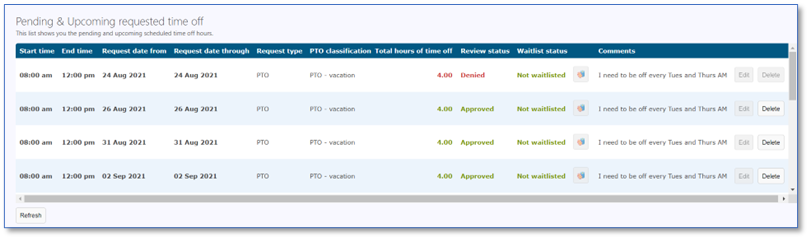
View pending and upcoming time off requests
You can view, delete, and edit (disabled for some), or add to the waitlist (for some requests) current requests.
Go to Plan > Time off worksheet then select Time off overview from the Time off worksheet options.
 Supervisor view
Supervisors will be able to review, approve, deny, and revalidate requests in their Pending requests module.